
In Apptimus, desks can be configured with a variety of features that allow administrators to define booking rules, manage occupancy times, and set restrictions for specific user groups. The Desk Booking module in the mobile and web app enables employees and managers to efficiently schedule, monitor, and manage desk usage. The module provides flexibility in booking desks, tracking active and upcoming bookings, and ensuring optimal utilization of workspace resources.
Setting up Desks
The desk setup and configuration is done by the facility admin. Once the desks are configured employees can start using them.
Prerequisites
The following must already be configured, before you can start working with desks:
Creating Desk Profiles
Note: For steps to create a desk profile, click here.
Desk profiles must be created before you start adding desks to your facility/campus. Creating a desk profile helps you define the behavior of desks in the following ways:
- Show booking status and availability
- Set the maximum number of hours or days for which a desk can be booked
- Restrict specific user groups or teams from booking a desk
- Restrict desk booking to users with a specific role or admin access
- Enable or disable desk booking extensions
- Set the duration for which an extension is allowed
- Enable or disable recurring desk bookings
- Enable or disable manager or admin approval for desk bookings
- Manage desk check-in options
- Self check-in through the mobile application
- Access-control-based check-in and check-out (if enabled)
- Define the earliest allowed check-in time
- Manage desk booking notifications and reminders
- Set automatic cancellation and desk release duration
Adding Desks
Note: For steps on adding desks, click here.
Desks can be added once desk profiles are configured. While adding a desk, you can define its characteristics and services in the following ways:
- Assign a profile to the desk
- Define desk booking preferences
- Add amenities to the desk
- Assign the desk to HVAC, lighting, and shade zones
- Allow pantry service at the desk
- Allow service requests to be raised at the desk
Using Desks
Employees can use the desk booking module in the Apptimus web or mobile app to:
- View desk bookings
- Book desks for themselves or colleagues
- Manage existing desk bookings
- Request or respond to desk booking approvals
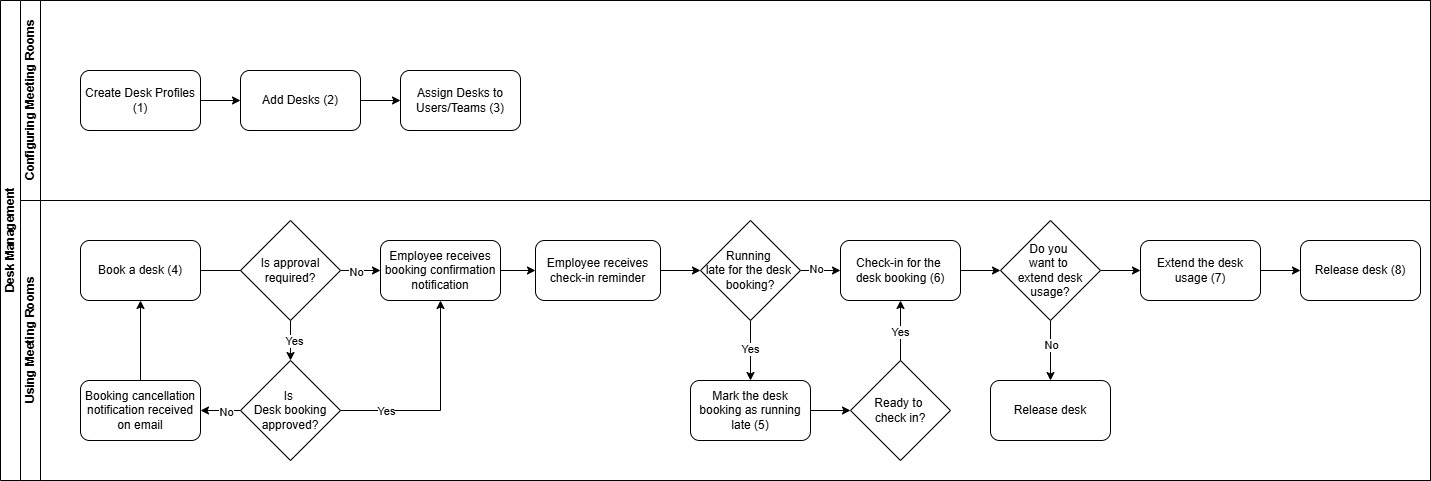
Understanding the Desk Booking Workflow
Let us understand how a user can use the desk booking module to book a desk through the web or mobile app.
- The user books a desk through the web or mobile app.
- The booking request is submitted.
- If approval is required, it is confirmed after approval.
- If approval is not required, it is confirmed immediately.
- Once confirmed, the employee receives a notification confirming the booking status.
- The employee checks in for the desk booking to confirm the desk usage.
- If the employee is delayed, they can mark the booking as running late (using the web or mobile app) to prevent automatic cancellation.
- During the booking period, the employee may extend the desk usage (using the web or mobile app) if no conflicting booking exists and extensions are permitted.
- If the desk is no longer needed, the employee can release it (using the web or mobile app), making it available to others.
- The employee can cancel future or current bookings (before check-in) using the web or mobile app, after which the desk becomes available again.
Note: Refer to the legend below the image for links to documentation for each of the processes.
| Box No. | Document Link |
|---|---|
| 1 | Creating Desk Profiles |
| 2 | Add Desks |
| 3 | Assign Desks |
| 4 | Book a Desk |
| 5 | Mark as Running Late |
| 6 | Check in for the Desk Booking |
| 7 | Extend Desk Usage |
| 8 | Release Desk |