In this section, you will learn how to:
Submitting Responses
- On the Dashboard screen, tap Digital Checklists.
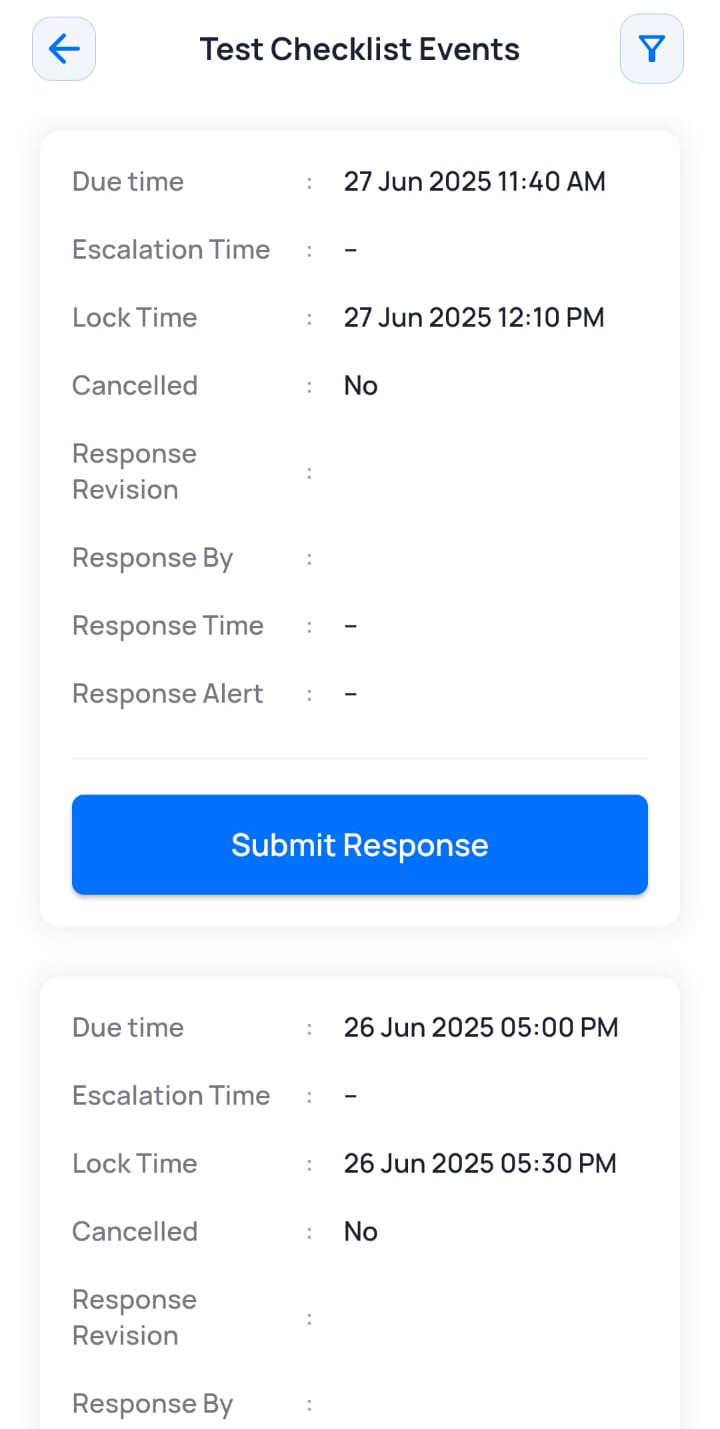
Digital checklist(s) assigned to you are displayed. - Tap the checklist for which you want to submit the response.
The Checklist Events screen is displayed. - Tap Submit Response.
- Enter or select your responses on the digital checklist form and tap Complete.
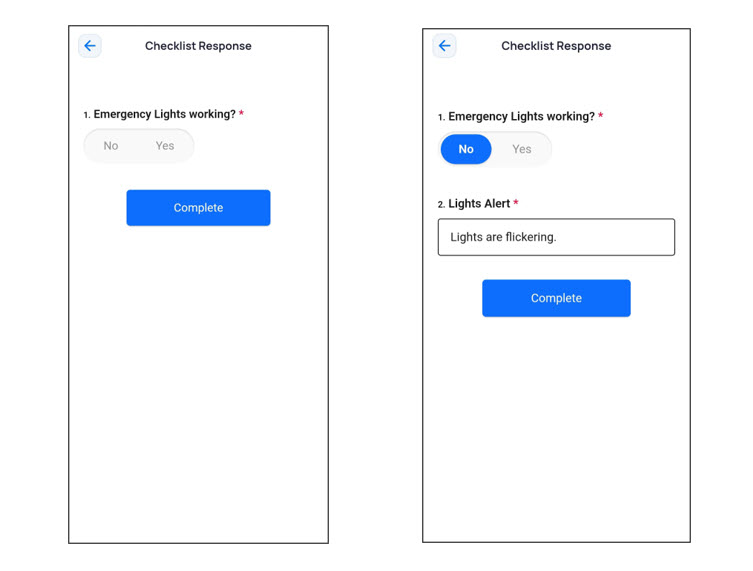
The response is submitted successfully. If the checklist response also has an alert, the assigned user(s) receive an email notification as well a notification on the Apptimus app about the alert. You can view this response on the Checklist Events screen.
Resubmitting Responses
A response to a digital checklist may be resubmitted for several reasons. Often, users need to correct errors or provide missing information from the initial submission. In some cases, new observations or updates may arise after the original response, requiring a revised entry. In certain situations, technical issues may prevent the first submission from saving correctly, prompting the user to submit it again.
Note: Resubmitting responses is permitted only if the Resubmit Allowed setting has been enabled for the checklist category by the admin.
- On the Dashboard screen, tap Digital Checklists.
Digital checklist(s) assigned to you are displayed. - Tap the checklist for which you want to submit the response.
The Checklist Events screen is displayed. - Tap Submit Response.
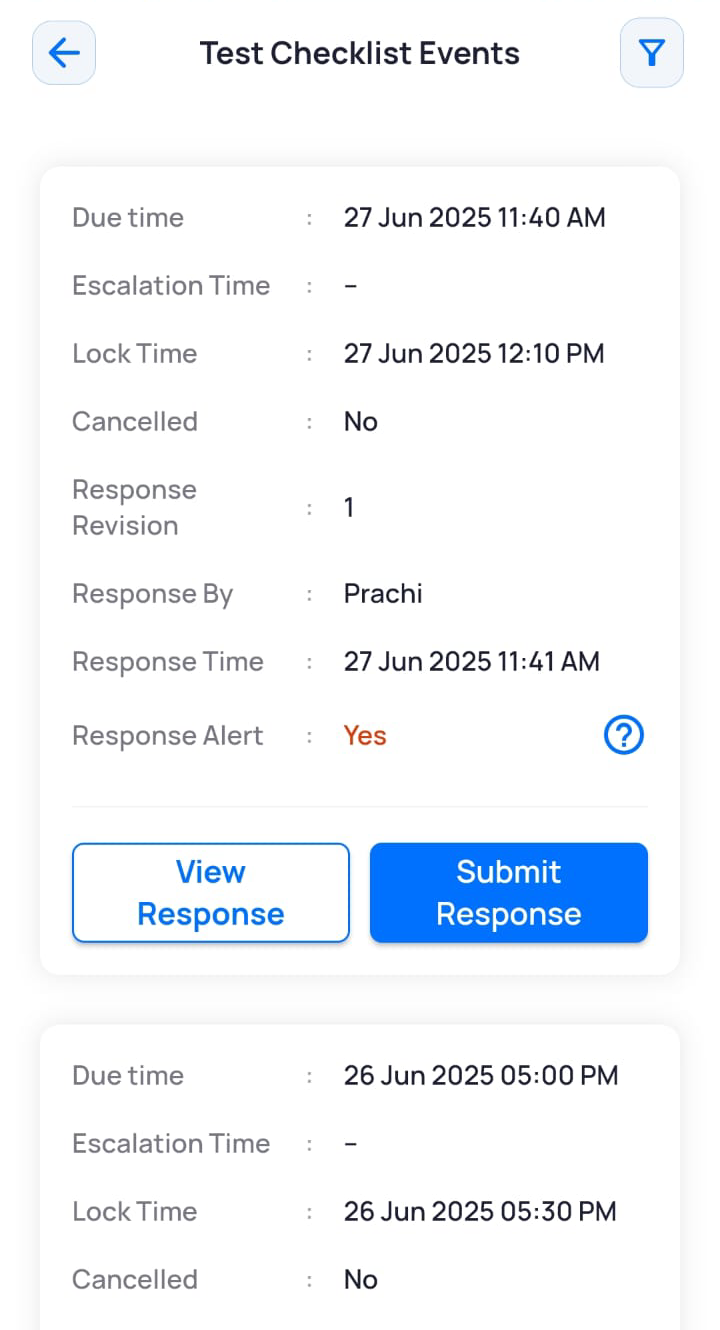
- Enter or select your responses on the digital checklist form and tap Complete.
The response is submitted successfully. If the checklist response also has an alert, the assigned user(s) receive an email notification as well as a notification on the Apptimus app about the alert. You can view this response on the Checklist Events screen where the Response Revision number reflects the latest submission.
Viewing Digital Checklist Responses
- On the Dashboard screen, tap Digital Checklists.
Digital checklist(s) assigned to you are displayed. - Tap the checklist for which you want to view the response.
The Checklist Events screen is displayed. - Tap View Response.
The Checklist Response screen displays the response(s) submitted by the user.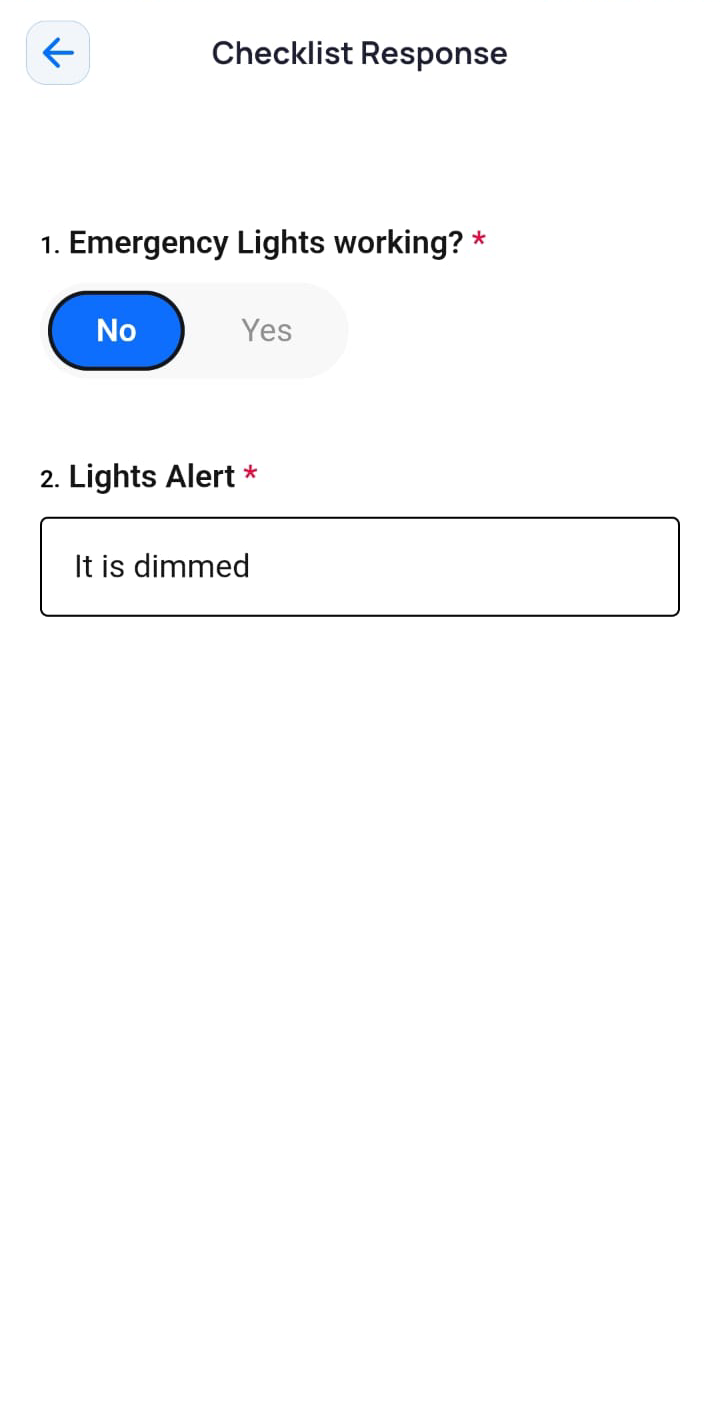
-
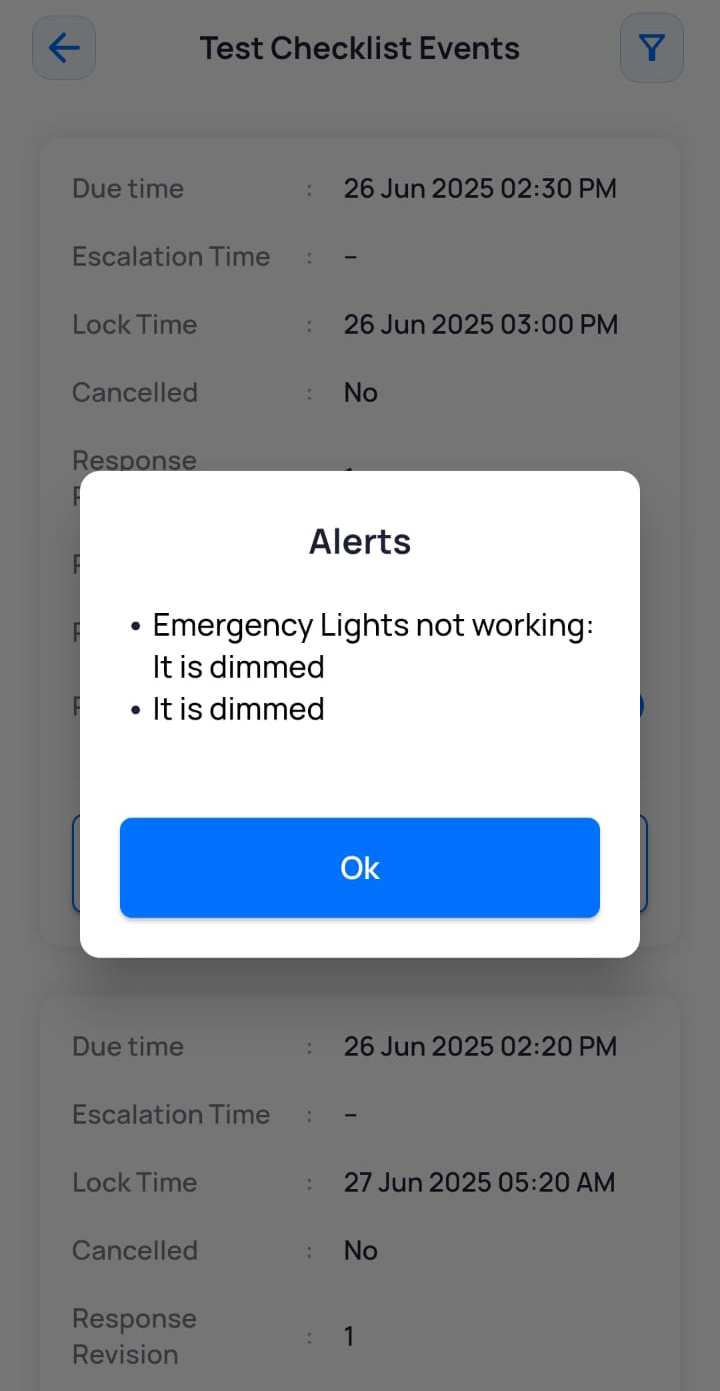
To view details of the alert raised, on the Checklist Events screen, tap the
 icon.
The alert info is displayed.