
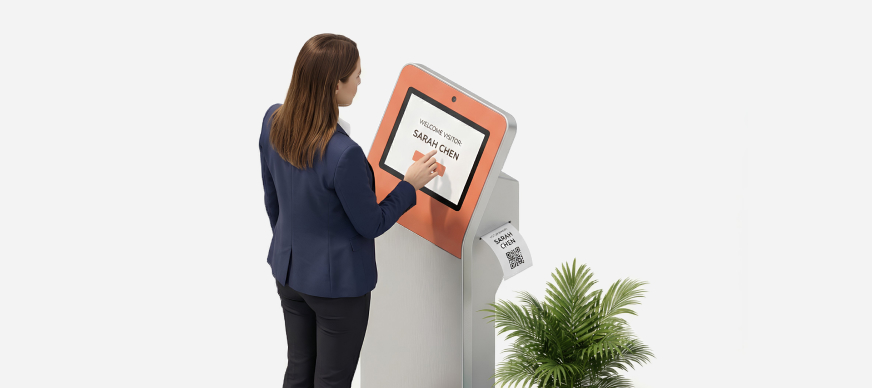
You can view both current (upcoming) and past visitor invitations in the Visitor Management module. You can also re-invite visitors from past invitations.
Viewing Upcoming Visitor Invitations
- On the Dashboard screen, tap Visitor Management.
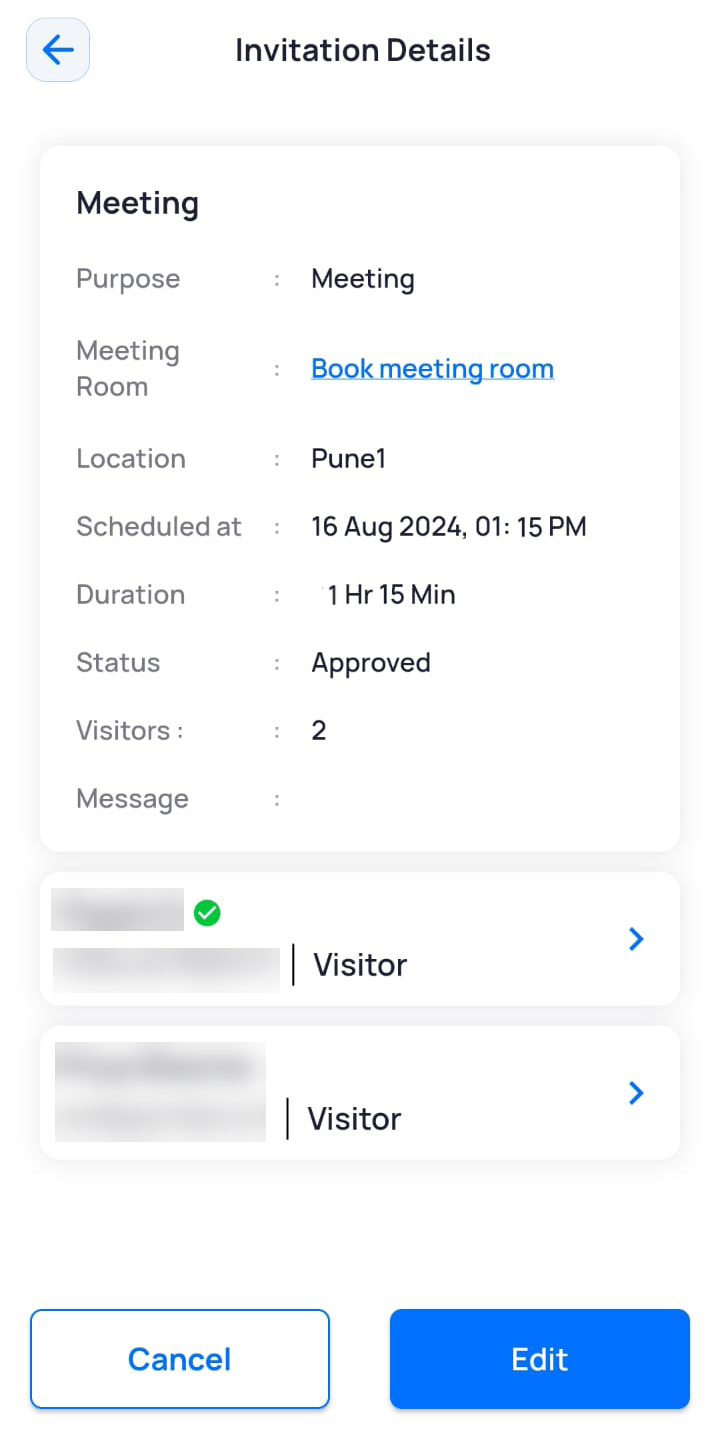
The Visitor Management screen is displayed with the Upcoming tab open. By default, the Upcoming tab is selected and displays all your future visitor invitations. You can tap an invite to see the visitor list and also see which visitors have completed the registration and confirmed their response for that invite. Visitors who have confirmed will have a green tick against their name.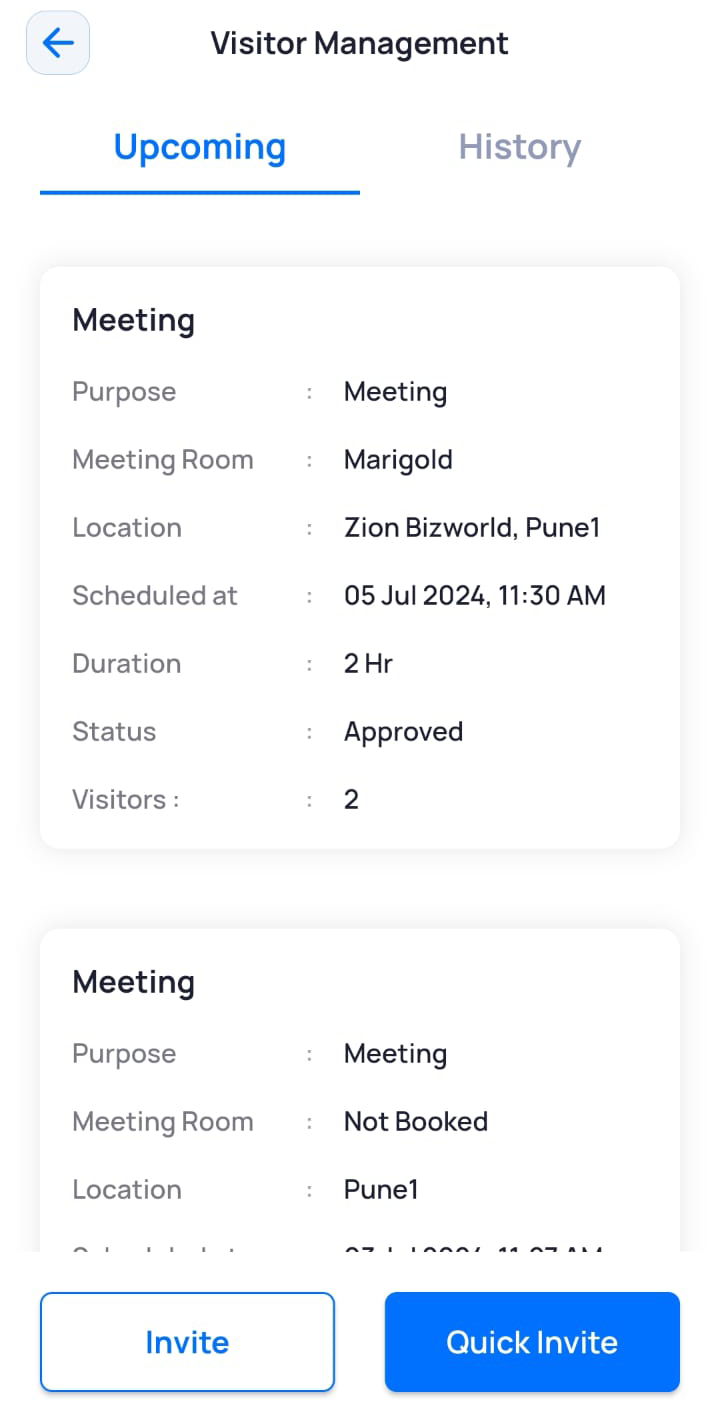
- To see the list of visitors, tap the invite.
A green tick is displayed next to the names of visitors who have accepted the invitation.
Viewing Past Visitor Invitations
To view all current and past invitations:
- On the Dashboard screen, tap Visitor Management.
The Visitor Management screen is displayed with the Upcoming tab open by default. - Tap the History tab.
All current and past visitor invitations are displayed.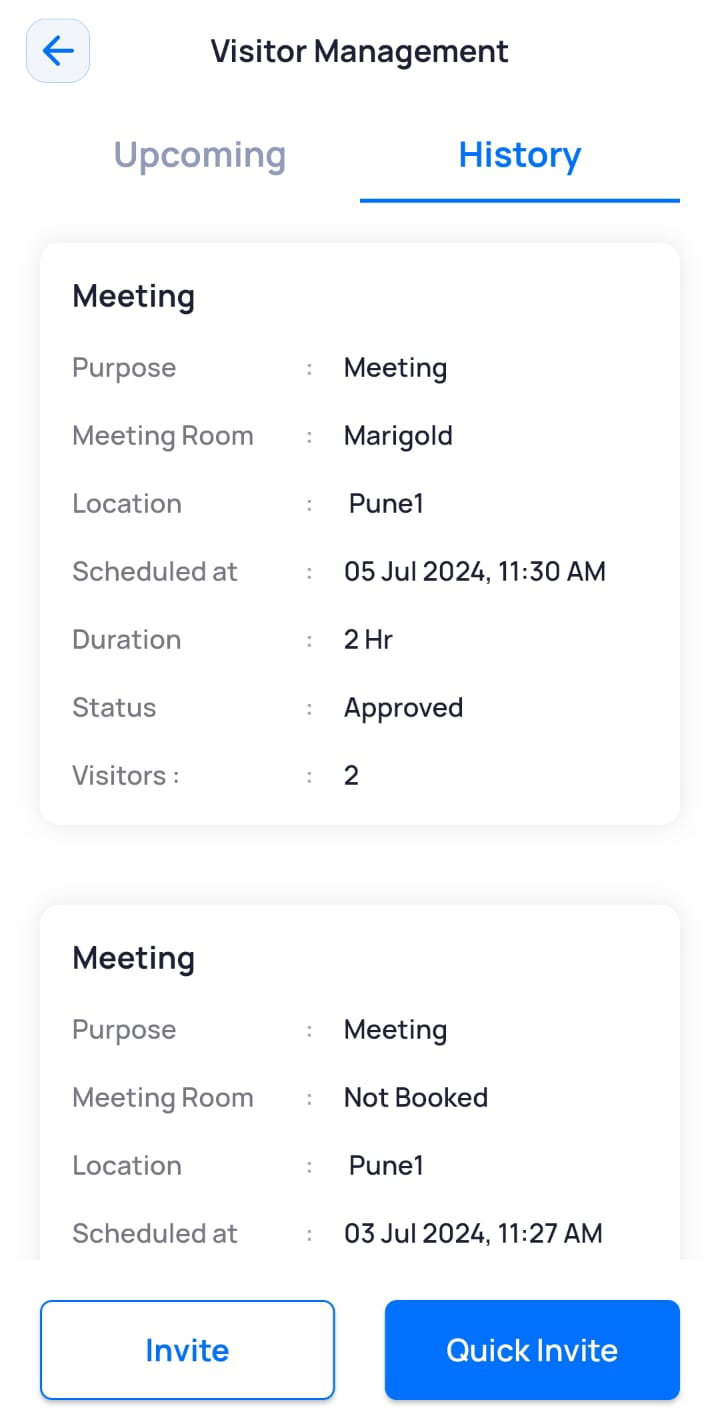
- To filter visitor history by a specific visitor, in the Search Visitor field, type the name of the visitor.
The results display all instances when that visitor was invited. - To filter the visit history, tap the
 icon.
- Select the Start Date and End Date.
- Click Ok.
The visitor history results are filtered based on the selected dates. - To clear the filter parameters, tap Clear.
Re-inviting visitors from a Previous Invite
This feature is particularly useful for re-inviting visitors from a previous event to a new one. It saves the time spent in adding invitee details individually. Additionally, it simplifies the invitation process when organizing a similar event by reusing previous invitation details.
To re-invite visitors from a previous invite:
- On the Dashboard screen, tap Visitor Management.
- On the Visitor Management screen, under the History tab, tap the invitation whose invitees you want to reinvite.
The Invitation Details screen is displayed with the event and visitor information. - Tap Reinvite.
- Update the required invitation details.
You can also add or remove visitors, if required. - Click Save & Next.
A pop-up is displayed confirming that the visitor invitation is created and prompting you to book a meeting room (only if the meeting room module has been integrated with the visitor management module).
If a meeting room is not needed, tap X on the Success!! screen.
Note: The invite details are displayed in the Upcoming tab of the Visitor Management screen.
A text notification is sent to the visitor with the event information and registration steps. Once the visitor completes the registration, the host receives an email notification of their response.