
Service requests enable users to seek assistance or report issues related to the services, facilities, or infrastructure within an organization. They support timely maintenance, troubleshooting, and operational efficiency. The Service Requests settings allow you to configure and manage these requests at either a facility level or an organizational level.
Service Request Configuration Overview
Service request management involves some core configuration activities:
- Defining Service Types and Sub-Services
- Service Types are high-level categories such as Mobile Servicing, Housekeeping, or Maintenance that can be configured for specific locations and may include attached documents or forms to guide users while raising requests.
For example, a New Mobile Connection service type may include a help file on available plans or a form for user details. - Sub-Services provide additional granularity under each Service Type. For example, under Housekeeping you might define sub-services as 'Tables Unclean' and 'Floor Unclean'.
- Service Types are high-level categories such as Mobile Servicing, Housekeeping, or Maintenance that can be configured for specific locations and may include attached documents or forms to guide users while raising requests.
- Mapping Services to Resources
Service Types must be mapped to relevant resources (campus, building, floor, area) to enable location-specific service handling.- For example, you can link the 'Cafeteria' service type to a specific Floor or a designated Area on that floor.
- Allocating Default Service Requests (Assignment and Escalation)
This configuration defines who handles the service requests and ensures timely action through escalation.- Default Assignment: Assign a Default Assign User and Sub Assignee Users who take over when the default user is unavailable.
- Escalation:
- Resolution Escalation Users handle any unresolved requests
- Acknowledgement Escalation Users follow up if notifications remain unacknowledged.
- Notifications: Configure in-app and email alerts for assignment, repeats, and escalations.
- Sleep Configuration: Helps prevent unnecessary escalations during non-working hours.
Configuring Approvals
For service requests that require oversight (e.g., new mobile connections or laptops), mandatory approvals can be set up.
- Approval Types: Approvals can be configured as Manager, Users, or Dynamic.
- Dynamic Approval is used for scenarios like 'Lost and Found', where an Admin assigns the claimant as the approver, who confirms ownership before the item is handed over.
- Approvals can be set to allow rejection and can be configured at multiple Approval Levels.
Configuring Shortcuts
Shortcuts can be created for frequently raised service requests to enhance user experience.
- A shortcut automatically populates details such as the Resource Type, Building, and Floor when a user selects it in the mobile app, allowing them to quickly raise common requests.
Managing Tags and Priority Templates
- Tags: Labels (for example, Cafeteria) applied to service requests for easy grouping and filtering.
- Priority Templates: Define custom priority levels, such as 'Critical' and 'Non-Critical' (with up to five custom priorities), to replace the default priorities (low, medium, high), to match your organization's specific needs.
Service Requests Configuration Examples
There are several types of service requests that users may raise. Some are triggered automatically based on unexpected responses in a digital checklist, while others are specific to asset management or dedicated to Lost and Found cases. Certain requests may also require a help file or a form for users to complete during submission. In this section, we will look at examples of how to configure the settings for each of these different types of service requests.
We will look at the following use cases:
- Service Requests for New Mobile Connection
- Service Requests for Lost and Found Items
- Service Requests for Assets
Service Request Configuration for New Mobile Connection
- Create a service type named New Mobile Connection.
- (Optional) Upload a Help Info file describing pre-paid and post-paid plans provided by different mobile service providers.
- (Optional) Select a related service tag. This is helpful at the time of filtering service requests based on tags.
- Create a sub service type under this named Mobile SIM.
- Map the service type to a resource. In this case, you can map the mobile connection service type to Campus to allow users associated with the campus to raise this type of service request.
- Select the corresponding sub service.
- Attach a form for users to fill out. This form can collect basic details such as the user’s name, employee ID, email, service partner, and any other information that may be helpful at the time of processing the service request.
- Map the service type to a service group (specifically asset related service requests)
- Allocate default users to process the service request. The following types of allocations can be configured:
- Assign users responsible for processing the service request (Mandatory).
- Assign/identify resolution escalation users who will take action if the request is not resolved in time (Optional).
- Assign/identify acknowledgment escalation users who will act if the service request notifications remain unacknowledged (Optional).
- (Optional) Create service tags and map them to the corresponding service type. For example, create a mobile tag and select it when creating the new mobile connection service type.
- Configure managerial approval to ensure that the request for a new mobile connection is approved by the user’s manager. For our example, you can select the Approval Type as Manager. The following options are available here:
- Marking the service request approval mandatory.
- Allowing rejection of service requests.
- Add comments (to give reason for rejecting the service request or any other comment)
- Configure repeat notifications.
- (Optional) Create a shortcut section. You may create a shortcut section called Mobile Services and add service request shortcuts like Mobile SIM, mobile device, International Roaming, and so on.
- (Optional) Configure service request shortcut. You can configure a service request shortcut called Mobile Connection and add it to a shortcut section. This helps user quickly find the service request they are looking for.
- (Optional) Add a sleep configuration to ensure that service requests raised during non-working hours are not escalated for non-resolution.
- (Optional) Add a priority template to define custom priority levels for service requests.
Service Request Configuration for Lost and Found Items
Lost & Found scenarios use dynamic approvals to ensure that the correct person verifies ownership before an item is handed over.
Configuration is similar to the New Mobile Connection example, with a few differences:
- Create a service type called Lost and Found.
- At the time of configuring managerial approval for the Lost and Found service type, select the Approval Type as Dynamic.
- Enable the Rejection Allowed checkbox to allow the dynamic approver to reject the service request. This option is useful when an incorrect user is assigned as the dynamic approver or when the assigned user declines ownership of the found object.
Service Request Configuration for Assets
Asset-related service requests require additional service group mapping to ensure accurate and consistent handling. When an asset is linked to a specific service group, it must also be correctly associated with the corresponding service type. This mapping ensures that any asset assigned at the group level is automatically carried forward to the service type level, maintaining consistency across all asset-to-service relationships.
This configuration applies specifically to resource types classified as assets. During service mapping, admins can define which service groups should be associated with a given service type.
To configure service group mapping for assets:
- Navigate to the service mapping settings.
- Click the Edit icon for the resource type Asset.
- From the available options, select the Service Group that should be linked to the chosen service type.
- Save the mapping to ensure that all assets under the selected group are automatically recognized for that service type.
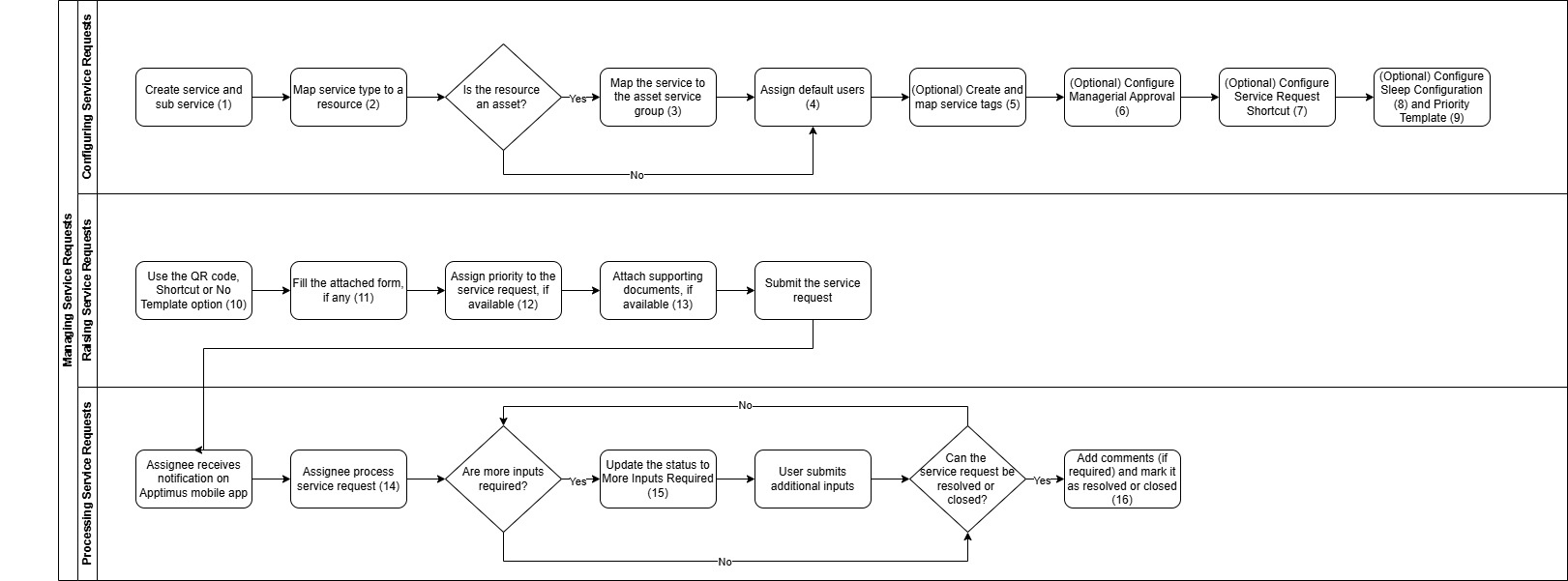
Service Request Configuration and Execution Workflow
Note: Refer to the legend below the image for links to documentation for each of the processes.
Raising a Lost & Found Type Service Request
In this section we will look at the workflow for how a service request is raised for Lost & Found items.
- An item such as a wallet or access card is found and handed over to the security staff.
- The security team creates a new service request with the service type as Lost and Found. The system automatically applies the dynamic approval workflow for the Lost & Found service type.
- When someone arrives to claim the item, security verifies their identity and assigns them as the dynamic approver for the service request.
- An approval notification is sent to the user through email or the mobile app.
- The user can:
- Approve the request to confirm ownership and authorize item release
OR - Reject the request if the item does not belong to them or if they were assigned incorrectly.
- Approve the request to confirm ownership and authorize item release
- Based on the approver's action, the service request is closed or updated for further processing.

| Box No. | Document Link |
|---|---|
| 1 | Configuring Service Types |
| 2 | Configuring Approvals |
| 3 | Processing Service Requests |