
Once you place a pantry, you can track its progress. Each order status shows you the current stage of your order and any issues that may arise during processing. You can also cancel an order, but only if it is in Queued status.
To track an order:
- On the Dashboard screen, tap Pantry.
The Pantry Orders screen is displayed with the Ongoing tab displaying ongoing orders placed by you, if any.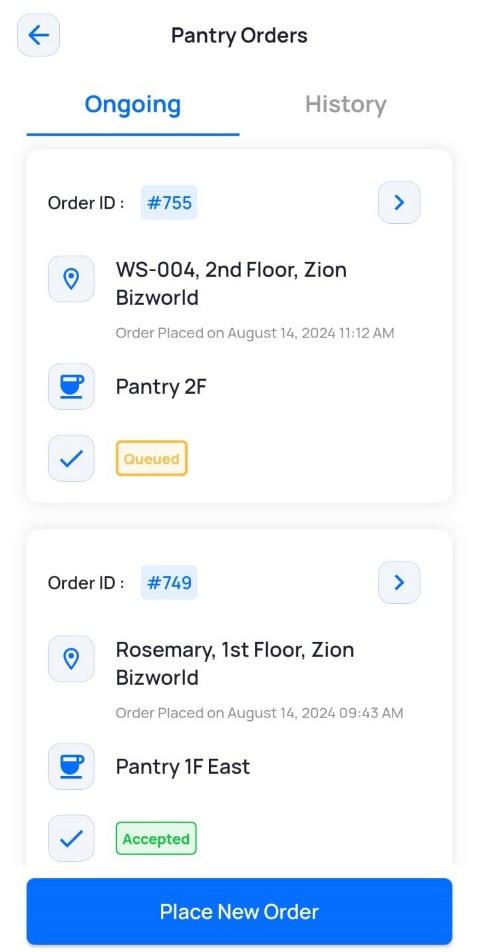
- To see previous pantry orders, tap History.
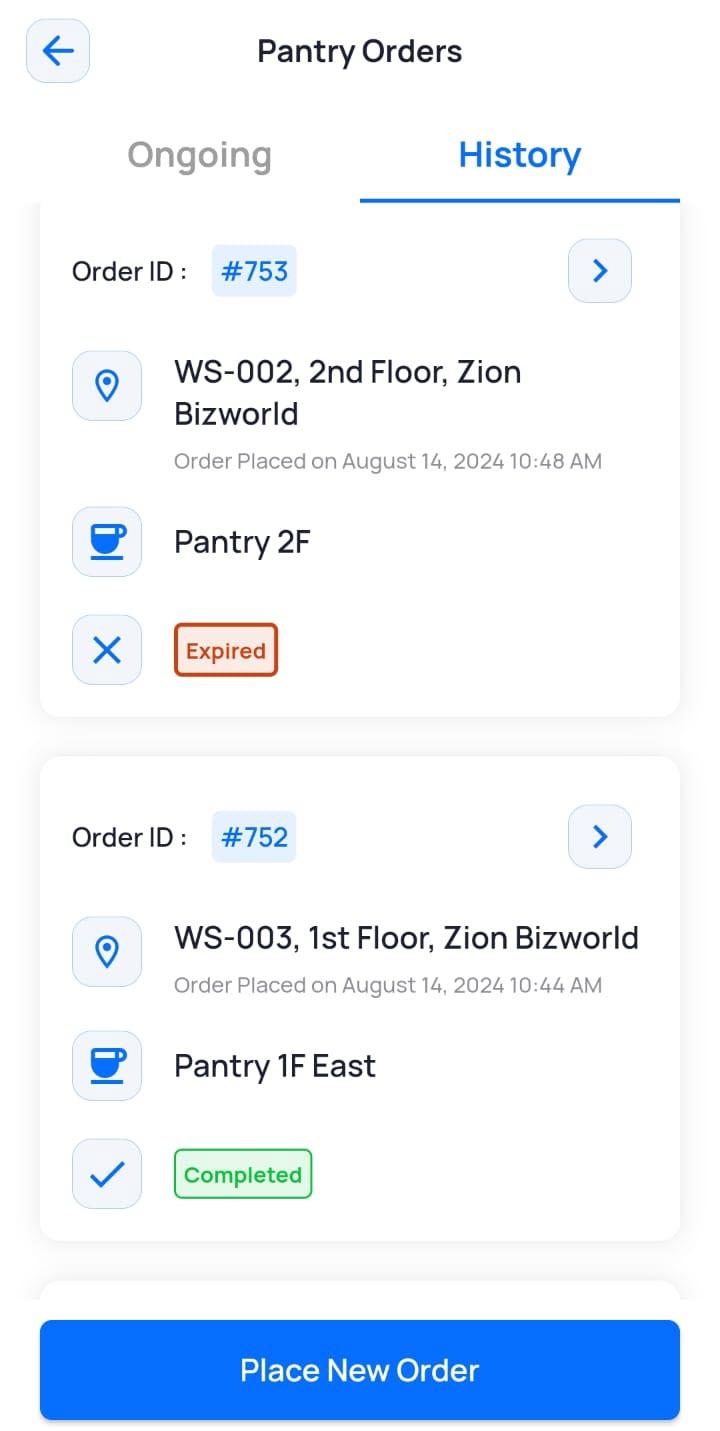
Understanding Pantry Order Statuses
Here is a list of order statuses that reflect the progress of your placed order:
| Field | Description |
|---|---|
|
Queued |
Displayed when you place your order, and the pantry is yet to process it. |
|
Accepted |
Displayed when your order has been fully accepted. |
|
Partially Accepted |
Displayed when only some items in your order are accepted. Details of accepted and rejected items are displayed in the "Order Details" section. |
|
Rejected |
Displayed when your order cannot be fulfilled due to item unavailability or other issues. |
|
Expired |
Displayed when your order is not processed within the Auto Expiry time set by the admin. |
Cancelling Pantry Orders
Note: You can cancel only those orders that are in Queued status.
- On the Dashboard screen, tap Pantry.
The Pantry Orders screen is displayed with the Ongoing tab listing all ongoing orders placed by you. - Tap
 for the order you want to cancel.
- On the Order Details screen, tap Cancel Order.
- On the confirmation screen, tap Yes.
The cancelled order is displayed under the History tab.