
In this section, you will learn how to:
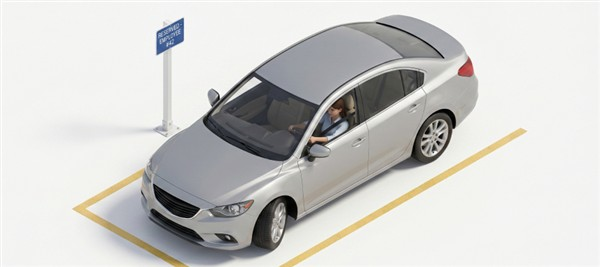
Parking profiles help you define rules and restrictions for specific parking spots within your facility. By creating and configuring profiles, you can control who is eligible to use the spots, set requirements such as vehicle registration or desk booking, and allow or restrict access for employees, visitors, and guests.
Adding a Parking Profile
- In the Main Menu, under the ADMIN OPTIONS, in the Facilities subsection, click Profiles.
The Profiles page is displayed with the Desk tab open by default. - Click the Parking tab and then click Add Parking Profile.
- Enter or select the required field information:
Field Description Parking Profile Name* Enter the name for the parking profile.
Type* Select whether the profile is for a:
- Two Wheeler
- Four Wheeler
Restricted User Groups Select the user groups that are eligible to use the parking spots assigned to this profile. Allow Management Select this checkbox to allow the security or parking staff to manage the parking spots with this profile.
Vehicle Identification Required Select this checkbox to require vehicle registration before parking in spots associated with this profile.
If not selected, these spots remain open for all vehicles.Desk Booking Required Select this checkbox to allow parking in the spots linked to this profile only when the employee has a valid desk booking for the day.
Visiter Allowed Select this checkbox to allow registered visitors to park in the spots linked to this profile. Guest Allowed Select this checkbox to allow guests (walk-in guests) to park in the spots linked to this profile. User Allowed Select this checkbox to allow users (employees) to park in the spots linked to this profile.
- Click Save Parking Profile.
The parking profile is saved. - To go back to the previous screen and see this profile added to the list of the parking profiles, click Back.
Editing a Parking Profile
- In the Main Menu, under the ADMIN OPTIONS, in the Facilities subsection, click Profiles.
The Profiles page is displayed with the Desk tab open by default. - Click the Parking tab.
- Under the Action column, click the edit
 icon for the parking profile to be edited.
- Update the required fields. Refer Adding a Parking Profile for field descriptions, if needed.
- Click Save Parking Profile.
The profile is updated.