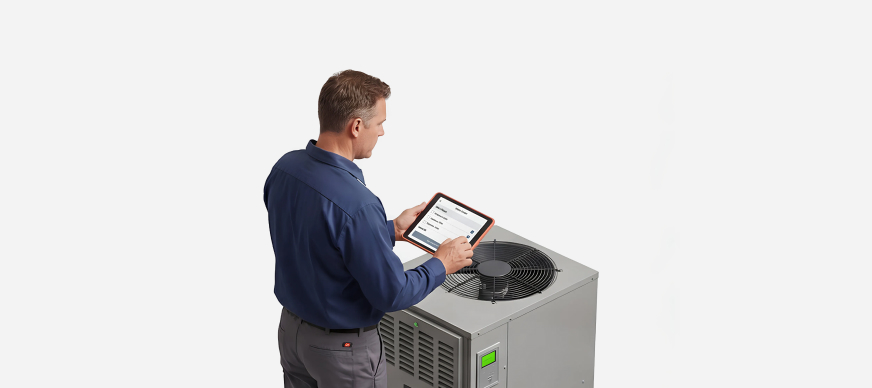
Organizations have different departments— for example, Housekeeping, Security, and Maintenance — each with several daily operational responsibilities that have to be completed as specified. For example, the housekeeping team may be tasked with cleaning desks, cabins, open areas, restrooms, cafeterias, stairwells, and so on. Each of these areas may have its own procedures that must be followed consistently and may be handled by different people at different times.
Having a checklist ensures that all tasks are completed as specified, irrespective of who does them.
A digital checklist is the online version of a physical checklist and is used to track and verify tasks on a computer or mobile device.
With Digital Checklists in Apptimus, you can:
- assign checklists to designated people
- ensure only designated people complete the tasks
- set a schedule for when the tasks should be carried out
- prevent skipping of steps using built-in checks
- enable real-time tracking, reporting and accountability
Working with a Digital Checklist
Working with a digital checklist involves two steps:
- Creating the digital checklist: A digital checklist is a form containing all the questions staff must answer while completing the activity. This form is created under the Forms module.
- Using the digital checklist: Once you have created the checklist, the next step is to link it to the task that it was created for. These tasks are created under the relevant category in the Digital Checklist module.
Process for Creating and Configuring a Digital Checklist
Assume you want to create a checklist for cleaning restrooms in your facility.
- In the Forms module, create a form called Restroom cleaning. Ensure that the Form Type selected is Digital Checklist.
- (Optional) Add verifications - QR code scanning, GPS location, or face recognition fields can be added to the form to confirm the user’s identity and location before displaying the checklist questions.
- Add questions that make up the checklist - The form should contain simple, action-oriented questions, typically with a Yes/No answer, as well as questions that can highlight maintenance issues. For example, a the Restroom cleaning form could have questions such as:
- Have the floors been cleaned?
- Have the floors been dried?
- Are any taps leaking?
- Has the soap been refilled in the dispensers?
The housekeeping staff submits responses to each of these questions in the checklist when performing their task.
- Define Expected Responses - Each question should have an expected response to ensure clarity and consistency. For example:
Question
Expected Response
Have the floors been cleaned?
Yes
Have the floors been dried?
Yes
Are any taps leaking? No
Has the soap been refilled in the dispensers? Yes
If the response deviates from the expected response, you can configure the form to automatically display additional fields where the user can provide details.
- (Optional) Trigger Automated Actions - For any unexpected responses, you can also configure the system to trigger automated service requests.
- For example, if the answer to the question Are any taps leaking? is Yes (Unexpected response), you can add an Auto service request code (for example, WaterLeak) to the question in the form to automatically raise a service request to the Maintenance department.
Note: This code is also used and mapped with the corresponding service request shortcut at the time of Adding a Digital Checklist Category. Click here for more information.
Note: Automated service requests can be configured only if your organization has purchased the Service Request module.
- For example, if the answer to the question Are any taps leaking? is Yes (Unexpected response), you can add an Auto service request code (for example, WaterLeak) to the question in the form to automatically raise a service request to the Maintenance department.
- In the Digital Checklist module, access an existing category or create the required Digital Checklist Category. In our example, this category would be named Housekeeping.
- Under this category, add a task.
- To the task,
- Assign designated users (who will complete the checklist).
- Set a schedule for the task.
- Select the checklist to use. In our example, this is the Restroom cleaning form.
- Add validations.
Once the checklist is set up, designated users are notified via the Apptimus mobile app when it is due. They can then complete the checklist and submit their responses directly through the app.
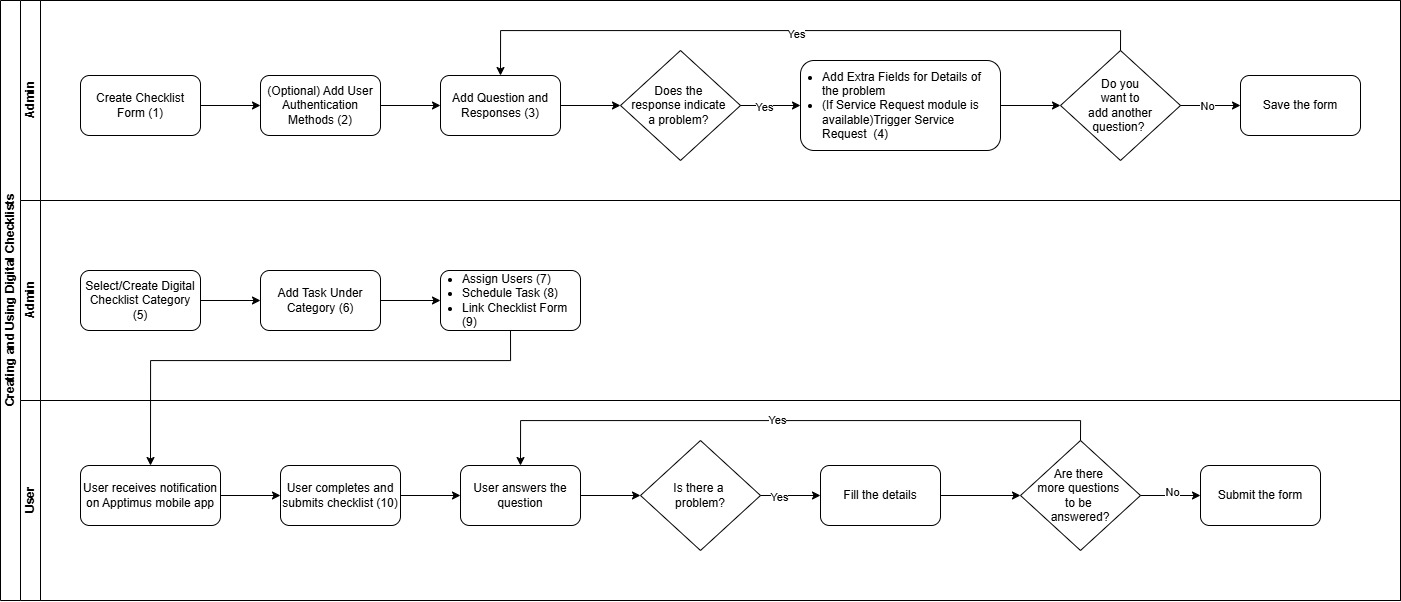
Sample Workflow for Creating and Using Digital Checklists
Note: Refer to the legend below the image for links to documentation for each of the processes.