
After configuring the settings for the Lighting zones in the web application, you can access and manage the light controls for each zone through the Apptimus app. The control options for a light zone are fetched directly from the light controller and therefore may differ depending on the type of lights installed in that zone. For example, a certain light zone may have preset scenes added, another may have white tunable lights, or a zone may have simple On/Off lights.
To manage the controls of a lighting zone:
- On the Dashboard screen, tap Light Control.
The Light Control screen is displayed. - Select the location where you want to manage the light settings.
A list of all lighting zones is displayed.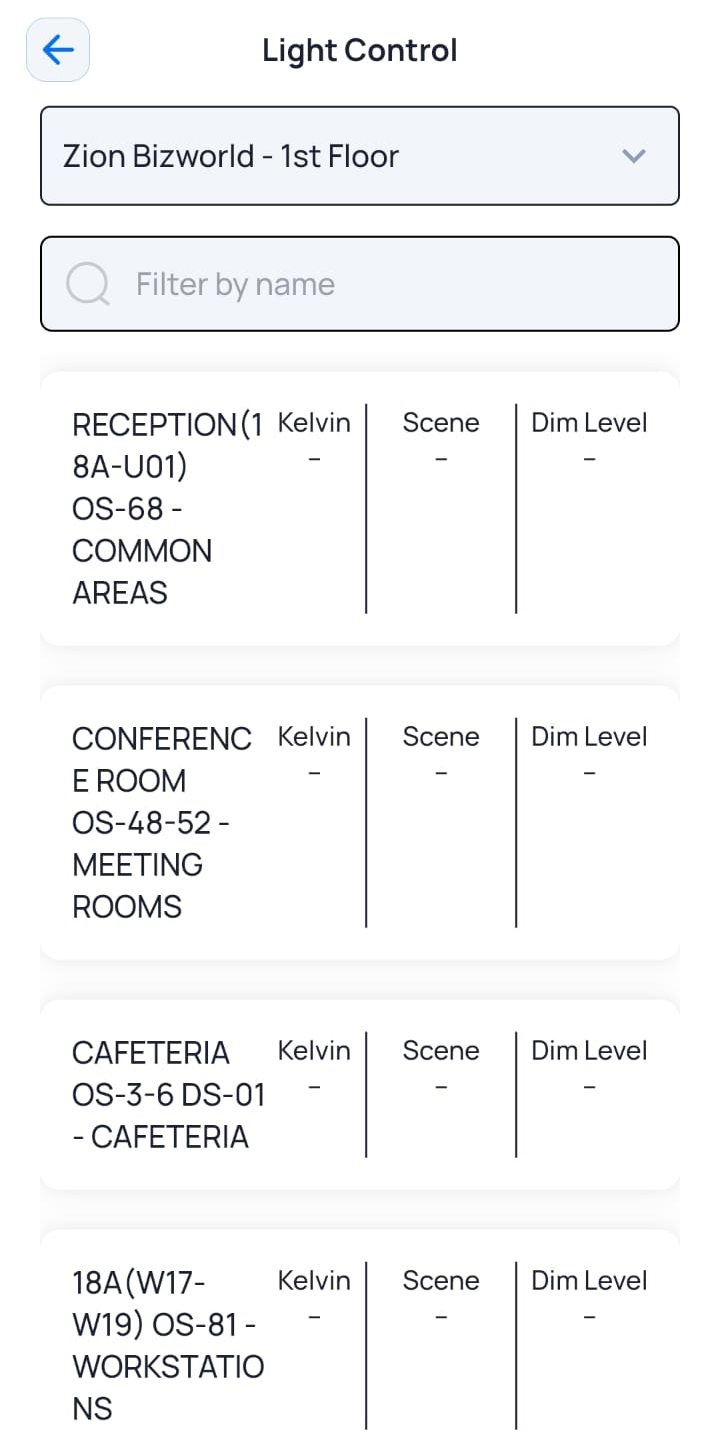
- Tap the zone for which you want to manage the settings.
The screen displays the following settings, as configured in the web application:Field Description Scene
Allows you to select the scene.
Note: The scenes may vary for each lighting zone based on the configurations set in the lighting zone settings.
Intensity
Allows to set the intensity of the lights in the zone by moving the bar to the right (high intensity) or left (low intensity).
- Click Apply.
The override settings are applied.