
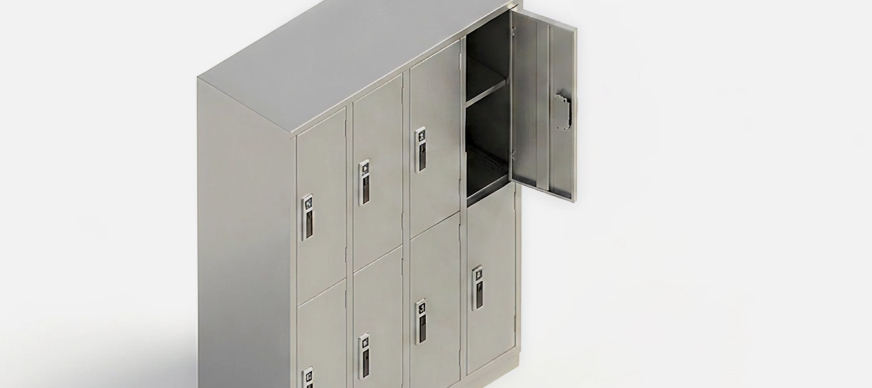
As an employee, you can:
The Locker module enables employees to view their assigned locker(s) , locate them on the floor map, and raise service requests related to locker issues. This functionality ensures that employees can efficiently address any issues or concerns they may encounter with their lockers such as broken parts, access issues, lost item reports, locker reassignment, and so on. By facilitating prompt communication through the app, employees can easily address their locker needs, thereby enhancing the overall user experience and ensuring that locker maintenance and support are effectively handled.
Viewing Assigned Lockers
- On the Dashboard screen, tap Locker.
Details of the locker assigned to you are displayed.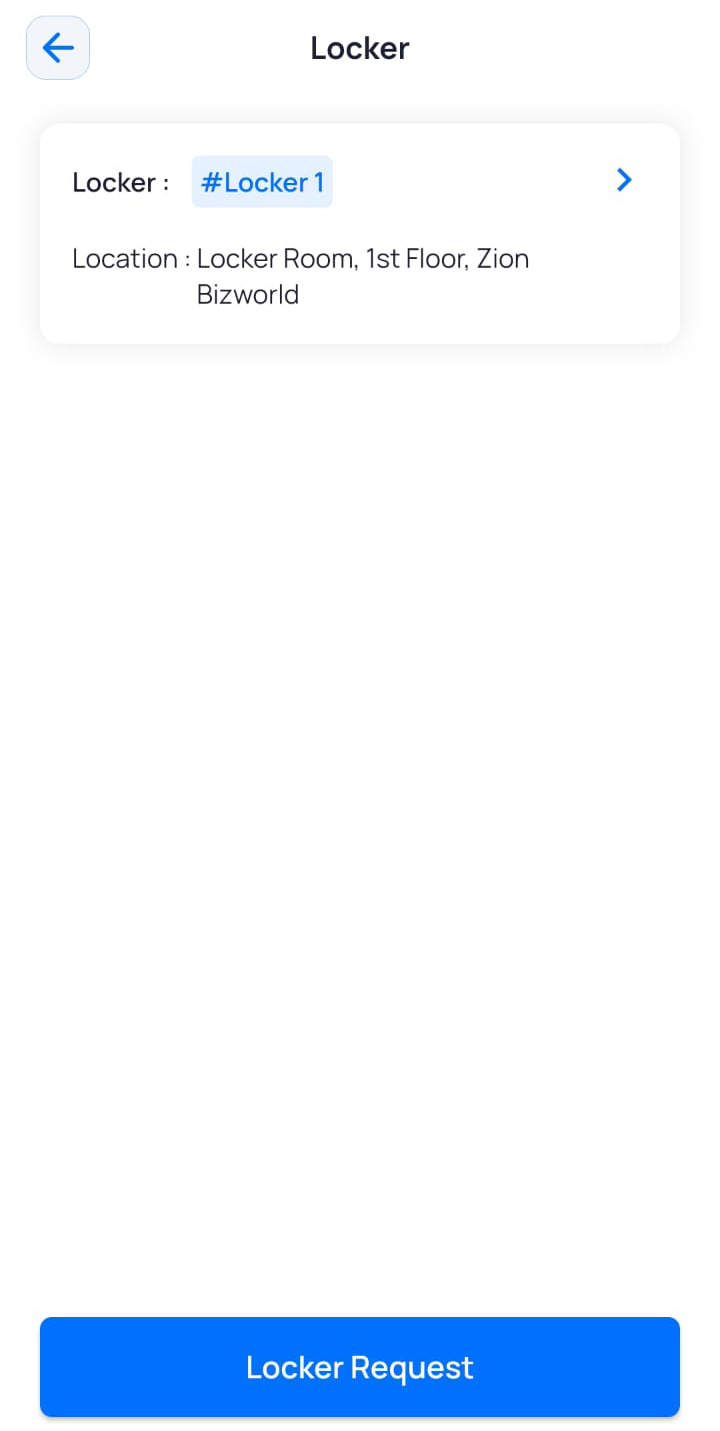
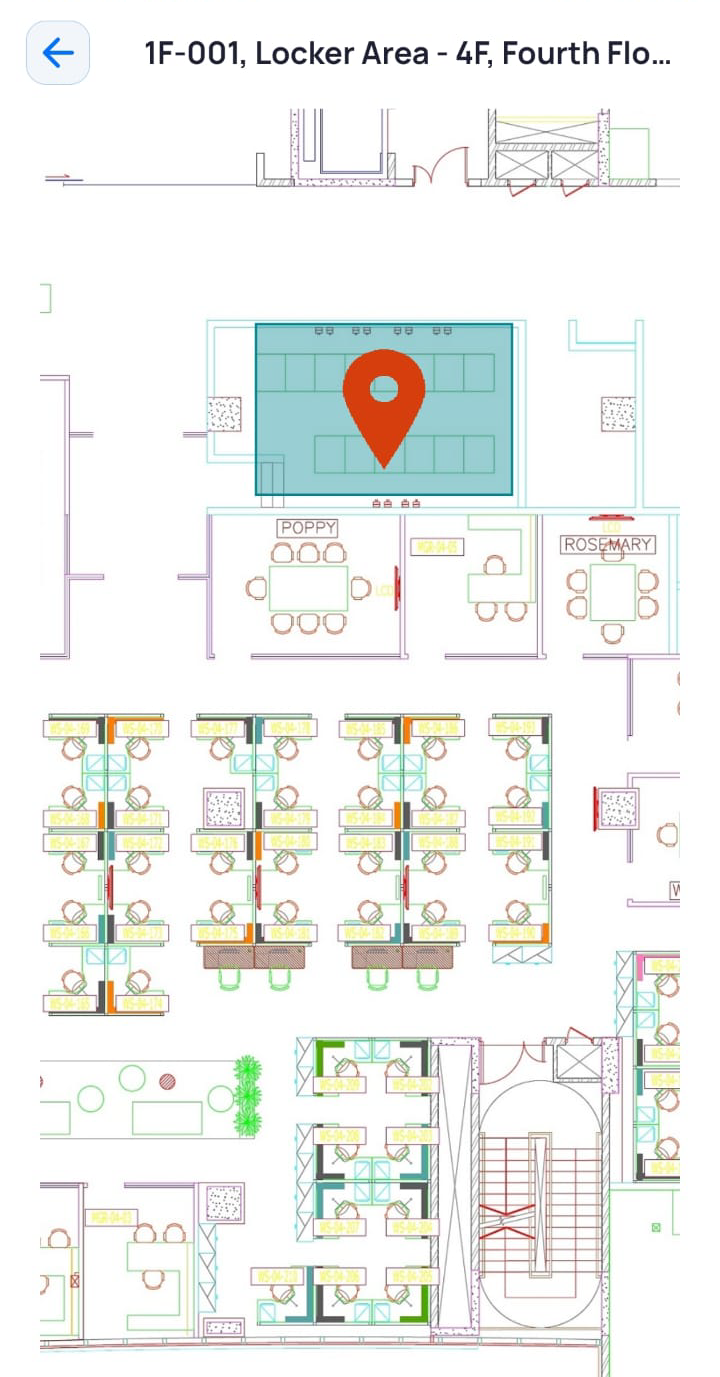
- Tap the locker to view its location on the floor plan.
Raising a Service Request for the Locker
To raise a service request for a locker, the administrator must first enable the feature in the web application settings. If a service request shortcut for the locker is also configured, users can submit requests through the shortcut. In this case, basic information is automatically prefilled, and users only need to enter specific request details.
If the shortcut is not configured, users must manually fill in all required fields, similar to raising a standard service request.
- On the Dashboard screen, tap Locker.
Details of the locker(s) assigned to you are displayed. - Tap Locker Request.
Note: The Locker Request button will be displayed only if it has been enabled by the facility admin.
The New Service Request Screen is displayed.
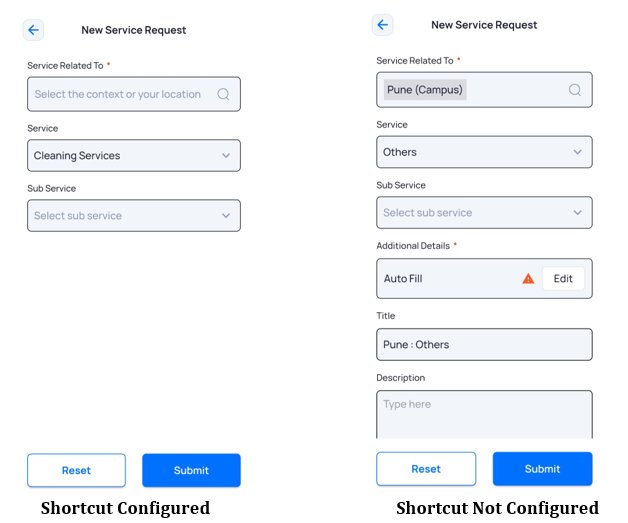
- Enter the required details for raising the service request.
For more information on creating a service request, click here.