
Using Mail Management, you can track your mail activities for both your inbound and outbound mail requests. This feature provides a convenient way to monitor the status of a mail you have sent or are expecting, ensuring you stay informed about the processing and delivery of all your correspondence.
To view mail requests:
- On the Dashboard screen, tap Mail Management.
The Mail Management screen is displayed with the Inbound tab displaying mails addressed to you received by the mailroom, if any.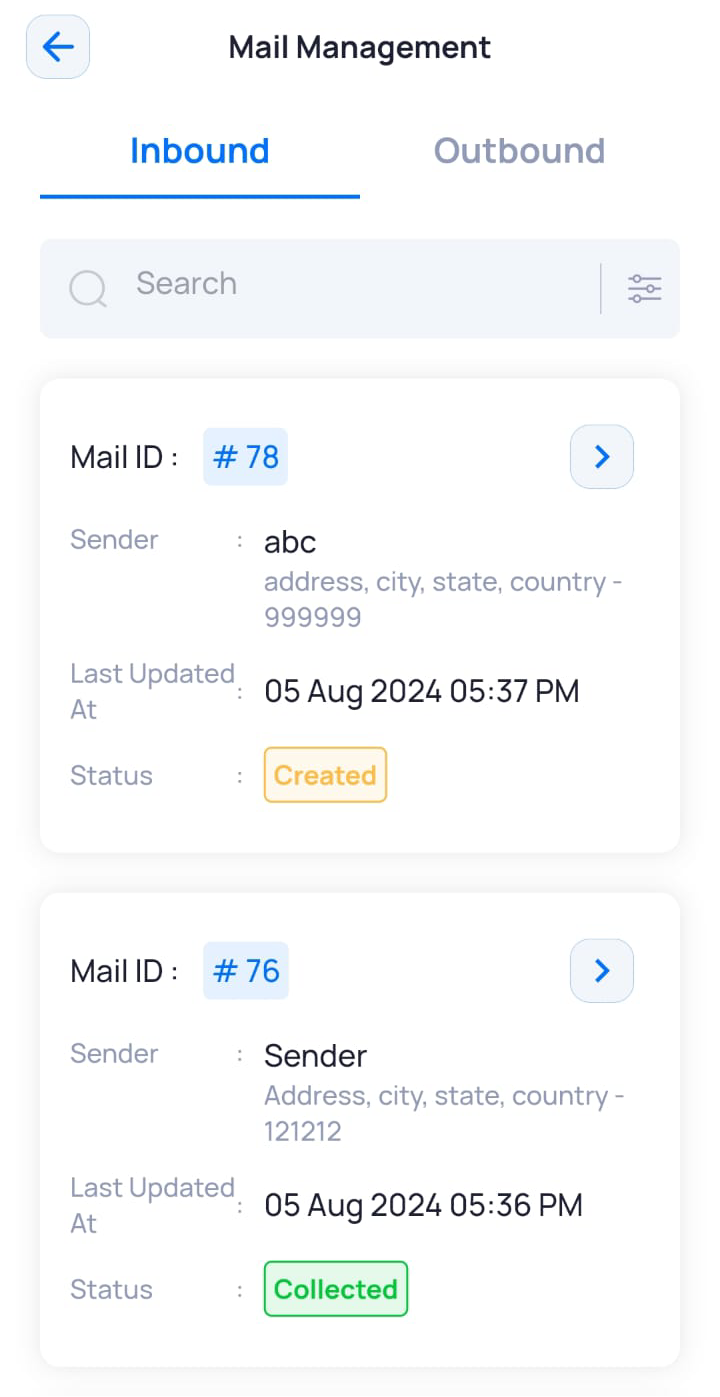
The following information is displayed on this screen:
Field Description Search bar
Allows you to search and filter inbound mail requests.
Mail Id
Displays the system generated ID for the inbound mail request.
Sender
Displays the details of the sender.
Last Updated
Displays the date and time when the status of the inbound mail request was last updated.
Status
Displays the status of the inbound mail request.

Allows you to:
- Add remarks to the inbound mail request
- Update the status of the inbound mail request
- To see all outbound mail requests created by you, tap Outbound.
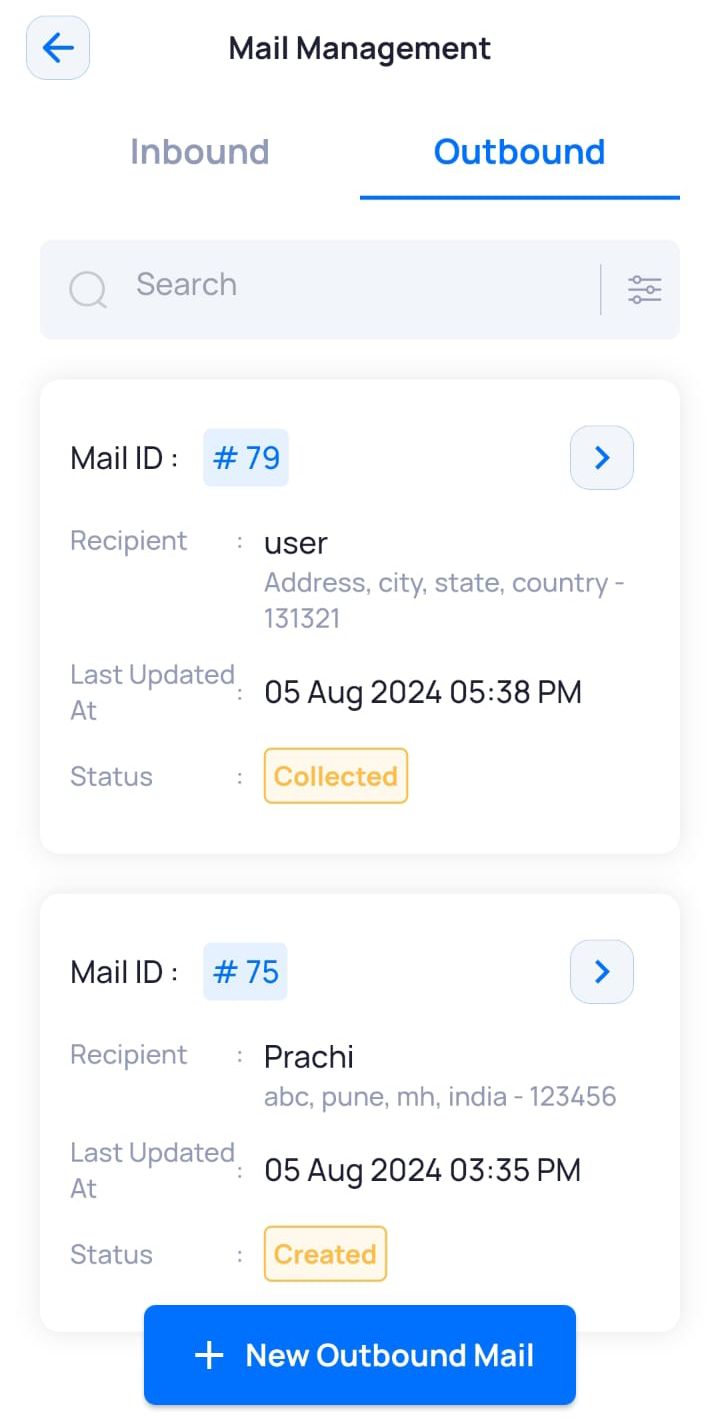
The following information is displayed on the screen:
| Field | Description |
|---|---|
|
Search bar |
Allows you to search and filter inbound mail requests. |
|
Mail Id |
Displays the system generated ID for the outbound mail request. |
|
Recipient |
Displays the name of the recipient. |
| Address |
Displays the recipient’s address. |
|
Last Updated |
Displays the date and time when the status of the outbound mail request was last updated. |
|
Status |
Displays the status of the outbound mail request. |
|
Allows you to:
|
Searching/Filtering Mail Requests
You can filter both inbound and outbound mail requests based on their status. By applying these filters, you can quickly view and manage requests that are in specific stages, such as pending collection, dispatched, or returned. This helps in efficiently tracking and handling mail requests based on their current status.
To search/filter mail requests:
- On the Dashboard screen, tap Mail Management.
The Mail Management screen is displayed with the Inbound tab displaying mails addressed to you received by the mailroom, if any. - Select the appropriate tab where you want to search/filter mails. For example, Outbound.
- Tap the filter icon
 .
The Filter pop-up window is displayed with All status selected by default. - Select the required filter status. For example, Created.
- Tap Save Changes.
The mail requests are displayed as per the selected filter.