
- On the Dashboard screen, tap Digital Checklists.
Digital checklist(s) assigned to you are displayed.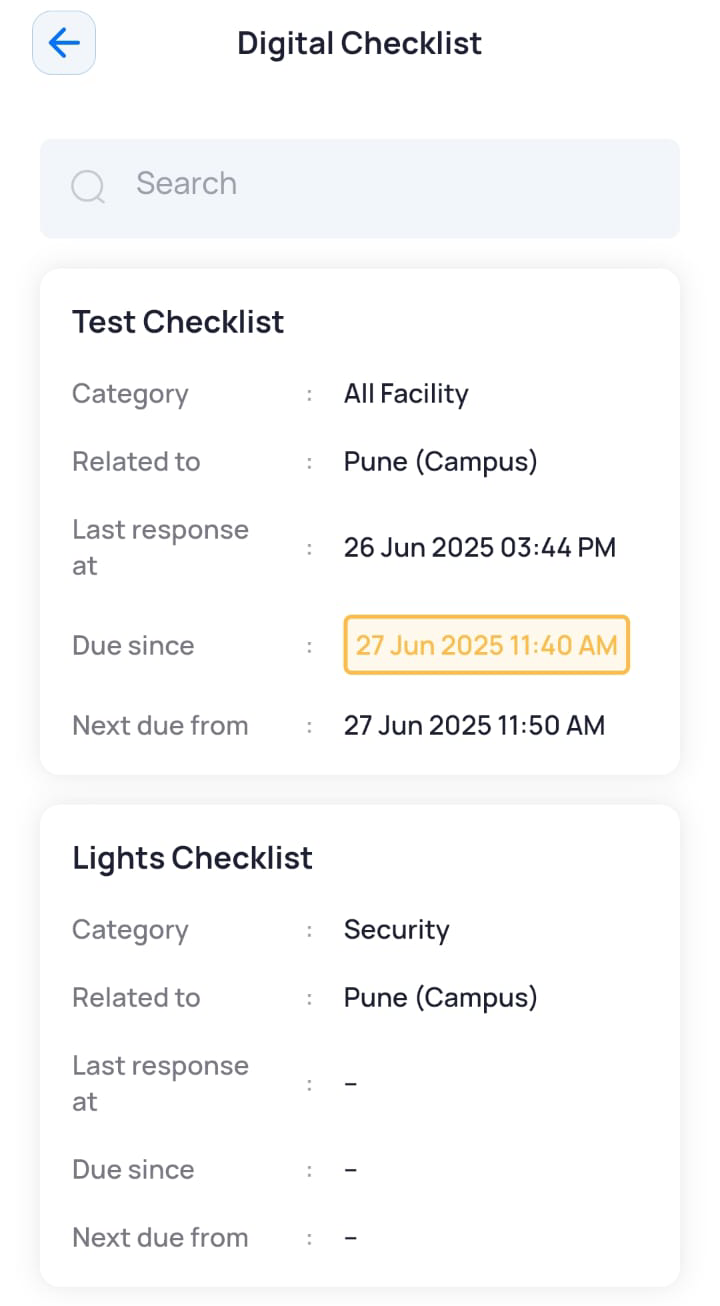
The screen displays the following information:
Field Description Search
Allows you to search for a digital checklist.
Category
Displays the checklist category this checklist belongs to.
Related To
Displays the name of the campus or building the checklist is related to.
Last Response At
Displays the date and time of the last response submitted by the user.
Note: This field is blank if no responses were submitted.
Due Since
Displays the date and time since when the checklist was due.
Next Due From
Displays the date and time when the checklist is due next.
- Tap the checklist to view all instances when it was due, the responses submitted, and any alerts that were raised.
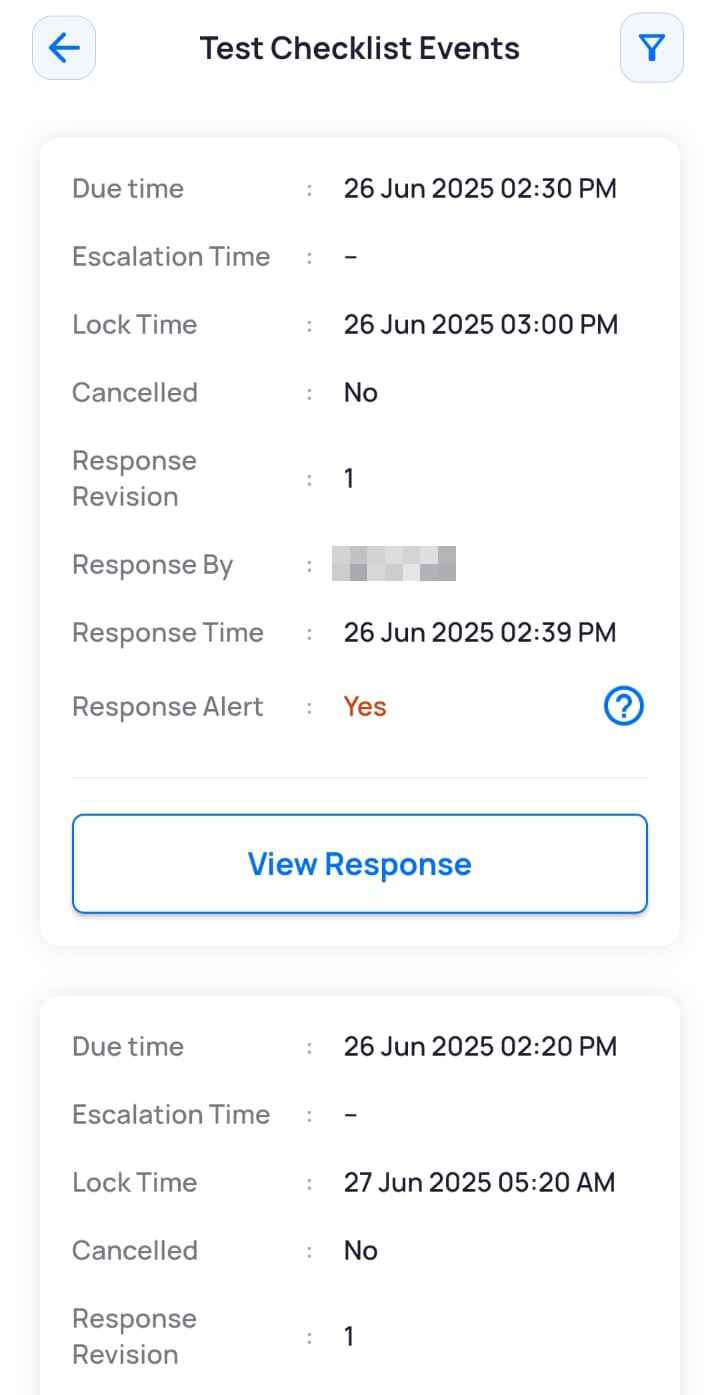
Each event card displays the following information:
Field Description Due Time
Displays the date and time when the checklist was due.
Escalation Time
Displays the date and time when the checklist was escalated.
Lock Time
Displays the date and time when the checklist was locked for submitting responses.
Cancelled
Displays whether the checklist has been cancelled.
Response Revision
Displays the revision number of the user's response, indicating that the response was resubmitted for the same checklist event.
Note: Resubmitting responses is permitted only if the Resubmit Allowed setting has been enabled for the checklist category by the admin.
Response By
Displays the name of the user who submitted the response.
Response Time
Displays the date and time when the response was submitted.
Response Alert
Displays whether an alert was raised for the checklist.
Mobile Application User Manuals
Viewing Assigned Digital Checklists
1 min readUpdated
Was this page helpful?