
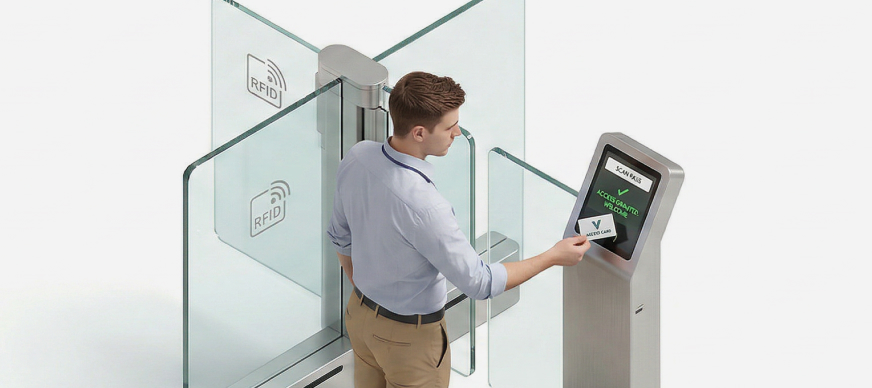
You can configure settings to efficiently manage access for the scenarios mentioned above. By selecting from a range of pre-defined templates, you can either enable instant user entry for seamless access or issue a pre-approved entry pass. These templates help ensure that the access process is both flexible and secure.
To configure the settings:
- In the Main Menu, under the ADMIN OPTIONS, in the Entry Management subsection, click Settings.
The Settings page is displayed. - Enter or select the required field information.
Field Description Campus*
Displays the selected campus.
Instant User Entry Template
Enter the template to be used for printing the entry pass for instant user access.
For example, employee-pass-template_1
Pre-approved User Entry Template
Enter the template to be used for printing the entry pass for a pre-approved user.
For example, employee-pass-preapproved-template_1
User Entry Max. Days*
Enter the maximum number of days the entry pass should be valid for the user .
Admin Approval Required
Select this checkbox to enable admin approval before issuing the temporary entry.
Host Location Restriction
Select this checkbox to limit hosts to users whose base location is the selected campus. Only these users will be eligible to issue entry passes for this campus.
Allow User Pass for External Users
Select this checkbox to allow user passes to be generated for external users (those who are not employees of the organization, for example, contractors).
Note: If you do not select this checkbox, you will be able to issue entry passes only for employees or registered users of the organization from other locations, and not for external people such as contractors.
Admin Approval Required for External Users
Select this checkbox to enable admin approval for external users (those who are not employees of the organization, for example, contractors).
- Click Save.