
In this section, you will learn how to:
Managing Cafeteria Availability
With the Apptimus app, you can manage your cafeteria’s availability for taking orders. In situations where the cafeteria is overloaded with orders, experiencing staff shortage or dealing with equipment malfunctions, you can temporarily suspend order intake to address these issues effectively.
Note: If the Auto Disable Accept Order After (expire order) field is enabled when configuring the vendor profile, then the cafeteria will automatically close for orders after the configured number of expired orders. For more information, click here.
To manage the cafeteria availability:
- On the Dashboard screen, tap Order Management.
The Order Management screen, with a chronological list of orders for the selected cafeteria is displayed. - To pause order intake temporarily, turn off the Accepting Orders toggle.
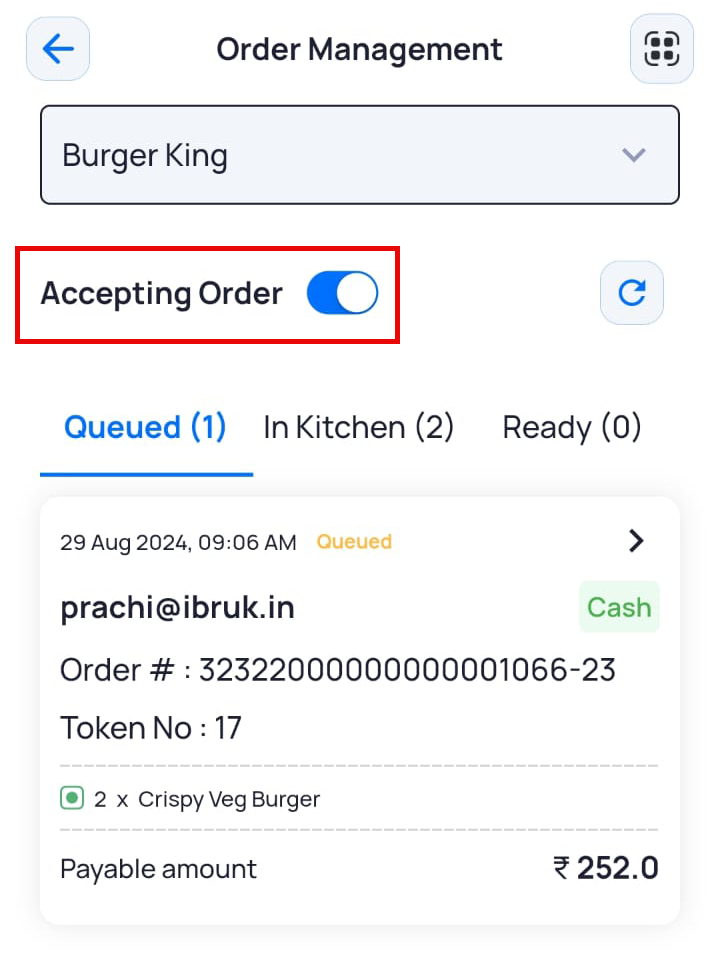
- On the confirmation screen, tap Yes.
- To reopen the cafeteria for taking orders again, turn on the Accepting Orders toggle.
- On the Warning pop-up that is displayed, select either of the following options:
- Yes (as per time slot): To accept and process orders only in the default time slots as configured through the web application.
- Yes (All the time): To accept and process orders always.
Viewing Cafeteria Orders
As a cafeteria vendor, you can view and manage all orders placed across the various locations you oversee. Whether you're handling a single cafeteria or multiple locations, you can easily monitor and track every order in real-time. This ensures efficient service delivery and address any issues promptly, enhancing the overall customer experience.
To view cafeteria orders:
- On the Dashboard screen, tap Order Management.
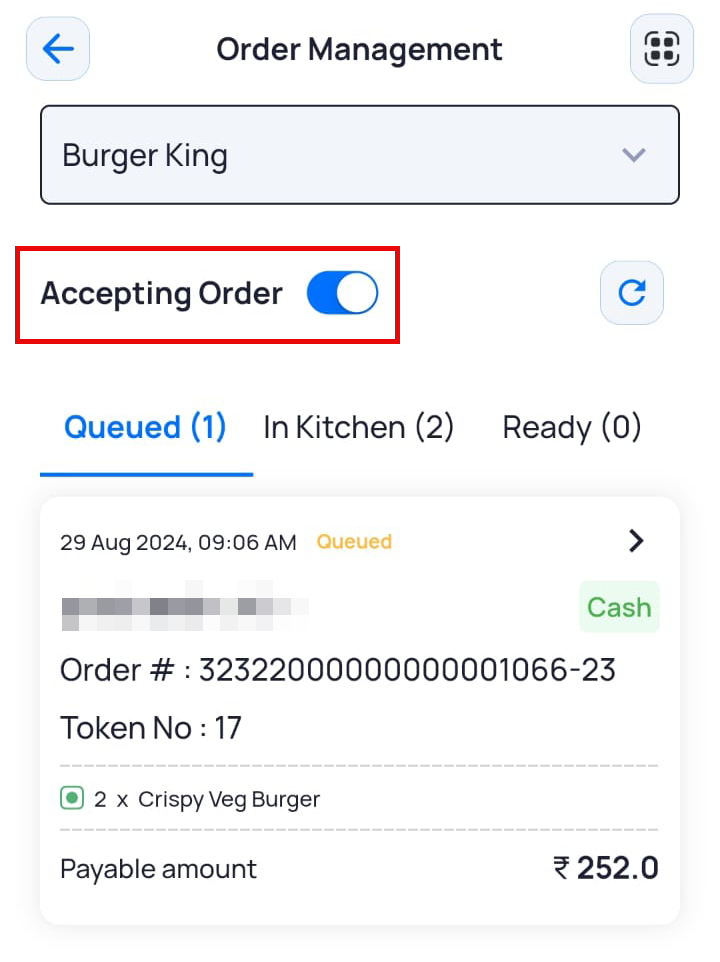
- Select the cafeteria for which you want to see the orders (in case you are managing multiple outlets).
The orders placed with the selected cafeteria are displayed under Queued, In Kitchen, or Ready tabs.
Viewing Cafeteria Order History
As a cafeteria vendor, you can view records of orders placed across all locations or counters you manage. This history includes orders currently being processed, successfully delivered orders, rejected orders, expired orders, and more. Additionally, you can also filter the order history by status for easier tracking and management.
To view order history:
- On the Dashboard screen, tap Order History.
A list of all past orders for the selected cafeteria is displayed.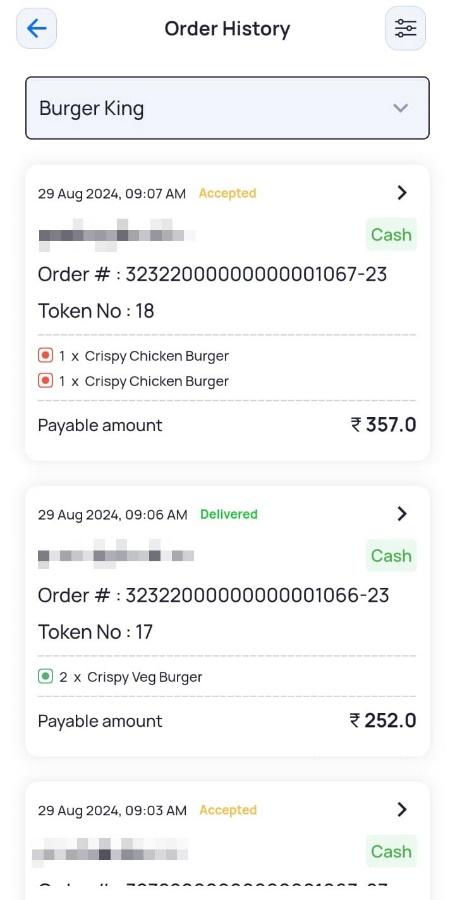
- To filter these orders by status, tap the filter icon
 .
- Select the checkbox for the status(es) by which you want to filter the orders and tap Save Changes.
The filtered results are displayed.