
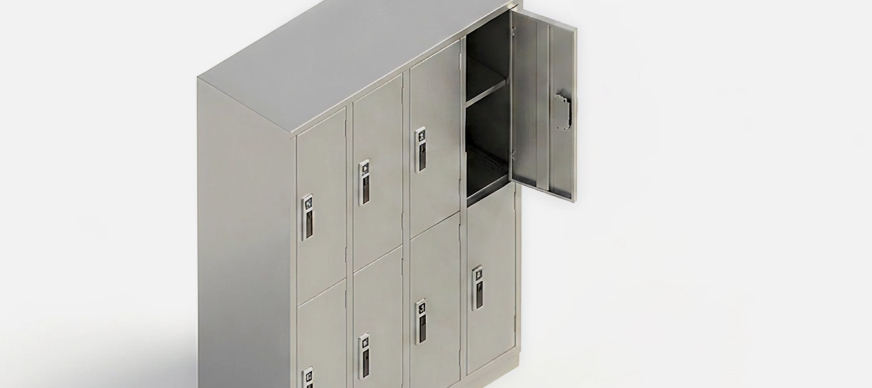
In this section, you will learn how to:
- Assign lockers
- Filter locker assignments
- Download locker assignment reports
- Upload locker assignment reports
Assigning Lockers
- In the Main Menu, under ADMIN OPTIONS, in the Facility subsection, click Locker Assignment.
The Locker Assignment page opens displaying the details of the assigned lockers. - Click Assign Locker.
The Available Locker Count table is displayed. - Enter the email address of the user to whom you want to assign a locker.
- In the Available Locker Count table, under the Action column, click Select Locker From This Area.
The Select Locker pop-up window is displayed. - Select the locker that you want to assign and click Select.
The selected locker is displayed in the Locker field. - Click Save Locker.
The locker is assigned to the user and the details are displayed on the Locker Assignment page. - To remove the locker assignment, under the Action column, click
 .
The locker is unassigned.
Filtering Locker Assignments
- On the Locker Assignment page, click the filter icon
 .
- Select one or more parameters and click Search.
The filtered locker assignment details are displayed.
Once the lockers have been added to the system, they can be assigned to employees of the organization.
Downloading Locker Assignment Reports
A locker assignment report provides detailed information about all the lockers assigned to users. For example, it indicates the location of the locker, the user it is assigned to, and so on.
- On the Locker Assignment page, to initiate the download, click Schedule Upload/Download and then select Download.
- To access the report, click Schedule Upload/Download again and then select Locker Assignment Schedule Report from the drop-down menu.
The Schedule Report page opens in a separate browser tab with the Locker Assignment tab displaying the report(s) ready for download . - Under the Download Link column, click Download.
The locker assignment report is downloaded.
Uploading Locker Assignment Reports
To add or edit multiple locker assignments, you can upload the locker details to the existing report. First, download the latest locker assignment report, update the necessary details, and then upload it back into the system.
- Download the existing locker assignment report.
- Add or edit details of new or existing lockers in the downloaded report.
- On the Locker Assignment page, click Schedule Upload/Download and then click Upload from the drop-down menu.
The window to upload the report is displayed. - Locate the locker assignment report to be uploaded and click Open.
The report is uploaded.