
In Apptimus, meeting rooms can be configured with a variety of features that allow administrators to define booking rules, manage occupancy times, and set restrictions for specific user groups. They also support integration with calendars, display management, and automated notifications. In addition, options such as amenities, themes, pantry services, and more extend the functionality beyond scheduling to enhance the overall meeting experience.
Setting up Meeting Rooms
The meeting room setup and configuration is done by the facility admin. Once the meeting rooms are configured employees can start using them.
Prerequisites
The following must already be configured, before you can start working with meeting rooms:
Creating Meeting Room Profiles
Note: For steps to create a meeting room profile, click here.
Meeting room profiles must be created before you start adding meeting rooms to your facility/campus. Creating a profile helps you define the behavior of meeting rooms in the following ways:
- Set occupancy/non-occupancy time
- Manage RMD display
- Sync duration with calendar
- Show next meeting time
- Set max no of hours or days for which a meeting room can be booked
- Restrict user groups/teams from booking a room
- Restrict all users to book room with specific profile
- Enable/disable online meeting links
- Enable/disable meeting room booking extension
- Set duration within which extension is allowed
- Enable/disable manager/admin approval for room booking
- Manage meeting room check-in options
- Check-in methods
- Check-in reminders
- Define earliest check-in time
- Manage meeting notifications
- Set auto cancellation duration
Adding Meeting Rooms
Note: For steps on adding rooms, click here.
Once a meeting room profile is created, you can add a meeting room to your facility and associate the required profile with it. When adding a meeting you can:
- Assign a profile to the meeting room
- Define number of people a room can accommodate
- Add amenities to meeting rooms
- Assign themes to meeting rooms (displayed on RMD)
- Allow pantry service
- Allow feedback/service request to be raised for a meeting room
Using Meeting Rooms
Employees can use the meeting room module in the Apptimus app on their mobile device to use the meeting rooms available in the facility. The following options are available:
- Book a meeting room using either the web or mobile app
- Use filters to search for rooms based on criteria like capacity (PAX), amenities, location, and time.
- Quick booking
- Custom booking
- Manage meeting room bookings using either the web or mobile app
- View meeting room bookings
- Edit booking details
- Receive notifications and meeting reminders
- Check-in and check-out of meeting rooms
- Scan the QR code outside meeting rooms
- Enter MPIN on the RMD
- Cancel bookings
Understanding the Meeting Room Booking Workflow
Let us understand how a user can use the meeting room module to book a meeting room through the web or mobile app.
- User books a meeting room through the web or mobile app, either by
- Customizing the meeting date and time
- Selecting the quick booking option where the current time is used automatically.
- The booking request is submitted.
- If approval is required, booking is confirmed after approval.
- If approval is not required, booking is confirmed immediately.
- Once booking is confirmed, all participants are notified and the meeting appears in the user’s upcoming meetings.
- If required, the organizer can update the meeting details (using the web or mobile app), such as the meeting title, participants, or meeting time, and all participants are notified of the changes.
- Before the meeting begins, the meeting organizer receives a reminder to check in to the meeting room.
- The organizer must check-in within a defined time window; otherwise, the meeting is automatically cancelled, and the room is made available for others.
- After checking in, the organizer can manage room controls and services, such as sharing light and AC and placing pantry orders, if enabled (using the web or mobile app).
- The meeting room is made available for the next booking if:
Note: Refer to the legend below the image for links to documentation for each of the processes.
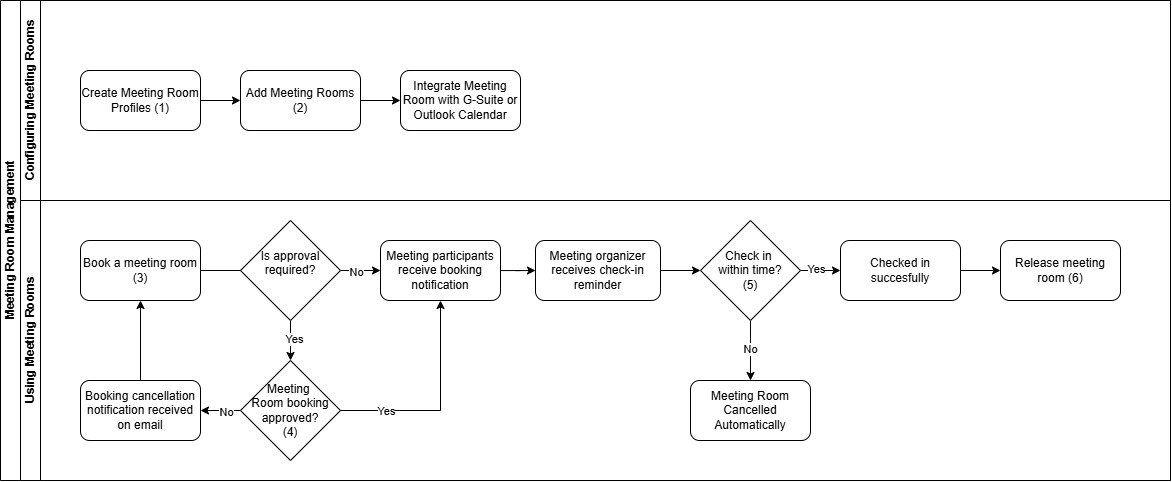
| Box No. | Document Link |
|---|---|
| 1 | Creating Meeting Room Profiles |
| 2 | Add Meeting Rooms |
| 3 | Book a Meeting Room |
| 4 | Manage Meeting Room Bookings |
| 5 | Check into a Meeting Room |
| 6 | Release Meeting Room |