
This feature can be used to:
With the Apptimus app, security or other designated personnel can mark the entry or exit of employees using the Employee Log feature. However, to access this feature, they must have the ROLE_FACILITY_ATTENDANCE_USER role assigned to them.
Additionally, attendance can only be registered if the employee’s location is within the defined geographical boundaries of the campus, specified by a range of latitude and longitude coordinates. This ensures that attendance is accurately recorded only when employees are physically present within the designated campus area. This feature can be used to:
Logging Employee Entries
Security personnel can mark the entry of employees either by capturing their photo or by entering their employee ID or name
- On the Dashboard screen, tap Employee Log.
The Select Event pop-up is displayed. - In the Select Event pop-up, tap Entry.
The Entry Event screen is displayed.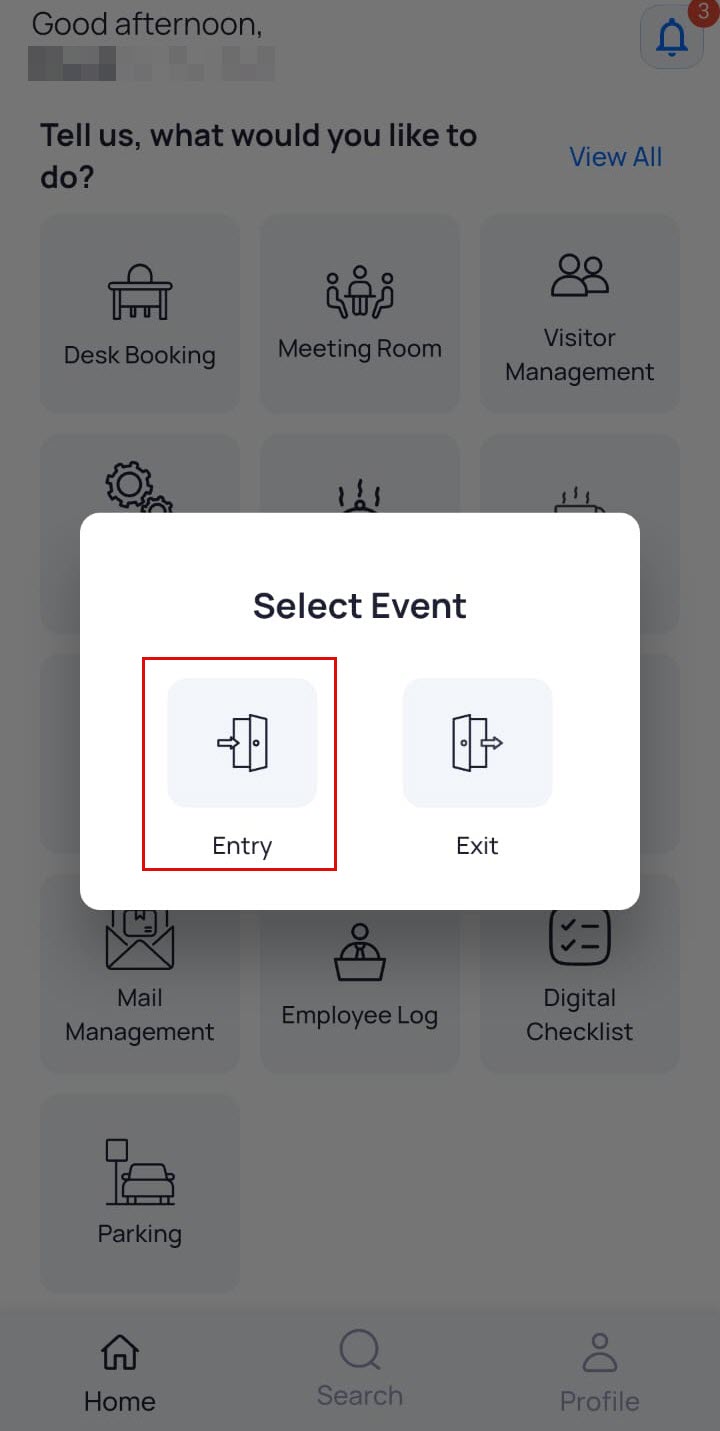
- Click Capture Photo, take the photo and click Identify.
Once the employee’s face is recognized by the system, their details and past entry/exit events (if any) are displayed.
OR
In the Find Employee field, enter the employee’s ID or name.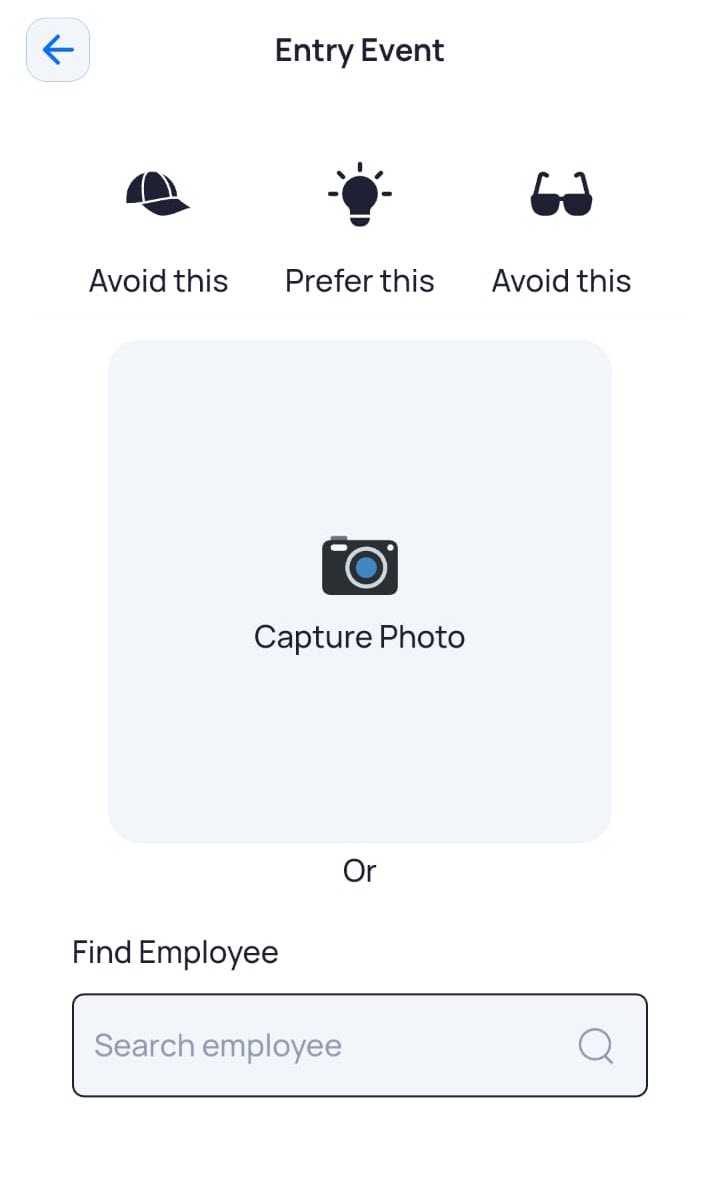
The employee’s details and past entry/exit events (if any) are displayed.
- Click Confirm Event to mark the employee's entry.
A confirmation message is displayed. - Click OK.
Logging Employee Exits
- On the Dashboard screen, tap Employee Log.
The Select Event pop-up is displayed. - In the Select Event pop-up, tap Exit.
The Exit Event screen is displayed.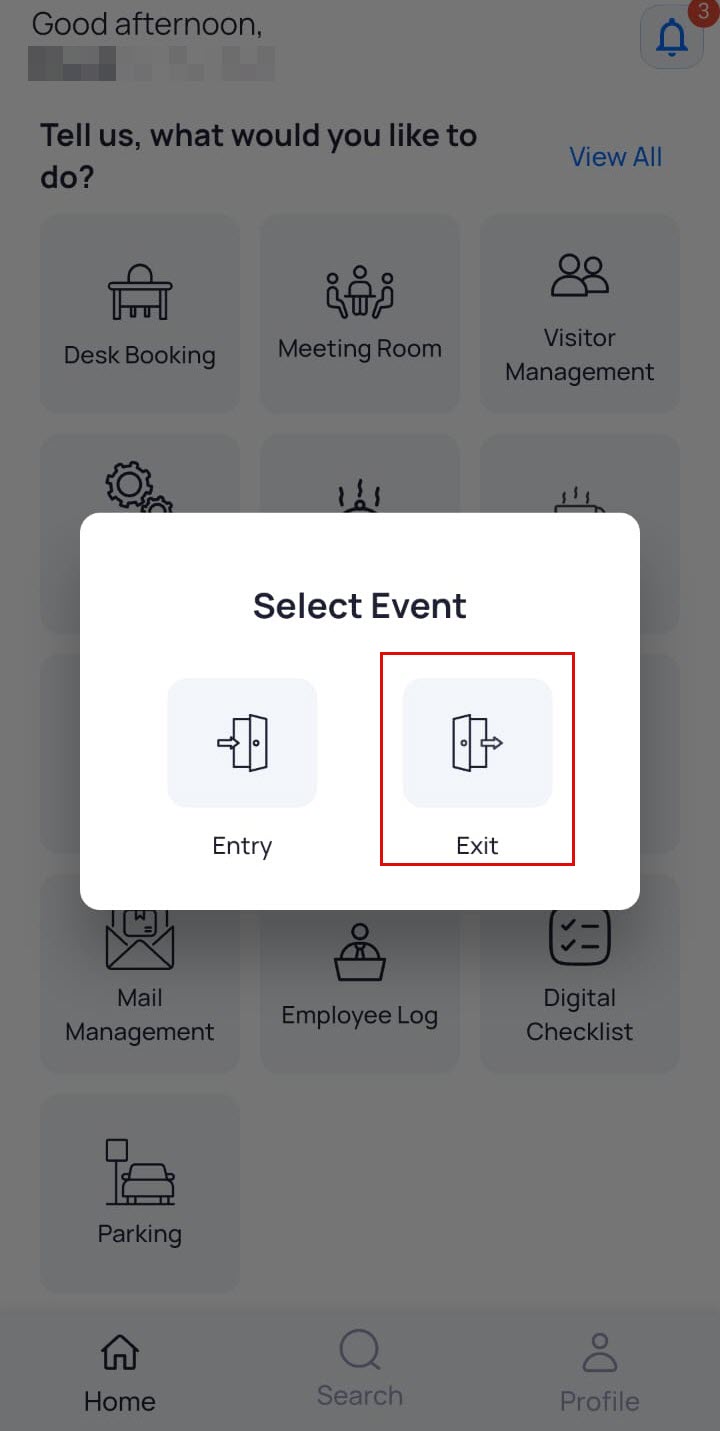
- Click Capture Photo, take the photo and click Identify.
Once the employee’s face is recognized by the system, their details and past entry/exit events (if any) are displayed.
OR
In the Find Employee field, enter the employee’s ID or name. The employee’s details and past entry/exit events (if any) are displayed.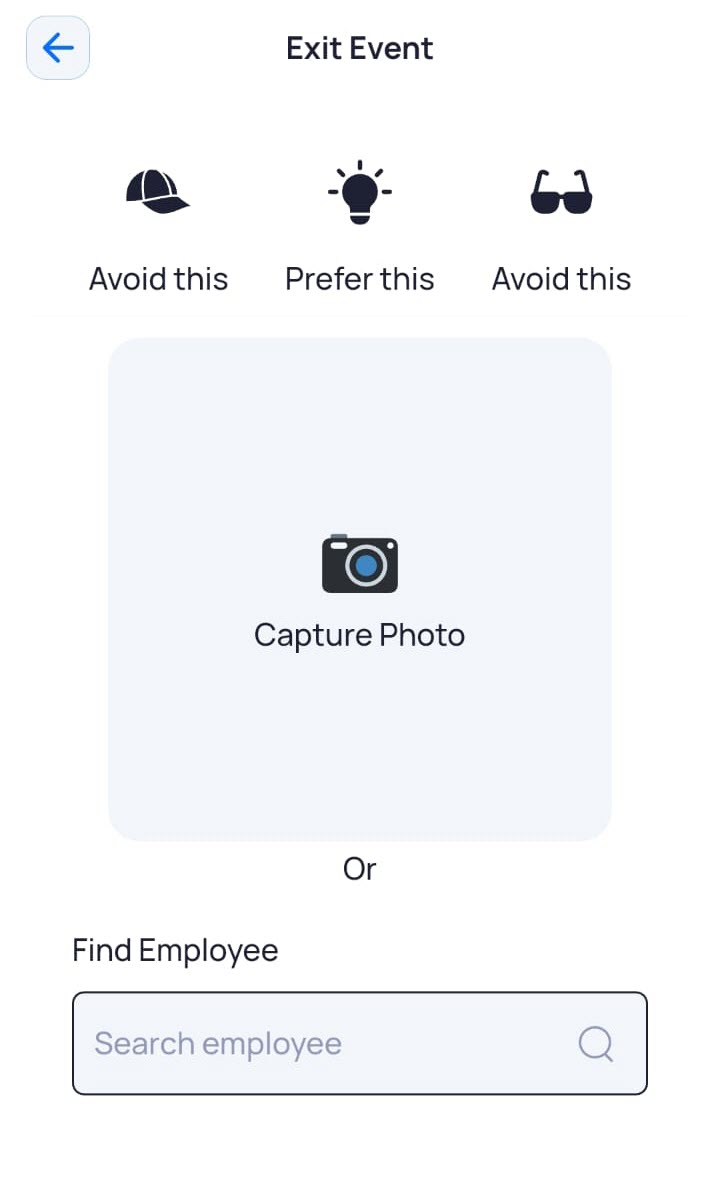
The employee’s details and past entry/exit events (if any) are displayed.
- Click Confirm Event to mark the employee's exit.
A confirmation message is displayed. - Click OK.