When an employee places an order with a pantry, it is initially marked as Queued. This status indicates that the order has been received but has not yet been processed. This order can then be processed and updated based on the order’s progress.
You can process the order in the following ways:
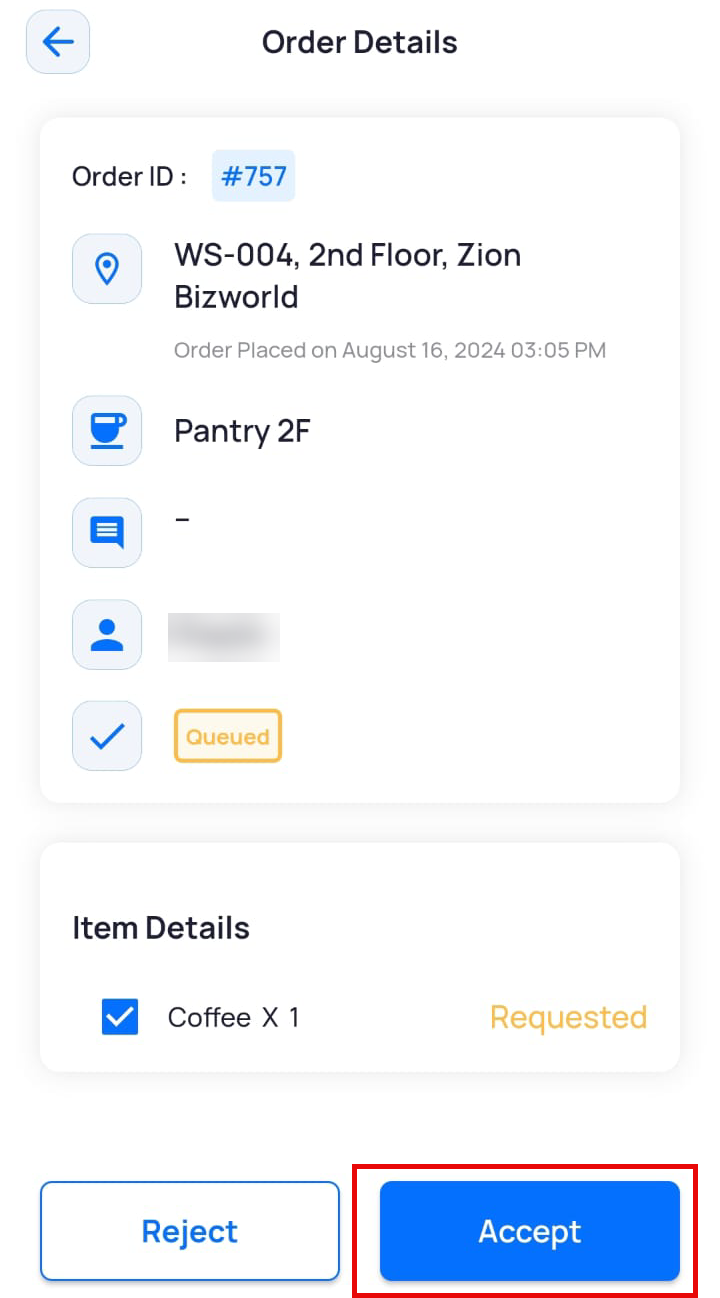
- Mark a queued order as accepted
- Mark a queued order as partially accepted
- Mark a queued order as rejected
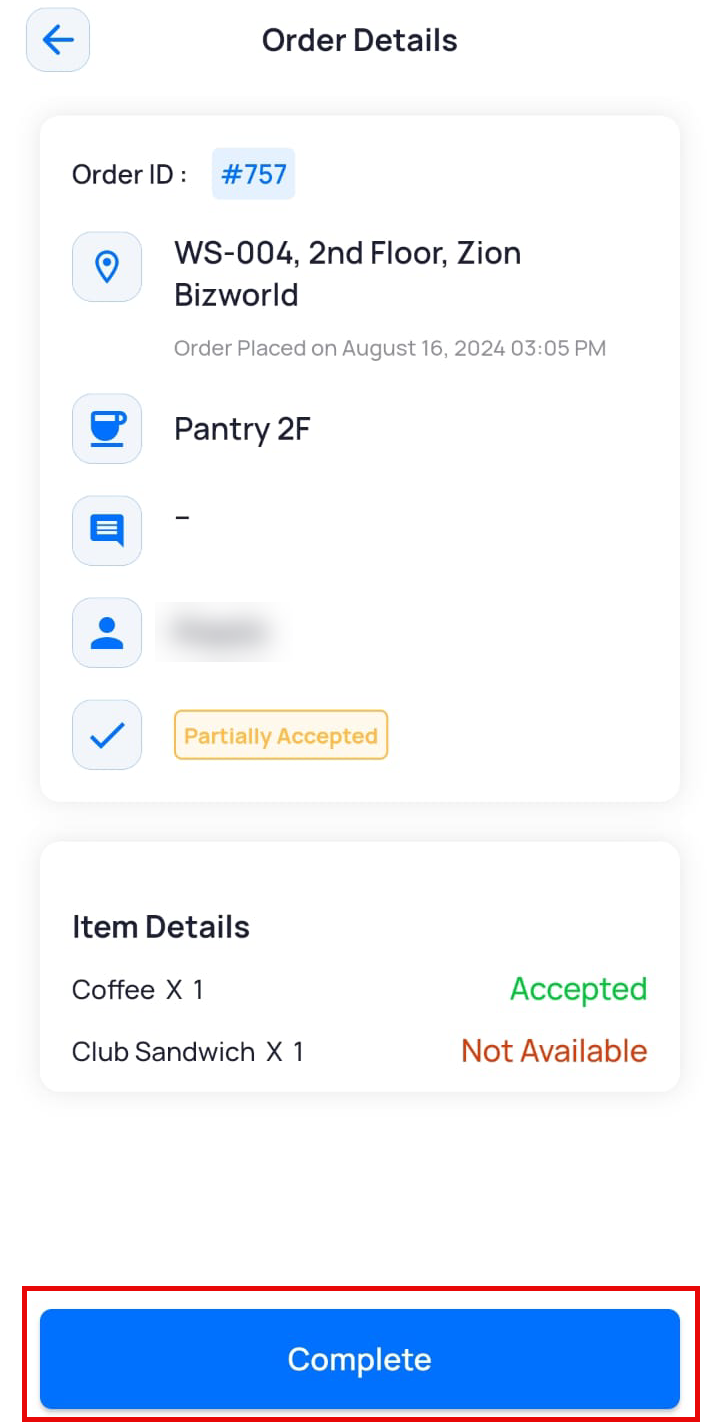
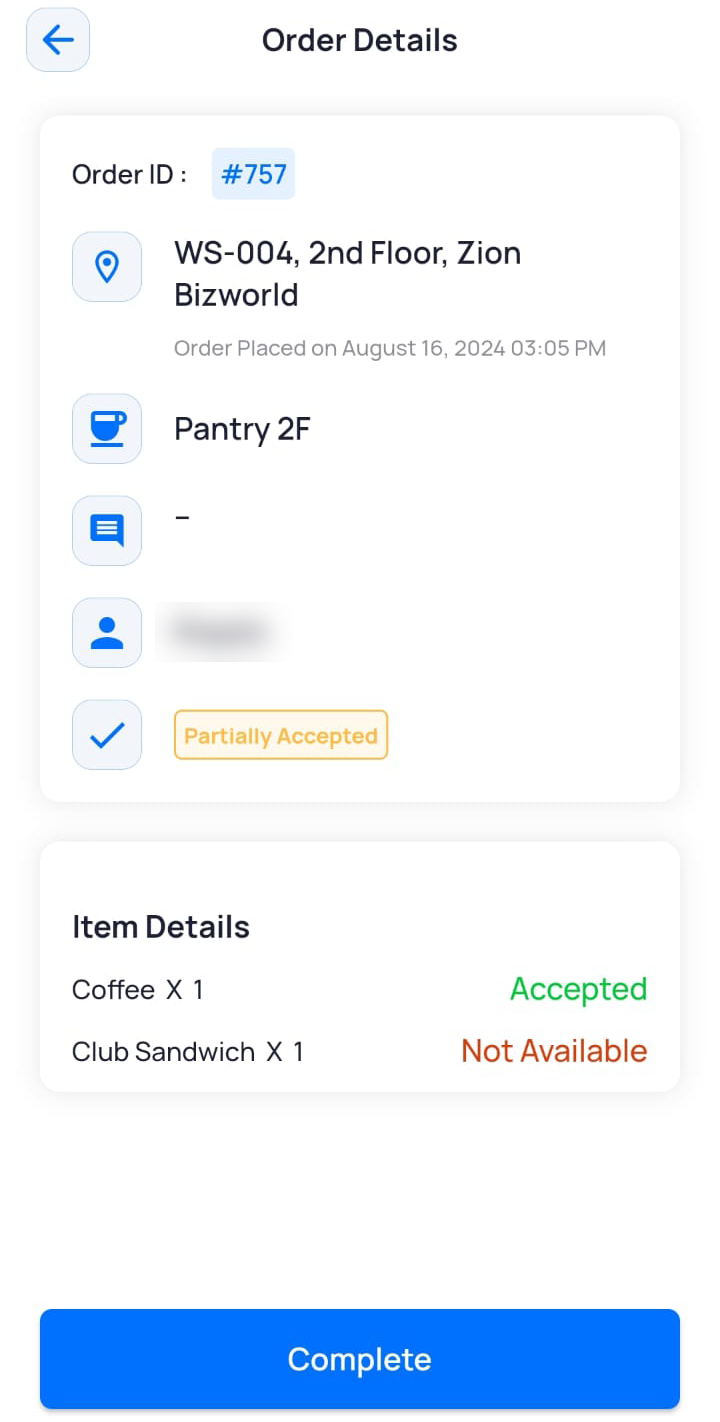
- Mark an accepted or a partially accepted order as complete
Marking a Queued Order as Accepted
- On the Dashboard screen, tap Pantry Order Management.
The Pantry Order Management screen is displayed with orders for all pantries listed chronologically. - Tap
 on the order that you want to process.
OR
To process orders for a particular pantry, select the pantry from the Select Pantry dropdown and then tap on the order that you want to process. - On the Order Details screen, tap Accept.
The order is accepted by the pantry.
Marking a Queued Order as Partially Accepted
If some items in an order are unavailable, you can still process the order by partially accepting it for the items that are available. The employee who placed the order will receive a push notification on the mobile app, informing them of the partial acceptance.
- On the Dashboard screen, tap Pantry Order Management.
The Pantry Order Management screen is displayed with orders for all pantries listed chronologically. - Tap on the order that you want to process.
OR
To process orders for a particular pantry, select the pantry from the Select Pantry dropdown and then tap on the order that you want to process. - On the Order Details screen, deselect the checkbox(es) for items that are unavailable.
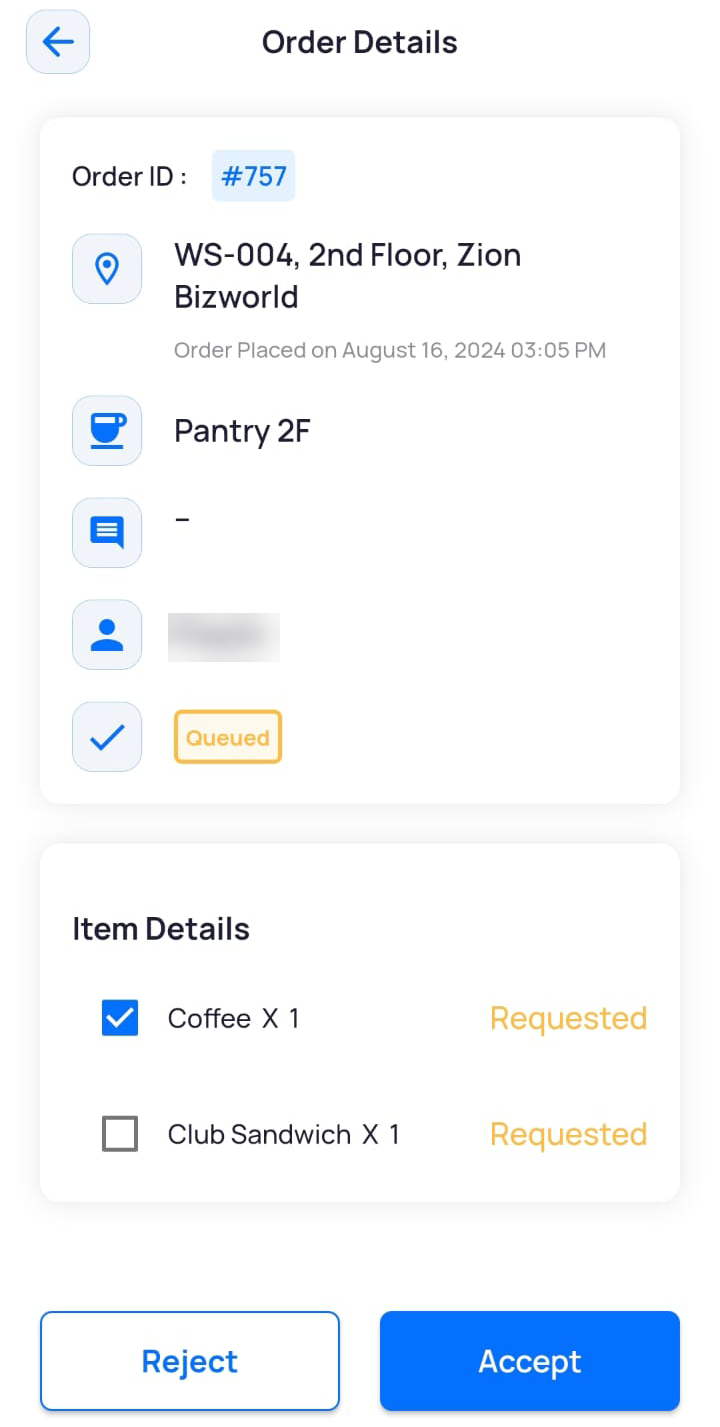
- Tap Accept.
The order is partially accepted with details of items that are not available.
Marking a Queued Order as Rejected
If the pantry is unable to accept an order due to item unavailability or other reasons, the order can be rejected. The employee who placed the order will receive a push notification on the mobile app, informing them of the order rejection.
- On the Dashboard screen, tap Pantry Order Management.
The Pantry Order Management screen is displayed with orders for all pantries listed chronologically. - Tap on the order that you want to process.
OR
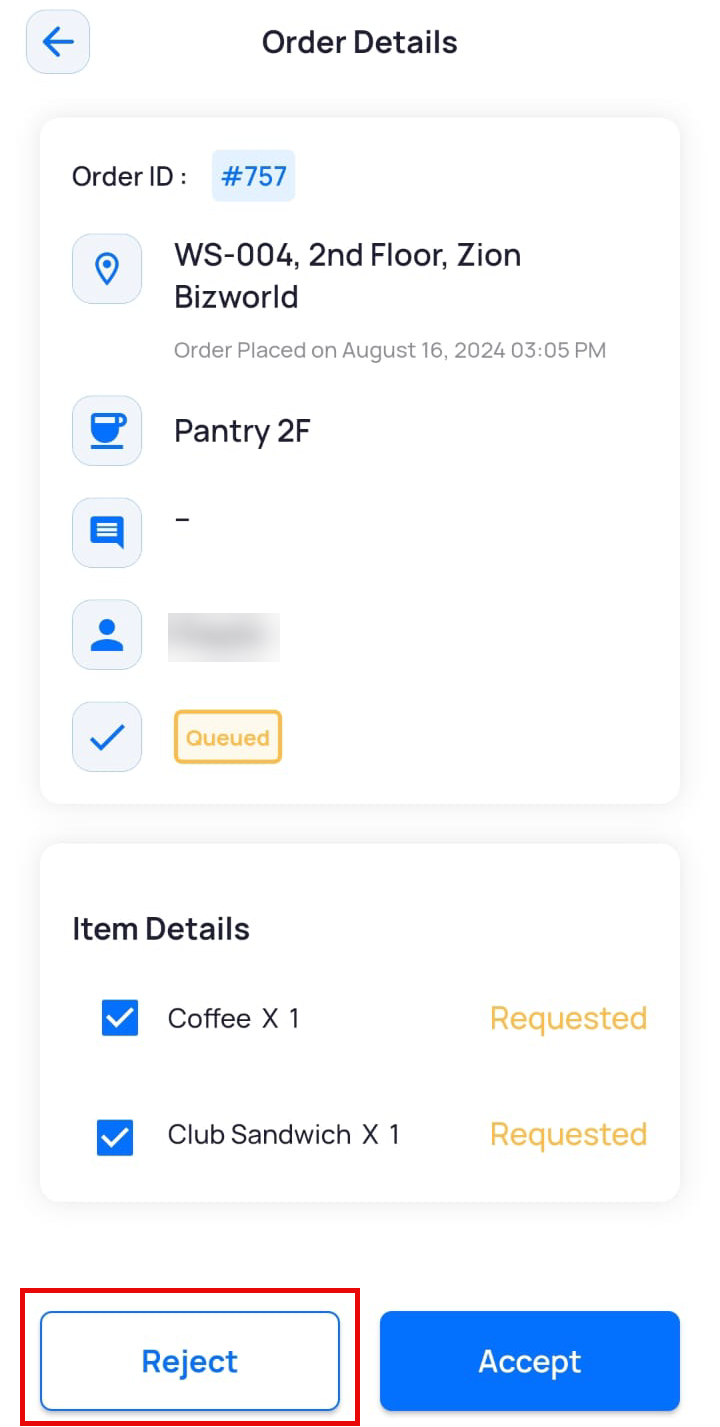
To process orders for a particular pantry, select the pantry from the Select Pantry dropdown and then tap on the order that you want to process. - On the Order Details screen, tap Reject.
The order is rejected by the pantry.
Marking an Accepted or Partially Accepted Order as Complete
After an order has been accepted or partially accepted, it needs to be marked as complete once it is delivered to the delivery location such as a desk, meeting room, or any other location where the pantry makes deliveries.
- On the Dashboard screen, tap Pantry Order Management.
The Pantry Order Management screen is displayed with orders for all pantries listed chronologically. - Tap on the order that you want to process.
OR
To process orders for a particular pantry, select the pantry from the Select Pantry dropdown and then tap on the order that you want to process. - On the Order Details screen, tap an order which has been Accepted or Partially Accepted.
- On the next screen, tap Complete.
The order is completed, and the user is notified to pick it up.