
The home page of the Apptimus web application offers easy access to a variety of modules, all at your fingertips. Regardless of whether you are an employee, vendor, or admin, the app is designed to help you seamlessly navigate through your specific module. Each role comes with tailored functionalities, allowing you to perform necessary actions efficiently. With a user-friendly interface, you can quickly find the tools and features that suit your needs, ensuring a smooth experience.
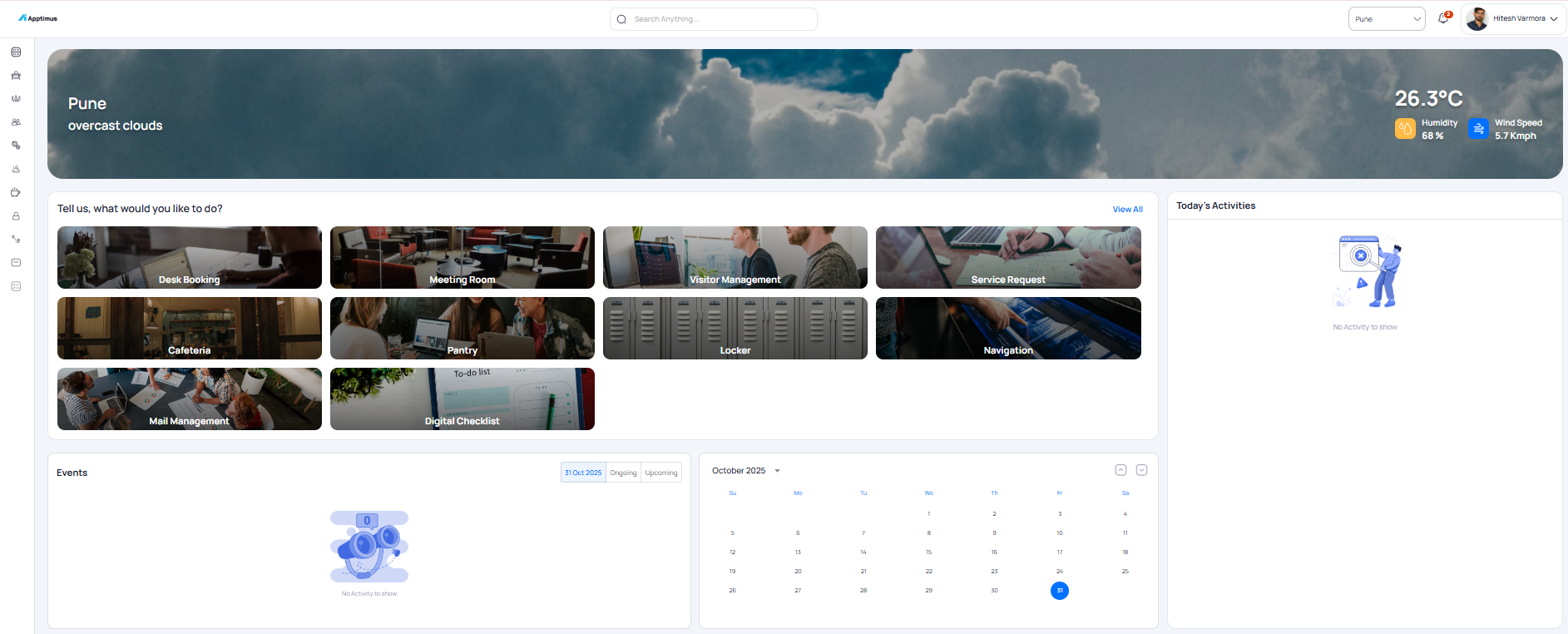
The following information is displayed on the home page:
|
Option |
Description |
|---|---|
|
Search bar |
Allows you to search for different modules within the web app. |
|
Campus |
Displays the campus you are currently signed into and allows switching to a different campus, if accessible. |
|
Notification icon |
Allows you to access notifications. |
|
User Settings Dropdown |
Allows you to configure various user settings. |
|
Navigation Pane |
Displays and provides access to the modules of the Apptimus web app. These modules can also be accessed from the cards displayed in the center of the page. Note: Access to these modules varies based on the user role, so the displayed options may differ. |
|
Weather card |
Displays the location and weather details. |
|
Modules |
Displays all the modules accessible to the logged in user. |
|
Events |
Displays the current date’s events for the user and allows you to view any ongoing (current) or upcoming (future) events. The current date is displayed by default. You can select a different date from the calendar to view that day’s events. |
|
Calendar |
Displays the current date. The date selected here is the date displayed on the Events card. |
|
Today’s Activities |
Displays the activities scheduled for the current date, such as desk bookings, meetings, and more. |