
- On the Dashboard screen, tap Pantry.
The Pantry Orders screen is displayed with the Ongoing tab ongoing orders placed by you, if any. - Tap Place New Order.
The Select Delivery Location screen is displayed with a list of workstations, meeting rooms, and other areas that the pantry caters to.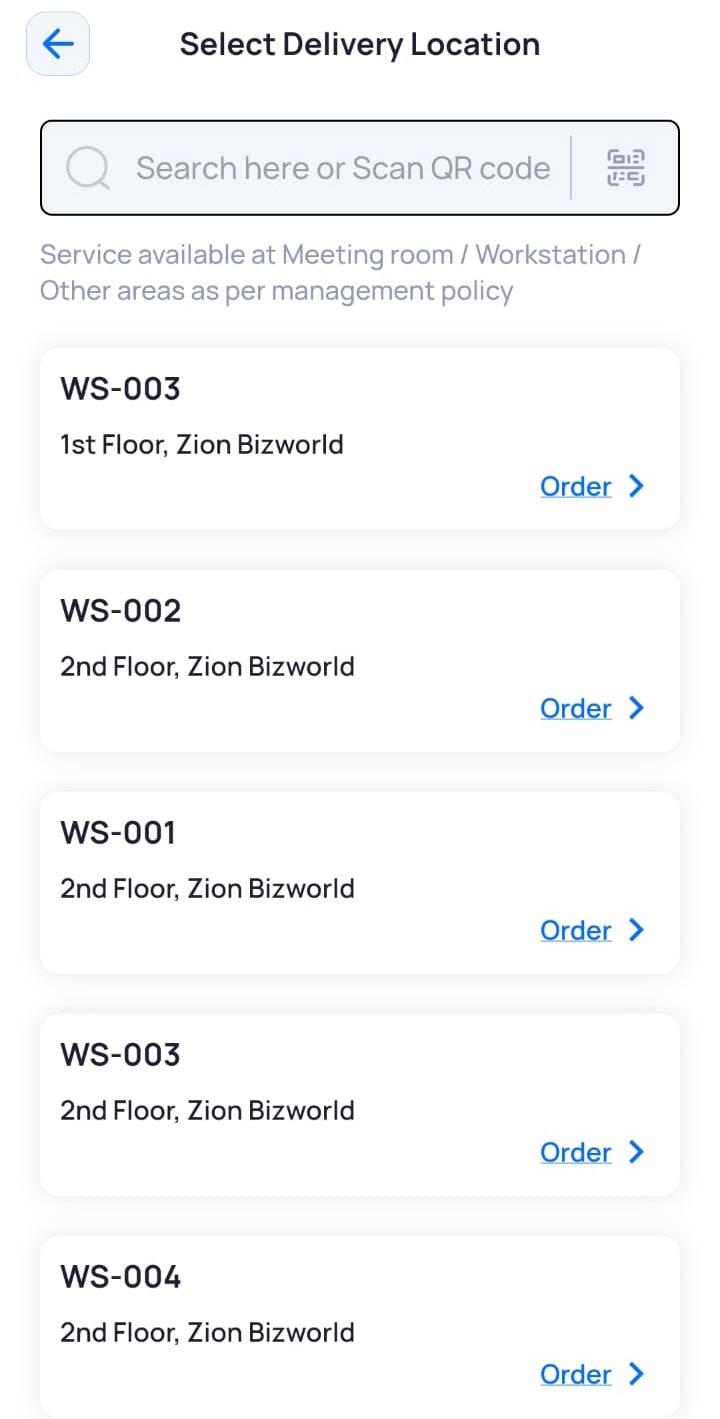
- Search for your location by typing it in the search box.
OR
Tap to scan the QR code of your location.
OR
Tap your location from the displayed list.
The Select Pantry screen is displayed with a list of pantries catering to the selected location. - Tap the pantry where you want to place the order.
- In the Order Type pop-up window, tap Personalized.
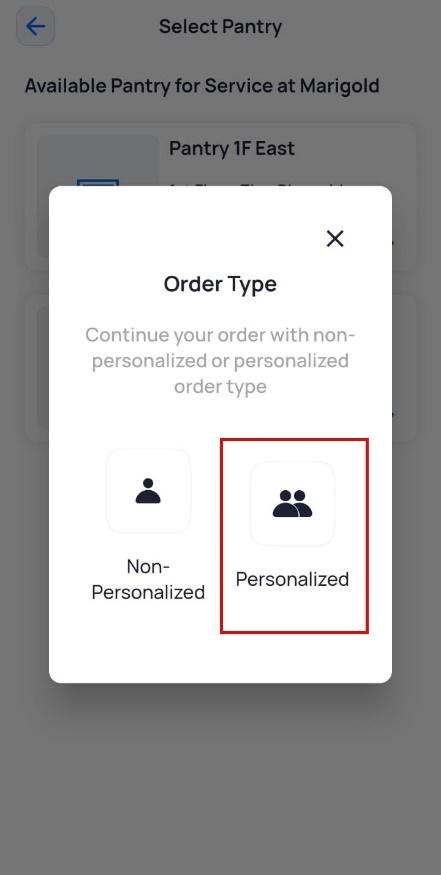
The Personalized Order pop-up window is displayed.
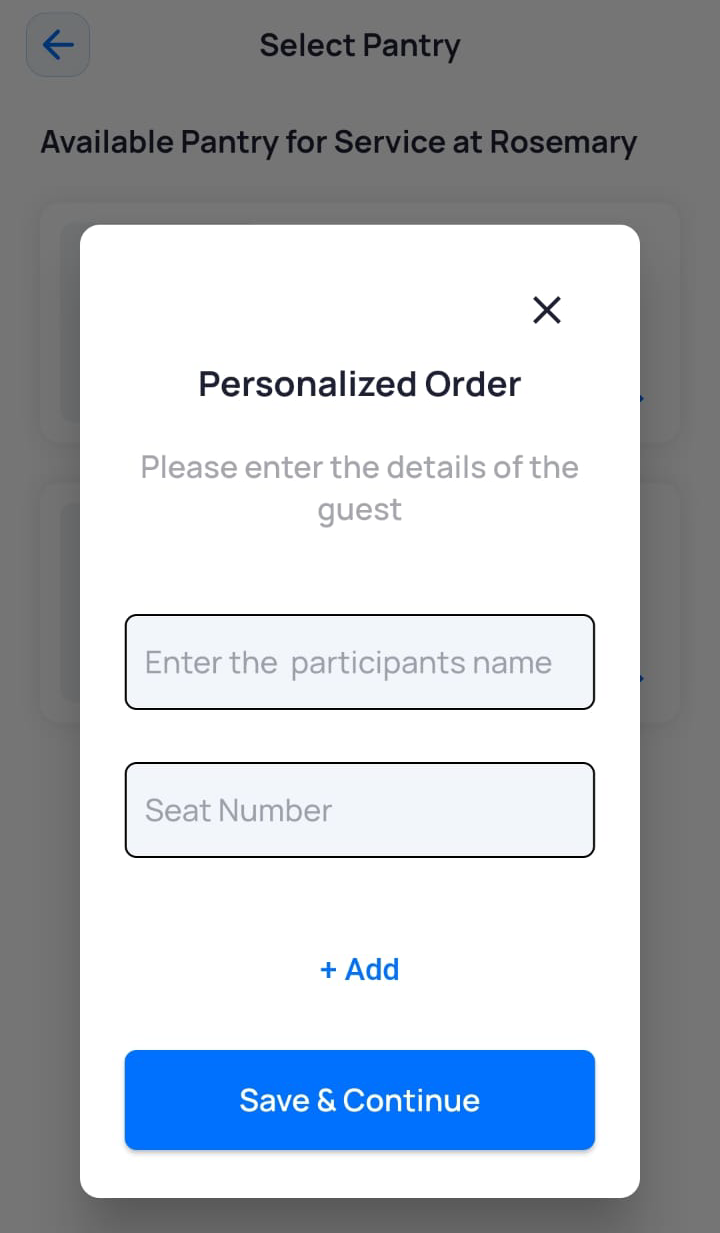
- Enter the following guest details:
- Name of the person (guest) for whom you are ordering
- Seat number of the guest
- To add details for another guest, tap +Add and repeat step 6.
- Once you have added all guest details, tap Save & Continue.
The Pantry screen is displayed with the names of all guests added on the previous screen.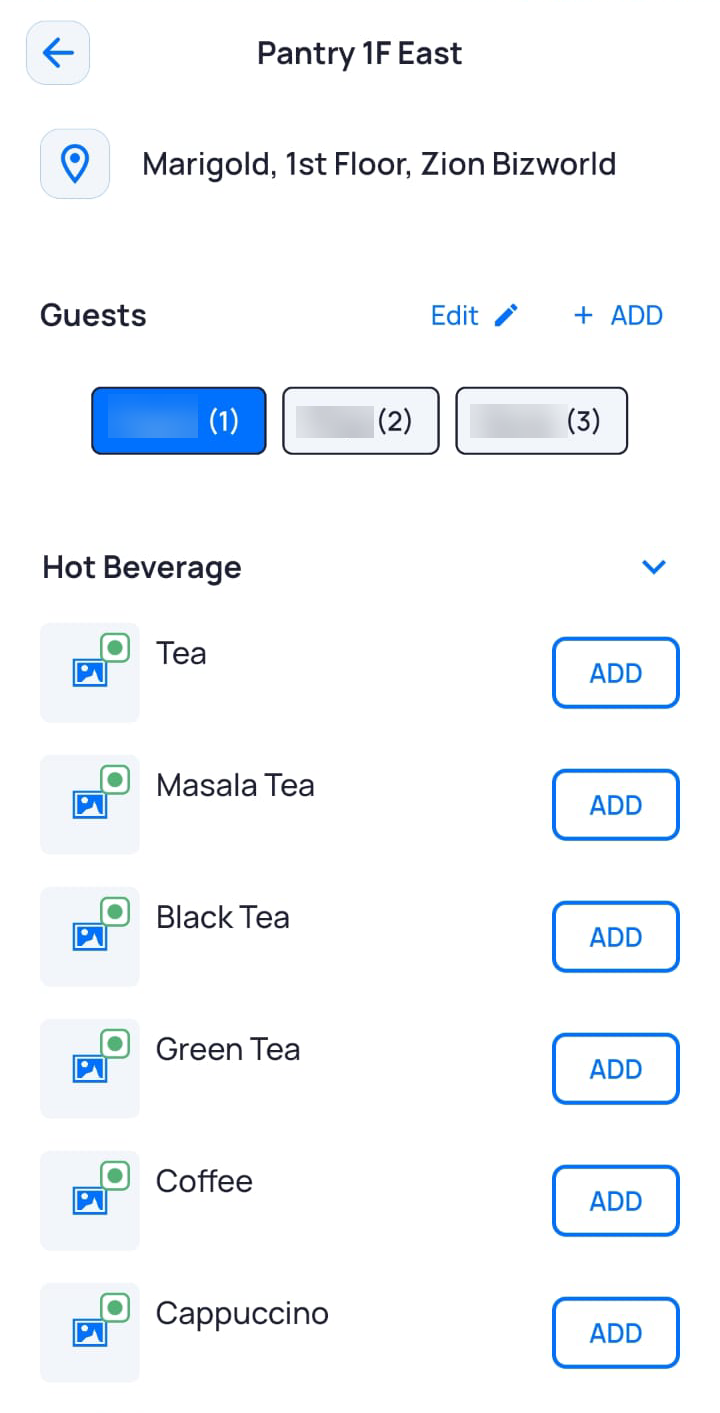
- To edit any guest details here, tap Edit.
Note: You can edit guest details or even add guest details on this screen.
- To add an item for a guest, tap their name and then tap ADD next to the item(s) you want to order for them.
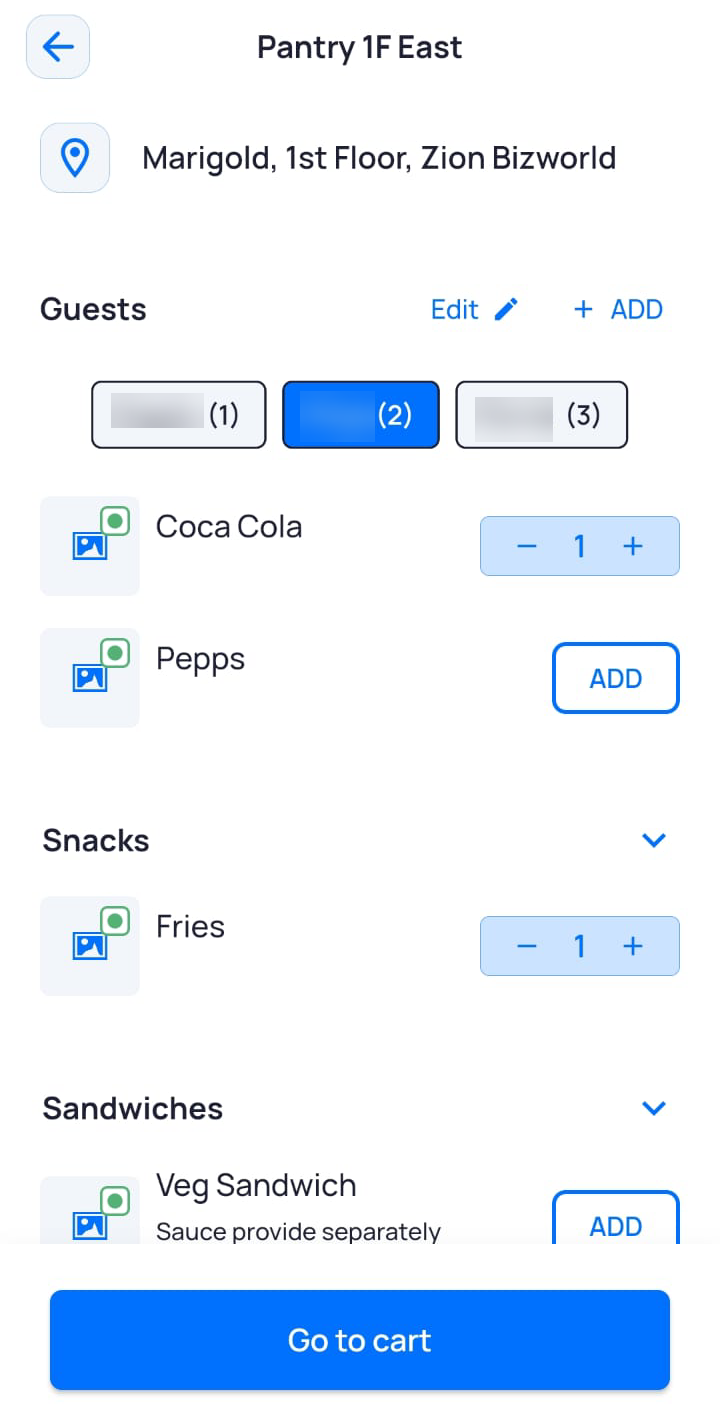
Note: Any out-of-stock item(s) are displayed as N/A.
- For menu items with additional options to customize your order, tap ADD, select the required option in the pop-up, and then tap Add.
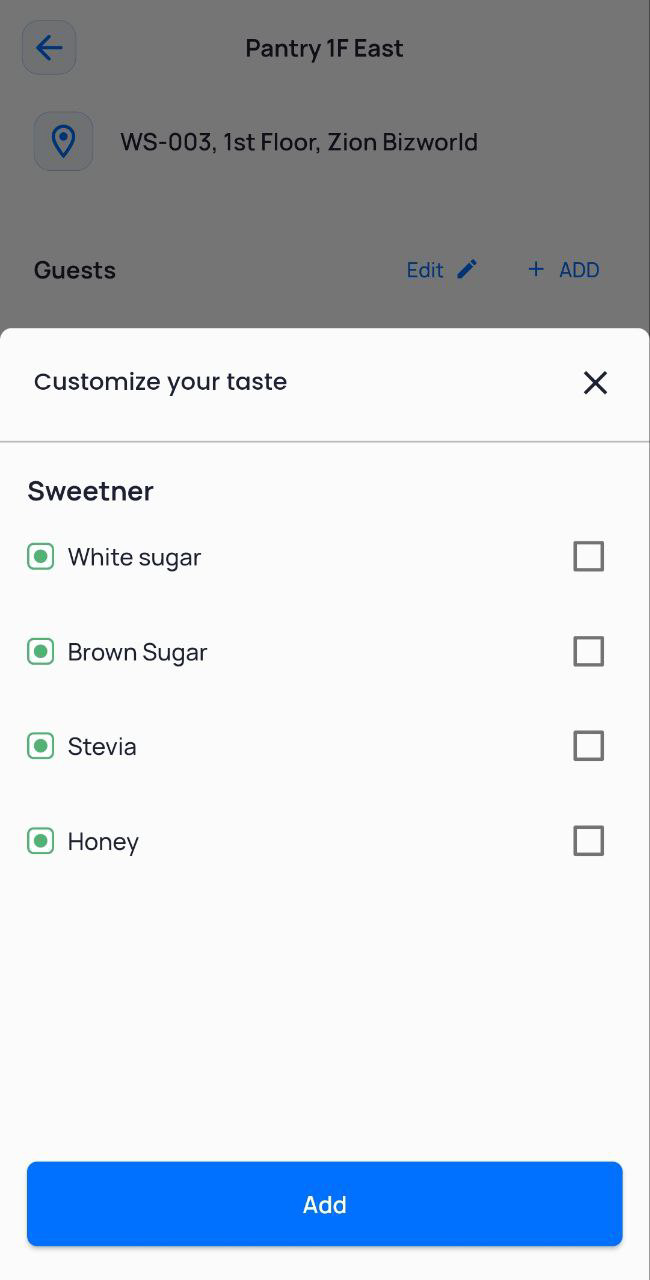
Note: The number of customizations allowed depends on the options configured by the Pantry admin.
- To add items for another guest, tap their name and then tap ADD next to the item(s) you want to order for them.
- Repeat this process for all guests and then tap Go to cart.
Note: If you miss ordering for one or more guests, a Warning is displayed on the screen. You can tap Yes to continue with the order or tap No to go back and select items for the guests.
The Order Details screen displays the details of your order.
- Enter a Message with additional instructions for your order, if required.
- To delete the order at this stage, tap
 .
- To place the order, tap Order Now.
- On the confirmation screen, tap Confirm.
The Order Confirmation screen is displayed with your order ID. - Tap Done.
The Pantry Orders screen displays your current order under the Ongoing tab with a Queued status.
Once the pantry processes your order, the order status is updated.Note: For more information on the order statuses, click here.
Editing Guest Details for a Personalized Order
You can edit guest details at the time of adding food and beverage items for a personalized order.
- On the pantry screen that displays the names of the guests and list of food and beverage items, tap Edit.
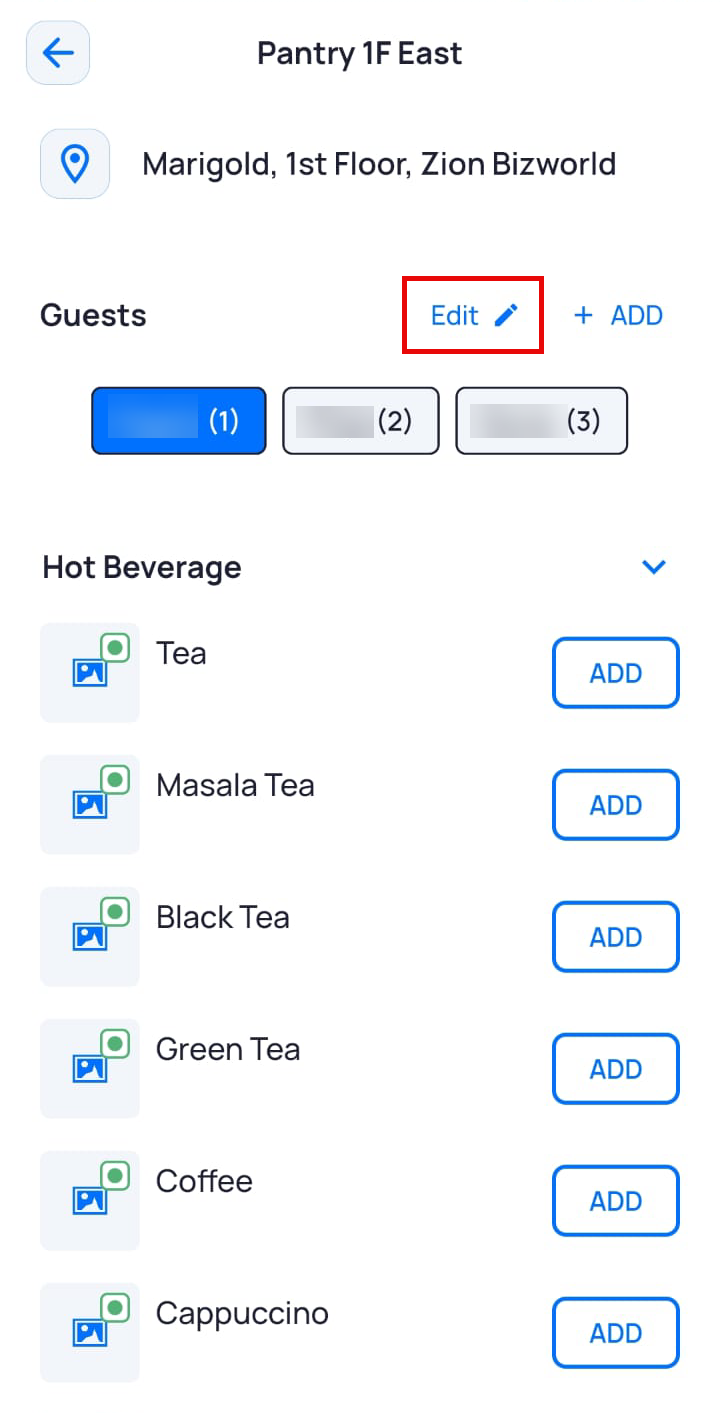
- In the Edit Details, pop-up, edit the name or seat number of the guest and tap Save & Continue.
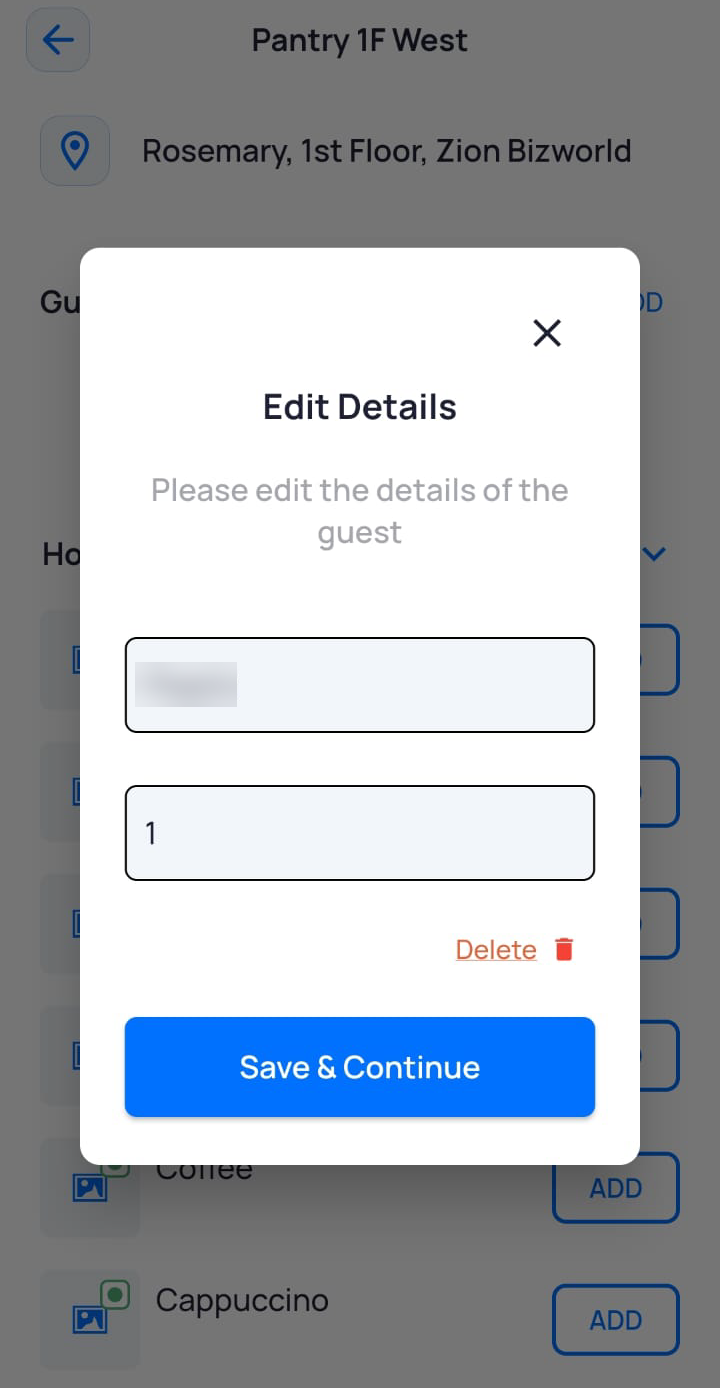
- To delete this guest, tap Delete.
The Pantry screen is displayed with the updated guest details. - To edit the details of another guest, tap on their name, click Edit and repeat step 2.
- Once you have edited the guest details, select the menu items for each guest and place the order.
Adding Guest Details for a Personalized Order
You can add more guest(s) to a personalized order at the time of adding food and beverage items.
- On the pantry screen that displays the names of the guests and list of food and beverage items, tap ADD.
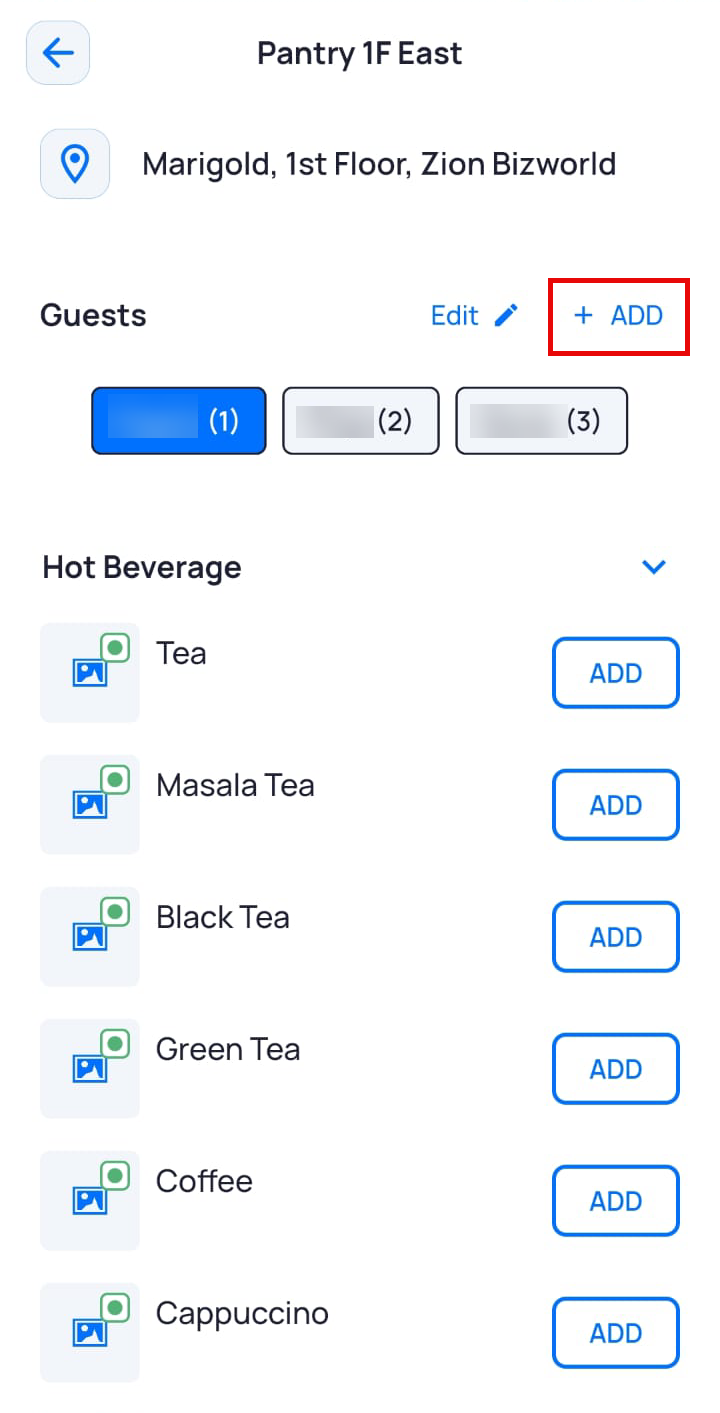
- In the Personalized Order pop-up, enter the name and the seat number of the person (guest) you are adding to the order and tap +Add.
- To add details for another guest, repeat steps 1 & 2.
- Once you have added all guest details, tap Save & Continue.
The Pantry screen is displayed with the updated guest details.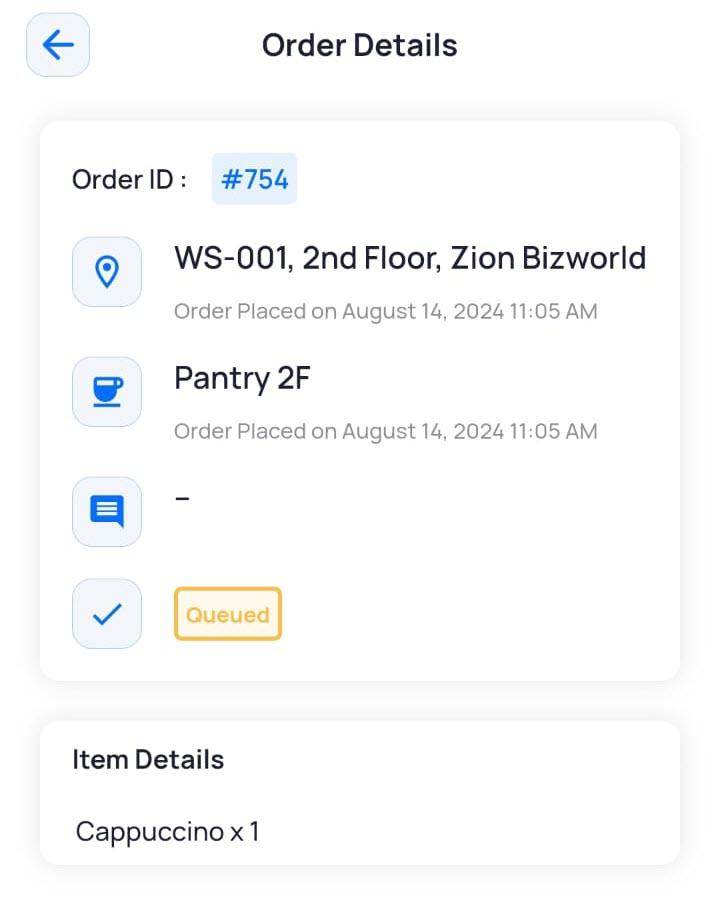
- Once you have added the guest details, select the menu items for each guest and place the order.