
- On the Dashboard screen, tap Pantry.
The Pantry Orders screen is displayed with the Ongoing tab listing all ongoing orders placed by you, if any. - Tap Place New Order.
The Select Delivery Location screen is displayed with a list of workstations, meeting rooms, and other areas where pantry service is available.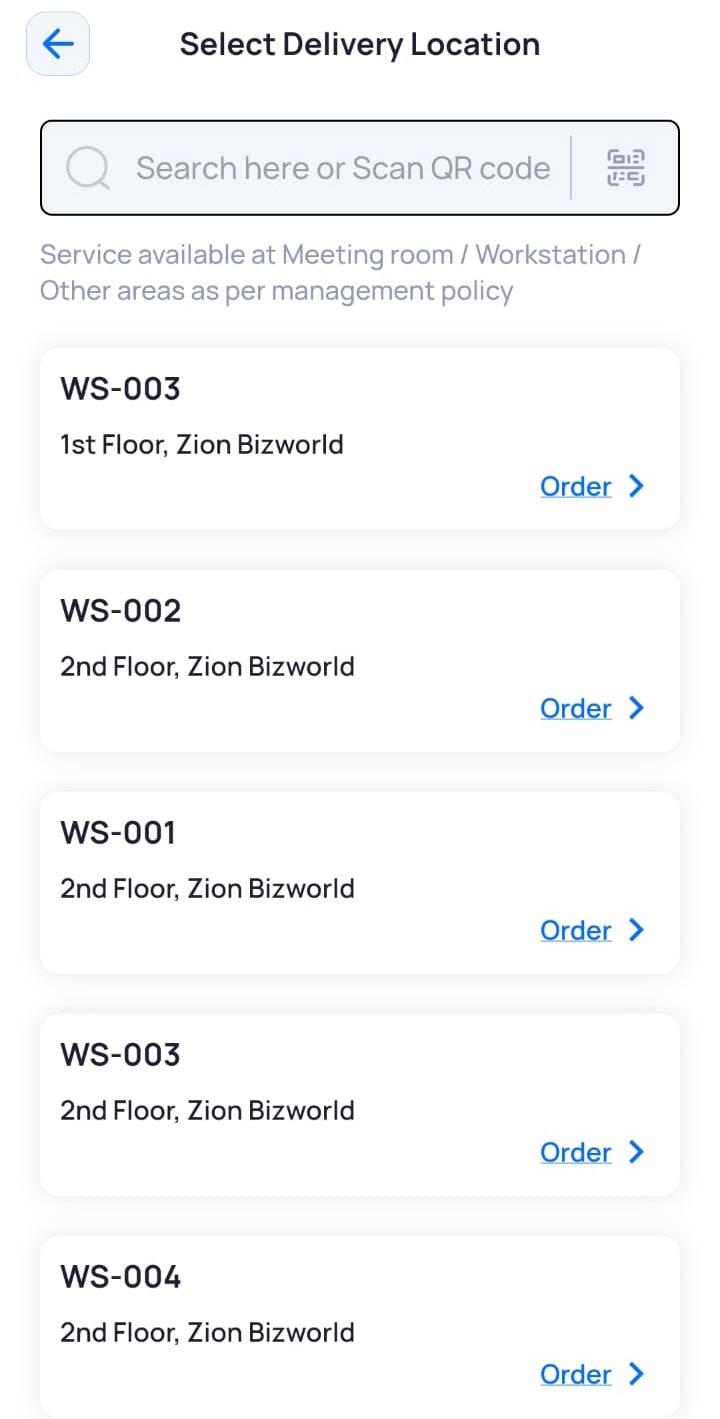
Note: The availability of pantry service for spaces such as desk, meeting room, or area is configured by the admin.
- Search for your location by typing it in the search box.
OR
Tap to scan the QR code of your location.
OR
Tap your location from the displayed list.
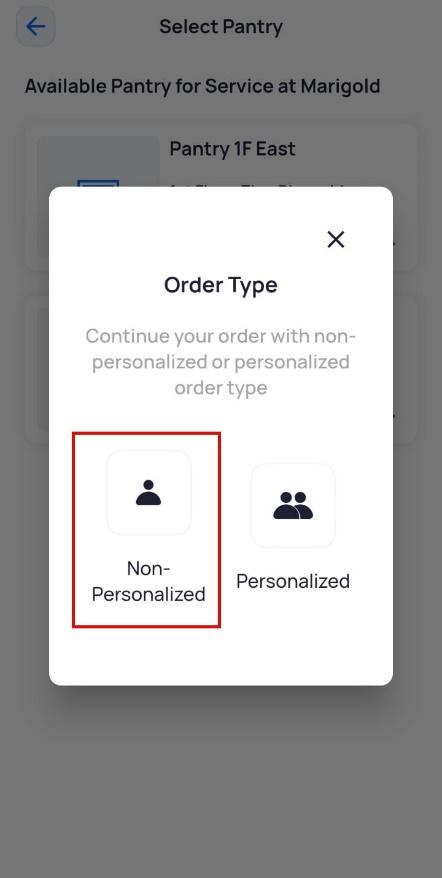
The Select Pantry screen is displayed with a list of pantries catering to the selected location. - Tap the pantry where you want to place the order.
- In the Order Type pop-up window, tap Non-Personalized.
- On the Pantry screen, tap ADD next to the item(s) you want to order.
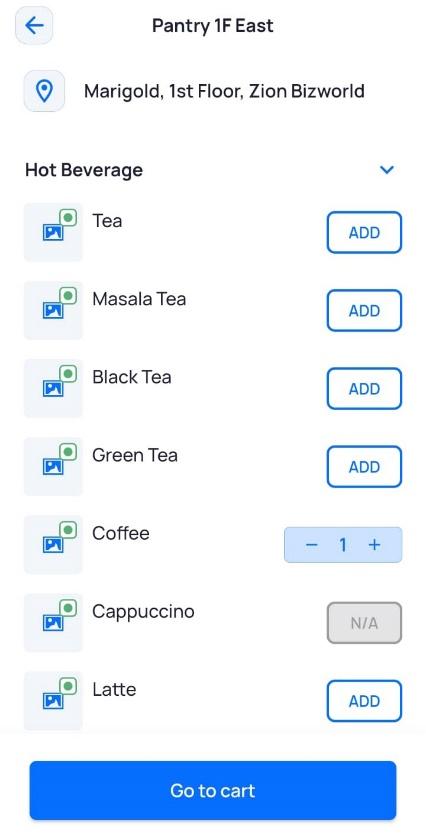
Note: Any out-of-stock item(s) are displayed as N/A.
- For menu items with additional options to customize your order, tap ADD, select the required option in the pop-up, and then tap Add.
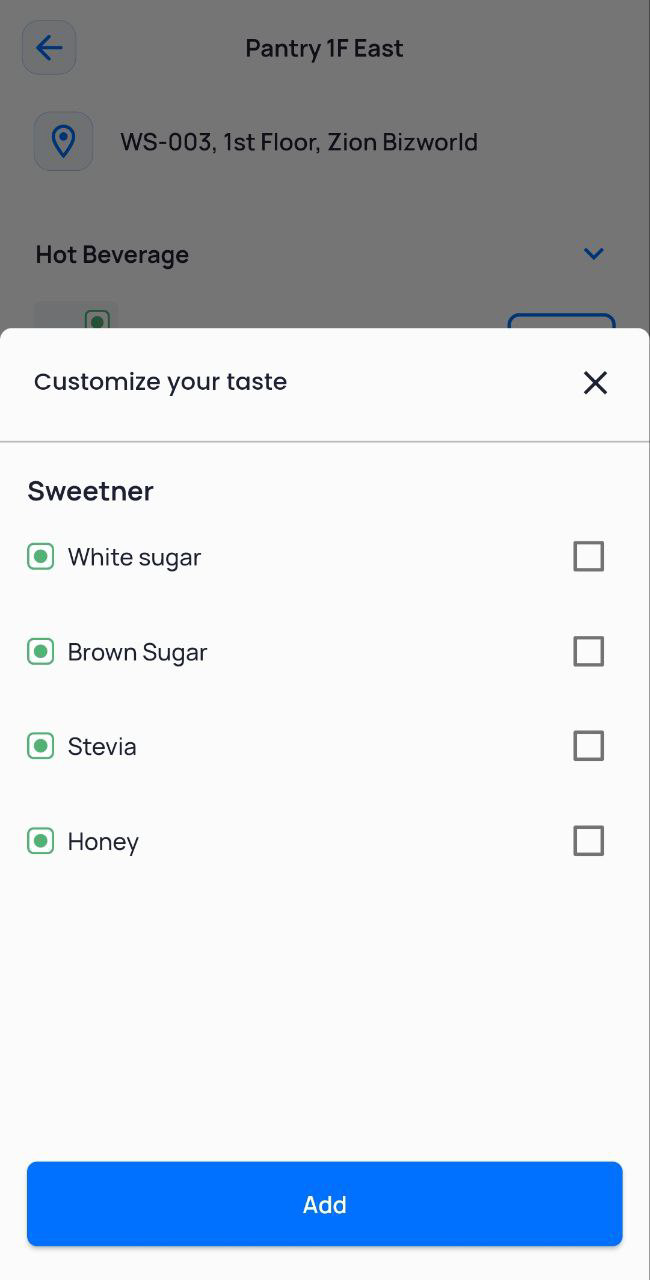
Note: The number of customizations allowed depends on the options configured by the Pantry admin.
- Once you have added all the items, tap Go to cart.
The Order Details screen displays the details of your order.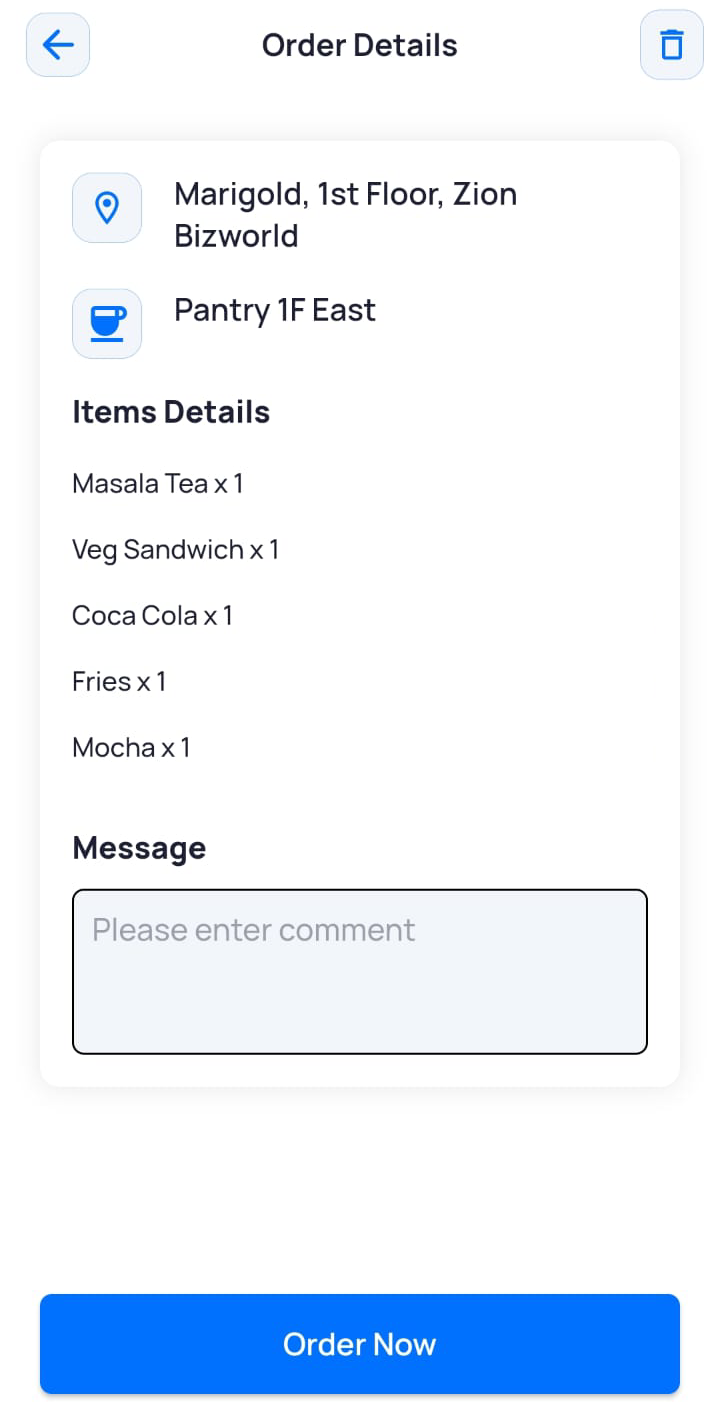
- Enter a Message with any additional instructions for your order, if required.
- To delete the order at this stage, tap the delete icon
 .
- To place the order, tap Order Now.
- On the Confirmation screen, tap Confirm.
The Order Confirmation screen is displayed with your order ID. - Tap Done.
The Pantry Orders screen displays your current order under the Ongoing tab with a Queued status.
Once the pantry processes your order, the order status is updated.Note: For more information on the order statuses, click here.
Mobile Application User Manuals
Creating a Non-personalized Pantry Order
2 min readUpdated
Was this page helpful?