
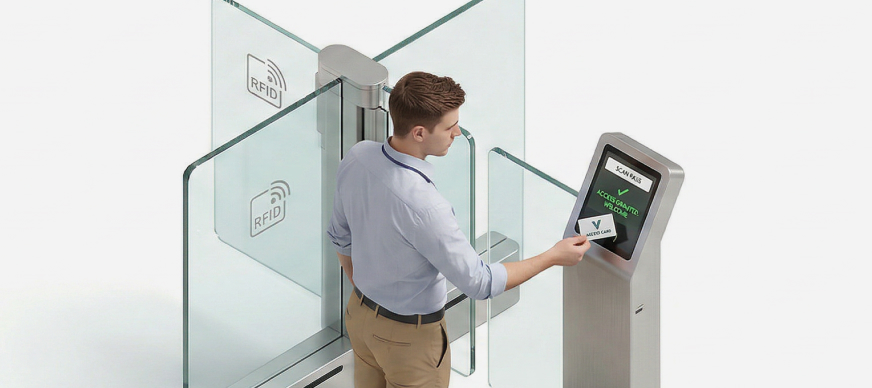
A temporary ID is issued by the security admin to employees who forget to bring their ID cards to the office. This temporary pass allows the employee to gain access to the building and move through security checkpoints without disruption. The temporary ID is valid only for a limited period, typically for the day,
To generate a temporary ID:
- In the Main Menu, under the ADMIN OPTIONS, in the Entry Management subsection, click Temporary ID.
The Temporary ID page with details of all past and current check-ins, total current check-outs, and alert for users not checked out is displayed. - Click New Temporary ID.
The Employee Check-in pop-up window is displayed. - Select the user/employee for which the temporary ID needs to be generated and then click Send OTP.
- Enter the four-digit OTP sent to the employee’s mobile number and email address and then click Check-in.
The pop-up window displays an option to upload the employee’s image.Note: If you miss uploading the image at this stage of ID creation, you can also do it later, from the Temporary ID page. For more information, click here.
- Click Download Pass.
The entry pass is downloaded as per the template configured under Settings and can be printed and handed over to the employee.
Uploading Employee Image
In case you forgot to upload the employee’s image while generating a temporary pass for them, you can do so from the Temporary ID page. However, image uploads are only permitted within the system-defined time frame.
To upload employee image:
- In the Main Menu, under the ADMIN OPTIONS, in the Entry Management subsection, click Temporary ID.
The Temporary ID page with details of all check-ins and check-outs is displayed. - Under the Action column, click the Upload Image
 icon.
The Employee Check-in pop-up window is displayed. - Capture the employee’s photos or upload an image file.
The image is uploaded successfully.