
When an employee places an order with a cafeteria, it is initially marked as Queued. This status indicates that the order has been received but not yet processed. As a vendor, you can process this order (after receiving payment) and update the order status.
You can process the order in the following ways:
- Mark a queued order as in kitchen
- Mark a in kitchen order as ready
- Mark a ready order as delivered
- Reject an order
Marking a Queued Order as In Kitchen
Note: If the Auto Expiry After (in mins) field is enabled when configuring the vendor profile and the vendor does not acknowledge the order, then the queued order is automatically cancelled and the refund is initiated.
To accept an order and move it to the kitchen:
- On the Dashboard screen, tap Order Management.
The Order Management screen is displayed with orders for the selected cafeteria listed chronologically. - Under the Queued tab, tap the order that you want to process and move to the kitchen.
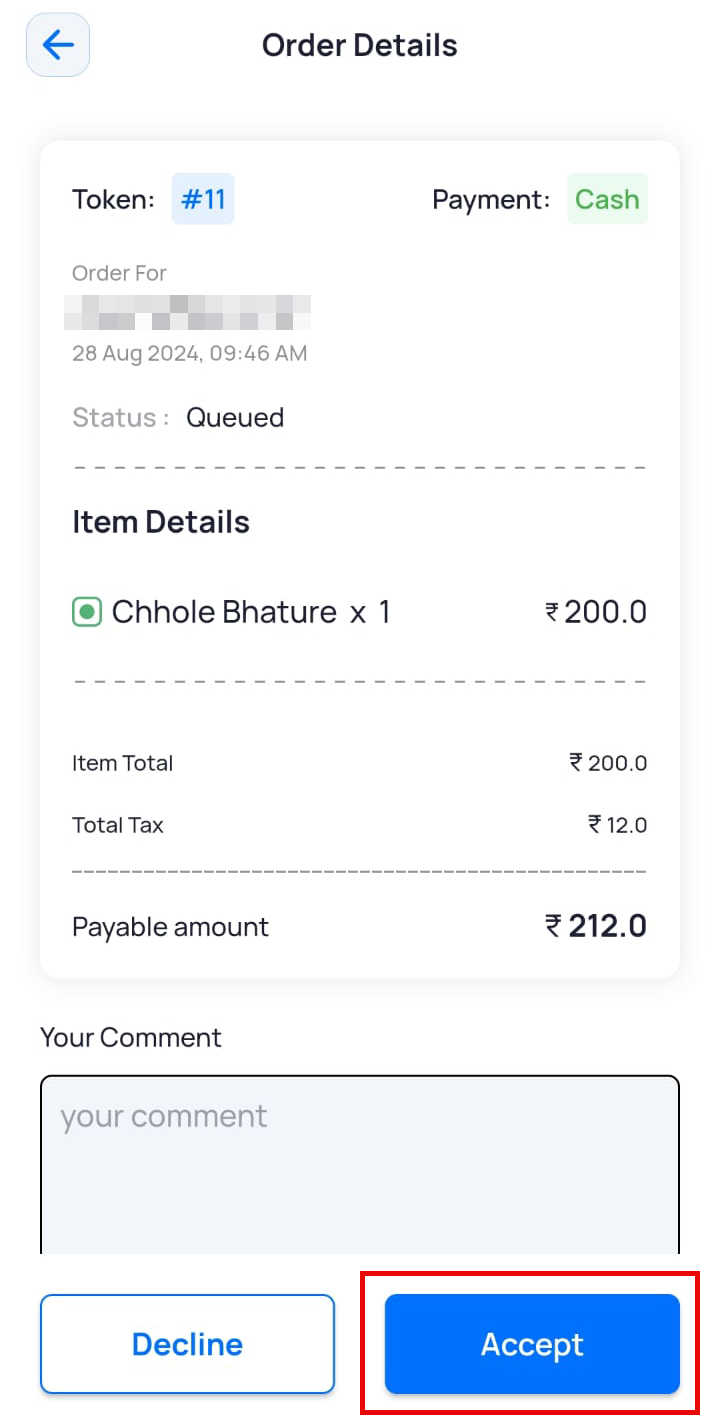
- On the Order Details screen, tap Accept.
The order is accepted, and the kitchen starts preparing food.
Marking an In Kitchen Order as Ready
- On the Dashboard screen, tap Order Management.
The Order Management screen is displayed with orders for the selected cafeteria listed chronologically. - Under the In Kitchen tab, tap the order that is ready to be picked up.
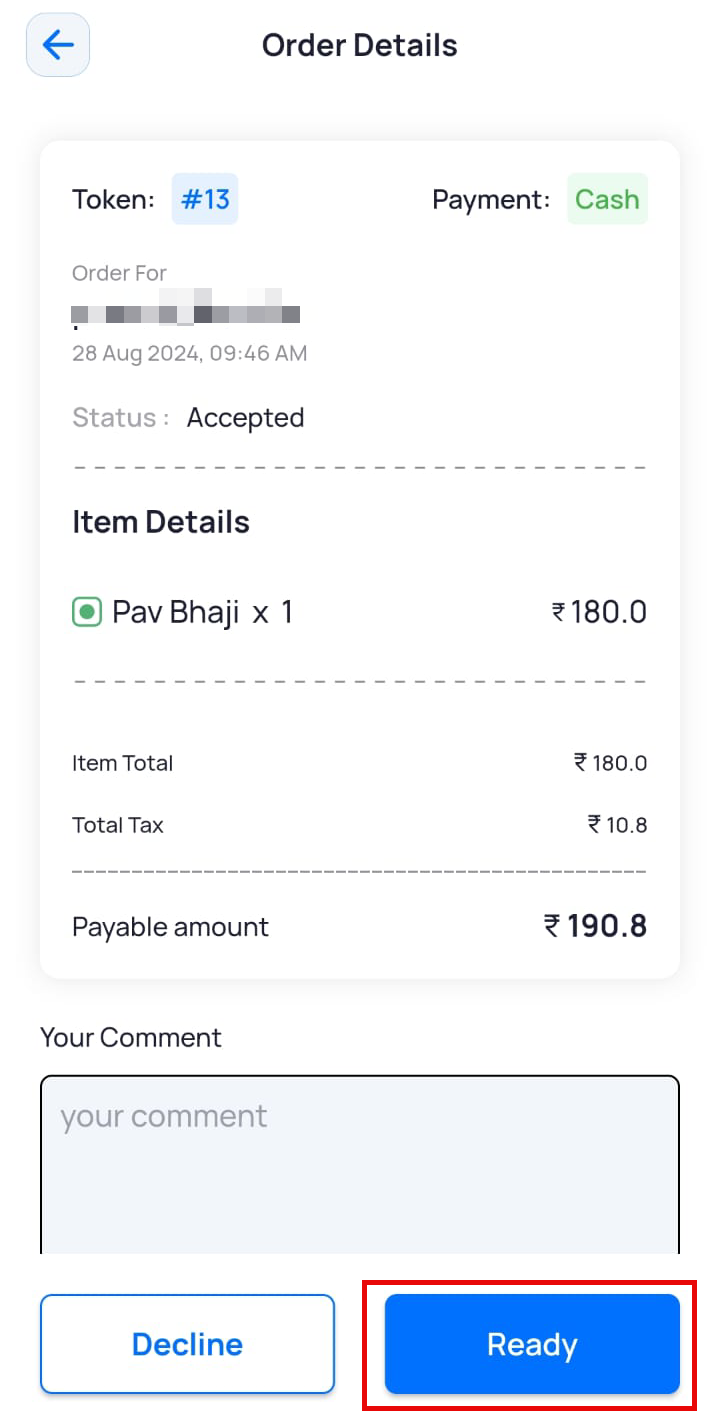
- On the Order Details screen, tap Ready.
The order is marked as ready, and the employee is notified to pick up the order.
Marking a Ready Order as Delivered
- On the Dashboard screen, tap Order Management.
The Order Management screen is displayed with orders for the selected cafeteria listed chronologically. - Under the Ready tab, tap the order that is ready to be delivered.
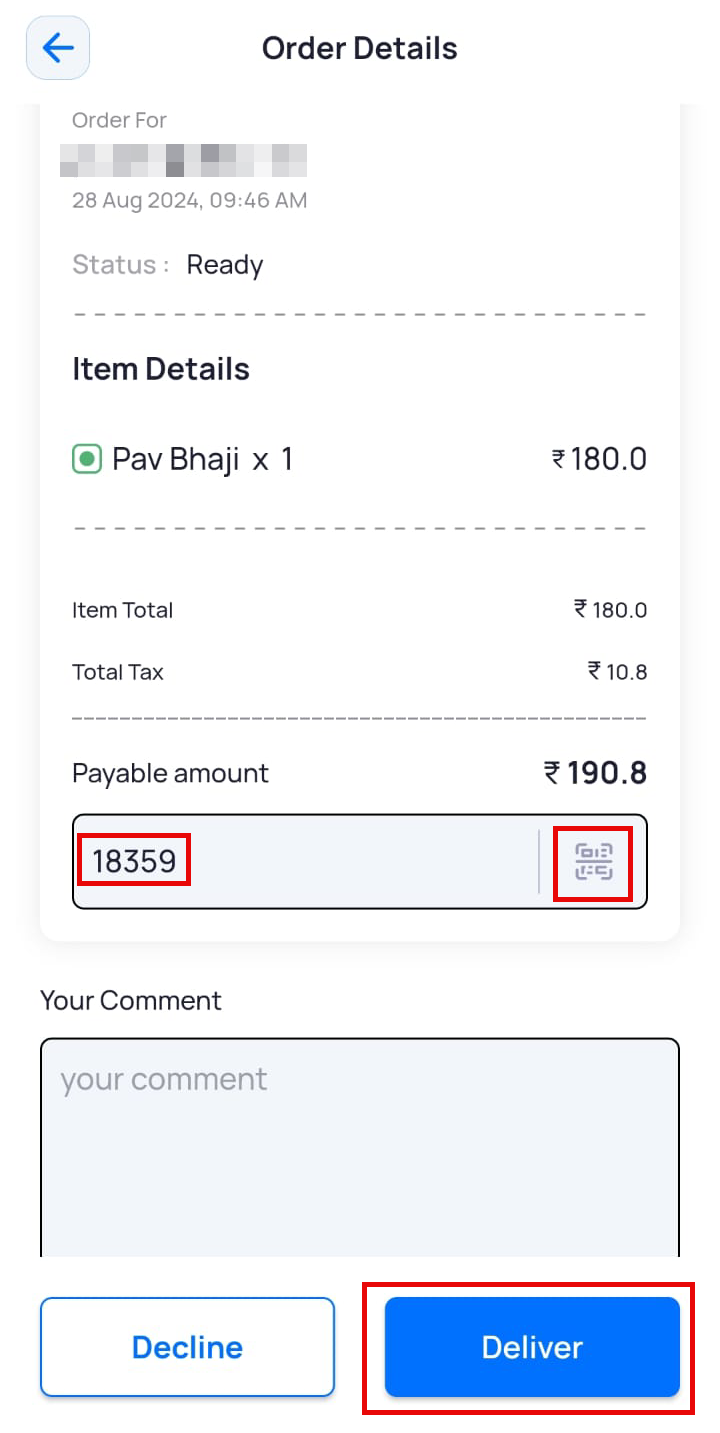
- On the Order Details screen, enter the Pickup Code or scan the QR code provided by the employee.
Note: If the Skip Delivery Code field has been enabled at the time of configuring the vendor profile, then delivery code is not required at the time of pick up and the vendor can directly mark the order as delivered.
- Once the Pickup Code is verified, tap Deliver.
The order is marked as delivered and can now be found in the Order History.
Rejecting an Order
If the cafeteria is unable to accept an order due to item unavailability or other reasons, the order can be rejected. Vendors can reject orders at any stage of order processing.
- On the Dashboard screen, tap Order Management.
The Order Management screen is displayed with orders for the selected cafeteria listed chronologically. - Tap the order that you want to reject.
You can reject orders under both the Queued and In Kitchen tabs. - On the Order Details screen, tap Reject.
The order is rejected by the cafeteria admin.