
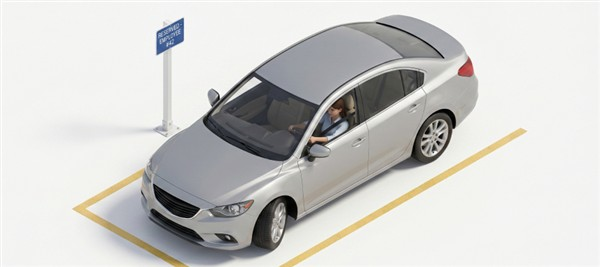
In this section, you will learn how to handle parking operations as:
Managing Parking (Admin)
In this section, you will learn how to:
The Parking Management module in the Apptimus app allows security or parking staff to easily check in and check out vehicles. This feature is accessible only for users with the ROLE_FACILITY_PARKING_USER role at that specific location. Further, based on the Parking profile selected for the role, there might be some parking restrictions in effect.
Checking-in Vehicles
- On the Dashboard screen, tap Parking Management.
The Parking Management screen is displayed.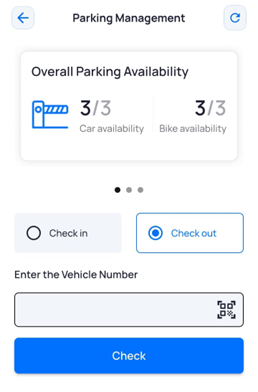
- Tap Check-in.
- Enter the vehicle number manually. OR Tap the QR code
 icon to scan the vehicle’s QR code.
- Select the parking space and tap Confirm. At the time of checking in, geofencing is enforced as per the latitude/longitude/distance values at the time of assigning the ROLE_FACILITY_PARKING_USER role to the user.
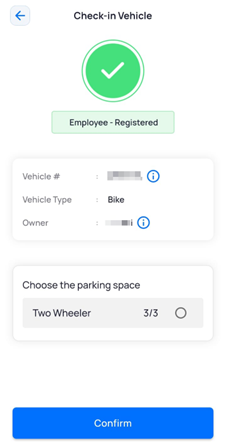
The vehicle is checked-in.
Checking-out Vehicles
- On the Dashboard screen, tap Parking Management.
The Parking Management screen is displayed. - Tap Check out.
- Enter the vehicle number manually.
OR
Tap the QR code icon to scan the vehicle’s QR code. - Tap Check out.
A Success screen confirms that the vehicles checked out.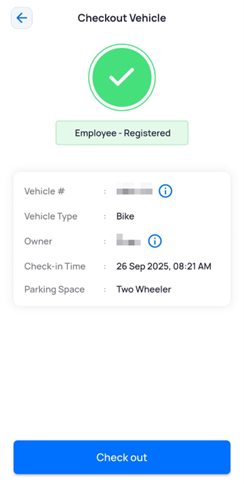
Managing Parking (Employee)
The Parking module in the Apptimus app helps employees conveniently track and manage their parking activity within the facility. It provides real-time information on available parking spaces and maintains a record of your vehicle check-ins and check-outs.
As an employee, you can:
Viewing Parking Availability
- On the Dashboard screen, tap Parking.
The Parking screen is displayed. - Select your mode of transport as:
- Car
- Bike
Viewing Parking History
- On the Dashboard screen, tap Parking.
The Parking screen displays both parking availability and your vehicle’s parking history.
The history includes the following details: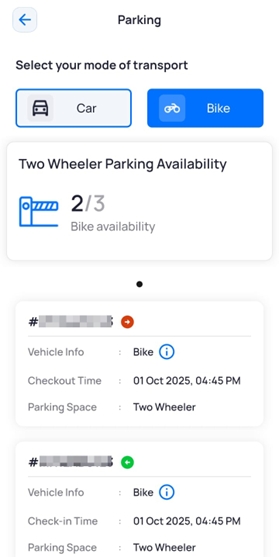
- Vehicle Info: Indicates whether the vehicle is a car or a bike.
- Check-in or Checkout Time: Displays the time when the vehicle was checked in or checked out.
- Parking Space: Displays the name of the parking space.
- Tap the
 icon for vehicle details.