
After configuring the HVAC settings in the web application, you can access and manage the HVAC controls for each zone through the Apptimus app. The app also allows you to override the AC unit settings in specific zones if needed. This functionality enables you to efficiently adjust and optimize heating, ventilation, and air conditioning across different areas of your office building, ensuring both energy efficiency and a comfortable environment for employees.
To manage the AC controls of an HVAC zone:
- On the Dashboard screen, tap AC Control.
The AC Control screen is displayed. - Select the location where you want to manage the AC settings.
A list of all HVAC zones is displayed.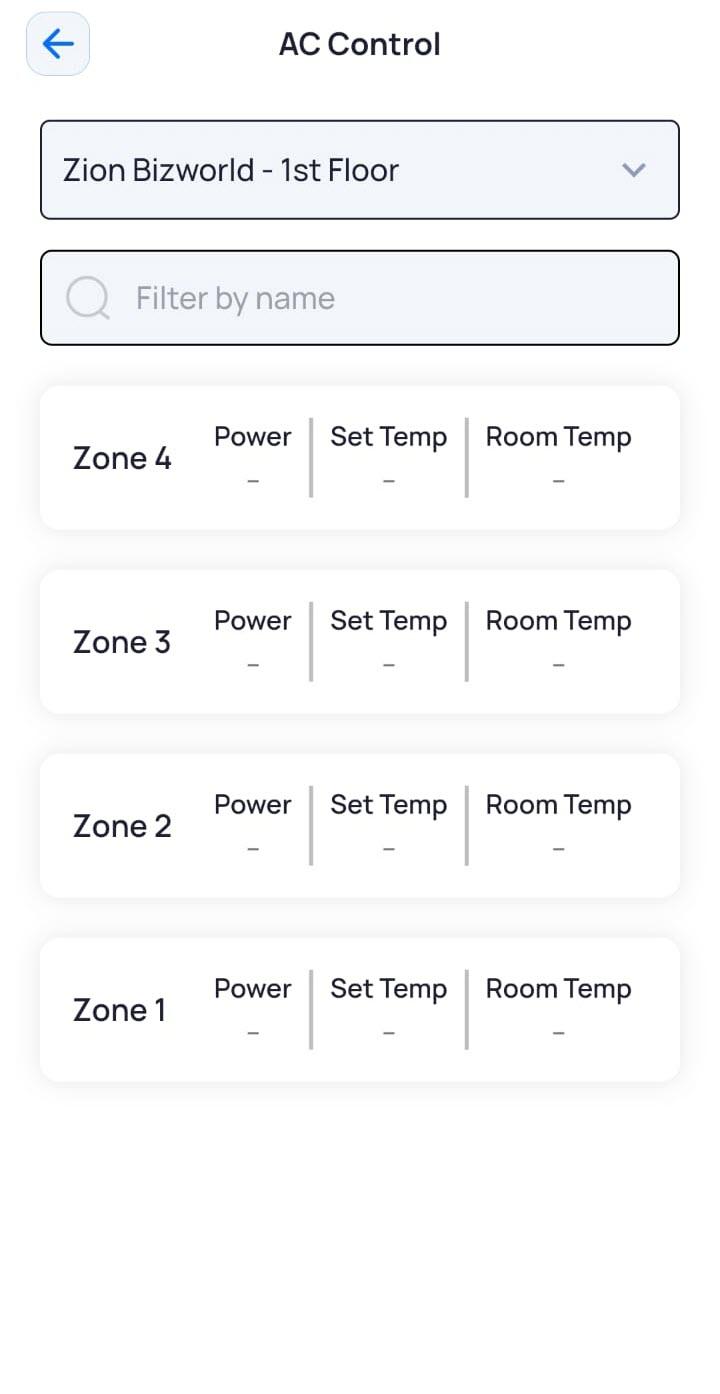
- Tap the zone for which you want to manage the settings.
The screen displays the following settings, as configured in the web application:Field Description Room Temperature
Displays the current room temperature in the selected HVAC zone and allows you to increase or decrease the setting.
Power
Allows you to select the AC power settings – On, Off, Auto – according to the AC unit’s specifications or as configured in the HVAC profile.
Mode
Allows you to select the AC mode – Auto, Fan, Dry, Cool - according to the AC unit’s specifications or as configured in the HVAC profile.
Fan Speed
Allows you to select the fan speed – Auto, Low, Medium, High- according to the AC unit’s specifications or as configured in the HVAC profile.
Swing Direction
Allows you to select the swing direction – Auto, Horizontal, Vertical - according to the AC unit’s specifications or as configured in the HVAC profile.
Duration
Allows you to enter the duration for which these new settings will override the default settings of the HVAC zone.
- Click Apply.
The override settings are applied.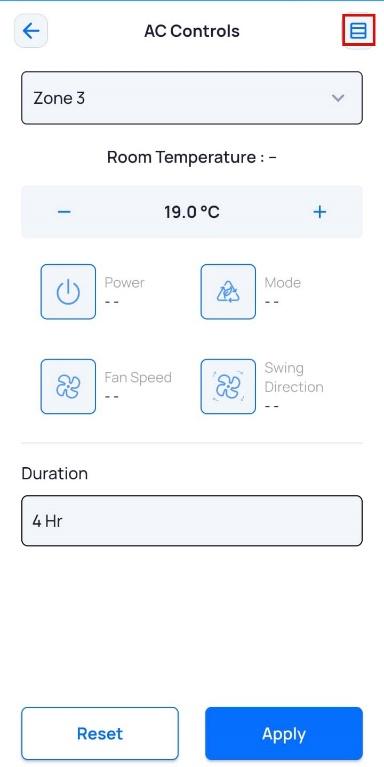
- To view the schedule override details, tap
 .
The Control Schedules screen displays the override settings for the AC unit.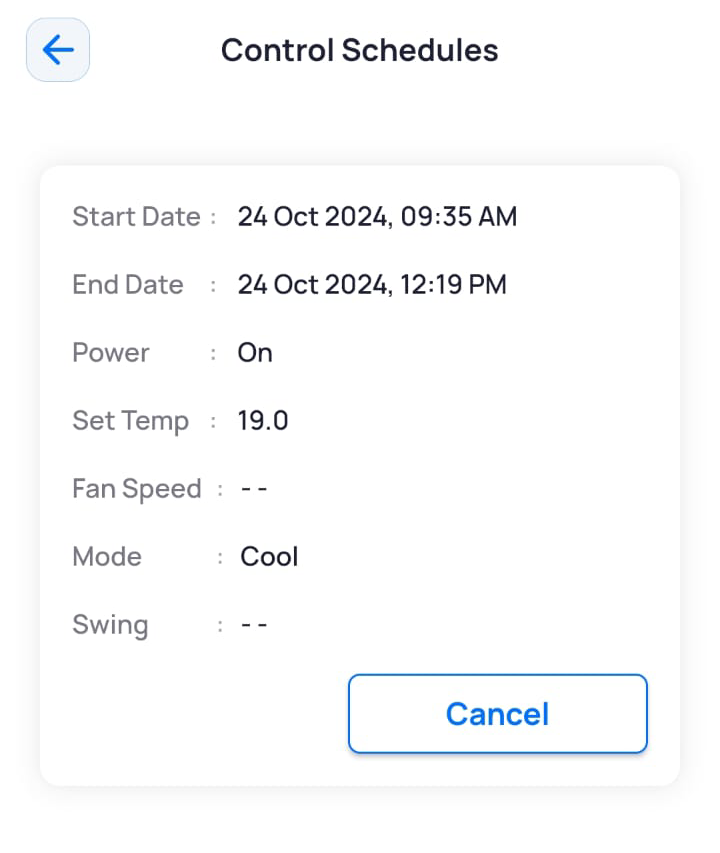
- To cancel the override settings, tap Cancel.