
You can either create an outbound mail request directly through the app or request the mailroom admin to create it on your behalf.
To create a mail request from the app:
- On the Dashboard screen, tap Mail Management.
The Mail Management screen is displayed with the Inbound tab displaying mails addressed to you received by the mailroom, if any. - Tap Outbound.
Outbound mail requests created by you, if any, are displayed. - Tap New Outbound Mail.
The New Outbound Mail screen is displayed.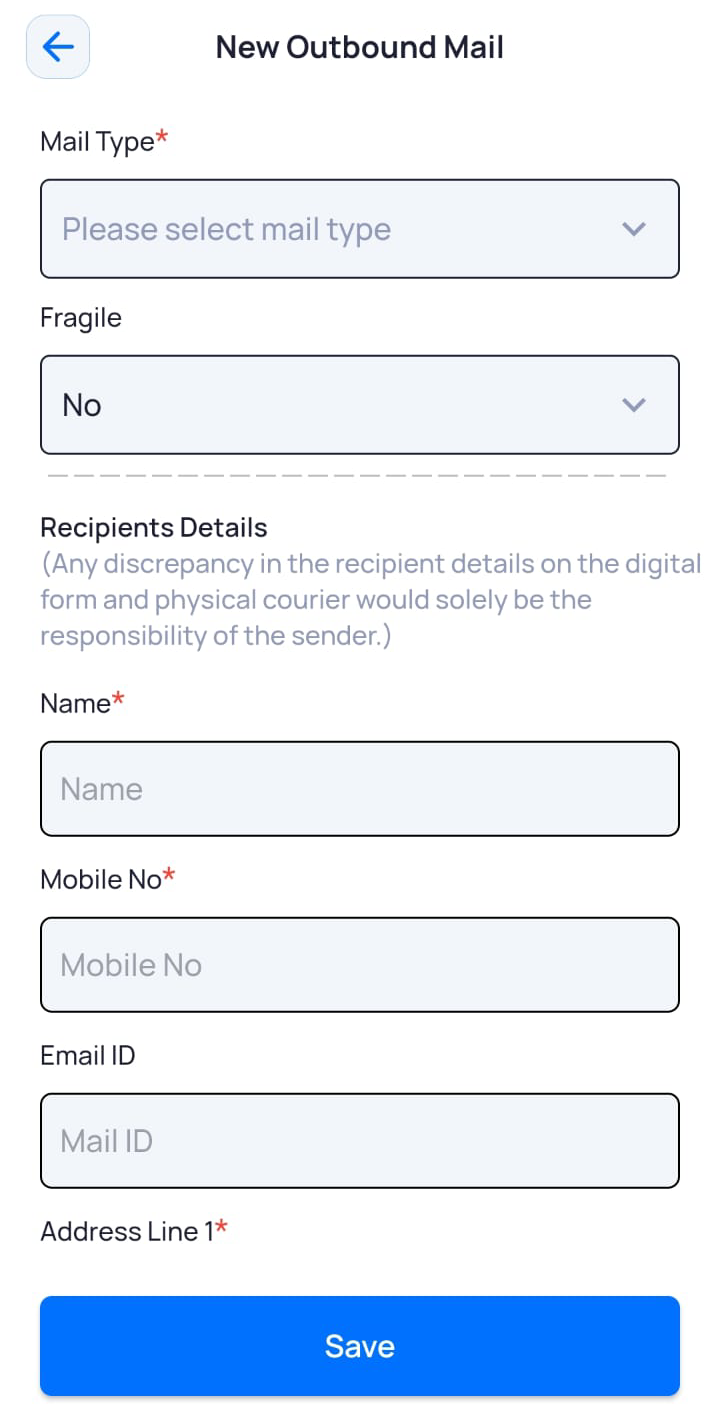
- Enter or select the required field information.
Field Description Mail Type*
Select the type of mail for the request, for example, parcel.
Fragile
Select if the mail is fragile or not.
Name*
Enter the name of the recipient.
Mobile No*
Enter the mobile number of the recipient.
Email ID
Enter the recipient’s email address.
Address Line 1*
Enter the address of the recipient.
Address Line 2
Include additional address details, if necessary.
Landmark
Enter a landmark near the recipient location, if available.
Pincode*
Enter the pin code of the area where the mail has to be sent.
City*
Enter the name of the city where the mail has to be sent.
State*
Enter the name of the state where the mail has to be sent.
Country*
Enter the name of the country where the mail has to be sent.
My Remarks
Enter any additional remarks, if required.
- Click Save.
The mail request is created and displayed under the Outbound tab.
The user who created the request also receives an email confirmation with a verification code for collecting the mail, in case the user decides not to send it.