
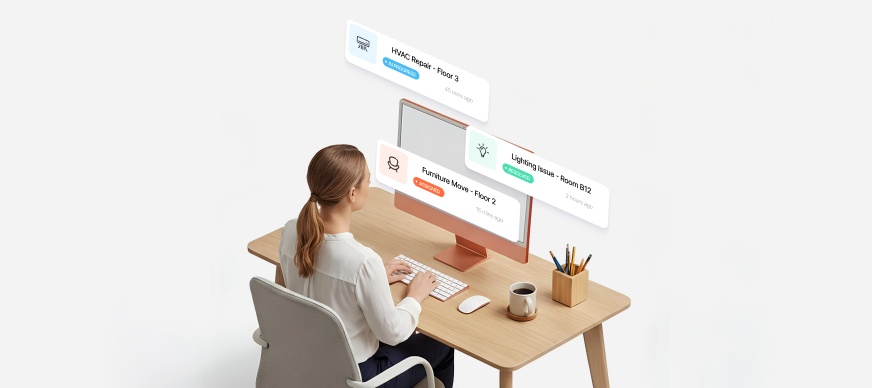
You can view and manage all service requests submitted by users, including those automatically generated in response to alerts raised by the digital checklists. Additionally, you can filter and respond to these service requests as needed.
To access the Service Requests page:
- In the Main Menu, under the ADMIN OPTIONS, in the Service Request subsection, click Service Requests.
A list of service requests is displayed under the Service Requests tab with the following information:
|
Toolbar Options |
|
|---|---|
| Status |
Allows you to filter service request by their status such as Closed, In Progress, Queued, and so on. |
|
Created Date Range |
Allows you to filter service requests within a specific date range. |
|
Updated Date Range |
Allows you to filter service requests updated within a specific date range. |
| Schedule Service Requests Report Download |
Allows you to schedule and download service request reports. |
| Advanced |
Allows you to filter service requests using advanced parameters. |
| Refresh |
Allows you to refresh the page. |
|
Table Fields |
|
| Id |
Displays the service request Id. |
| Service Related To |
Displays the resource that the service request is related to. For example, a meeting room, an asset, and so on. |
|
Status |
Displays the status of the service request as Queued, Closed, and so on. |
|
Assigned To |
Displays the name of the user the service request is assigned to. |
|
Service Type |
Displays the type of service requested such as Login issue, New mobile connection, and so on. |
|
Sub Service Type |
Displays the type of sub service such as Invalid password,New SIM, and so on. |
|
Created By |
Displays the name of the user who created the service request. |
|
Created At |
Displays the date and time at which the service request was created. |
|
Action |
Allows you to respond to: |
As a Facility Admin, you can: