
In this section, you will learn how to:
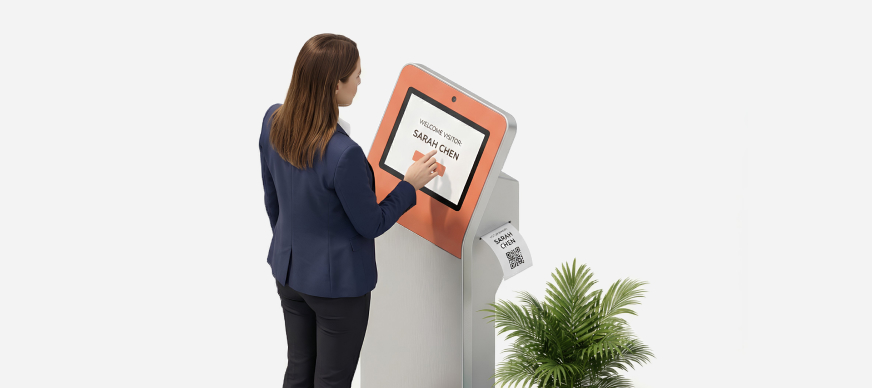
The Default Today's Mode tab displays the visitors expected and those who have already checked in to the facility for the current day.
Checking In the Visitor
- In the Main Menu, under the ADMIN OPTIONS, in the Visitor subsection, click CheckIns.
The Visitor Security Checkins page is displayed with the Default Todays Mode tab open by default. - In the Expected Visitor Today pane, under the Visitor Name column, hover over the
 icon to preview the signed consent form, if available.
Note: The
icon is displayed next to the visitor's name only if they have signed the consent form. - In the Expected Visitor Today pane, under the Visitor Name column, click the visitor’s name.
The Visitor Details page is displayed. - Enter the required field information.
Field Description Badge Number
Enter the badge number for the visitor.
Building & Floor
Select the building or floor where the visitor needs to check in.
Carrying Items
Select Yes if the visitor is carrying any items.
- Click Download Pass to download and print a pass for the visitor.
- Click Check In.
The visitor’s name is displayed in the Visitors CheckedIn Today pane.
Searching Expected Visitors
- In the Main Menu, under the ADMIN OPTIONS, in the Visitor subsection, click CheckIns.
The Visitor Security Checkins page is displayed with the Default Todays Mode tab open by default. - In the Expected Visitor Today pane, enter one or more search criteria. For example, to search by name, enter the visitor’s name.
- Click Search.
The results are filtered as per the specified search criteria. - To reset the search, delete the search criteria from the fields and click Search.
Searching Checked In Visitors
- In the Main Menu, under the ADMIN OPTIONS, in the Visitor subsection, click CheckIns.
The Visitor Security Checkins page is displayed with the Default Todays Mode tab open by default. - In the Visitors CheckedIn Today pane, enter one or more search criteria. For example, enter the checked in status and/or visitor mobile number.
- Click Search.
The results are filtered as per the specified search criteria. - To reset the search, delete the search criteria from the fields and click Search.
Checking Out the Visitor
- In the Main Menu, under the ADMIN OPTIONS, in the Visitor subsection, click CheckIns.
The Visitor Security Checkins page is displayed with the Default Todays Mode tab open by default. - In the Visitors CheckedIn Today pane, under the Visitor Name column, click the visitor’s name.
The Visitor Details page is displayed. - Add a check-out comment, if required.
- Click Check Out.
The visitor is manually checked out and the details on the dashboard are updated. The host also receives a notification for the same by email and on the mobile app.