As an employee, you can:
The Cafeteria function within the Apptimus app offers an experience similar to popular food delivery apps, making it convenient and user-friendly. From tracking real-time order updates to receiving notifications when your order is ready for pickup, the entire process is designed for convenience.
At the employee level, managing cafeteria orders includes browsing the cafeteria menu, selecting items, placing an order, tracking the order status until it is ready for pickup. You can easily check the availability of items before placing the order and process payments through various available payment methods for seamless transactions.
Placing a Cafeteria Order
Through the mobile app, you can browse a list of cafeteria vendors that are open for taking orders. Each vendor’s menu is available for you to explore, allowing you to choose from a variety of food options. Once you have made your selection, you can place an order and track its status until it is ready for pickup.
To place a new order:
- On the Dashboard screen, tap Cafeteria.
The Cafeteria screen is displayed with the New Order tab listing all vendors with their availability status and counter numbers.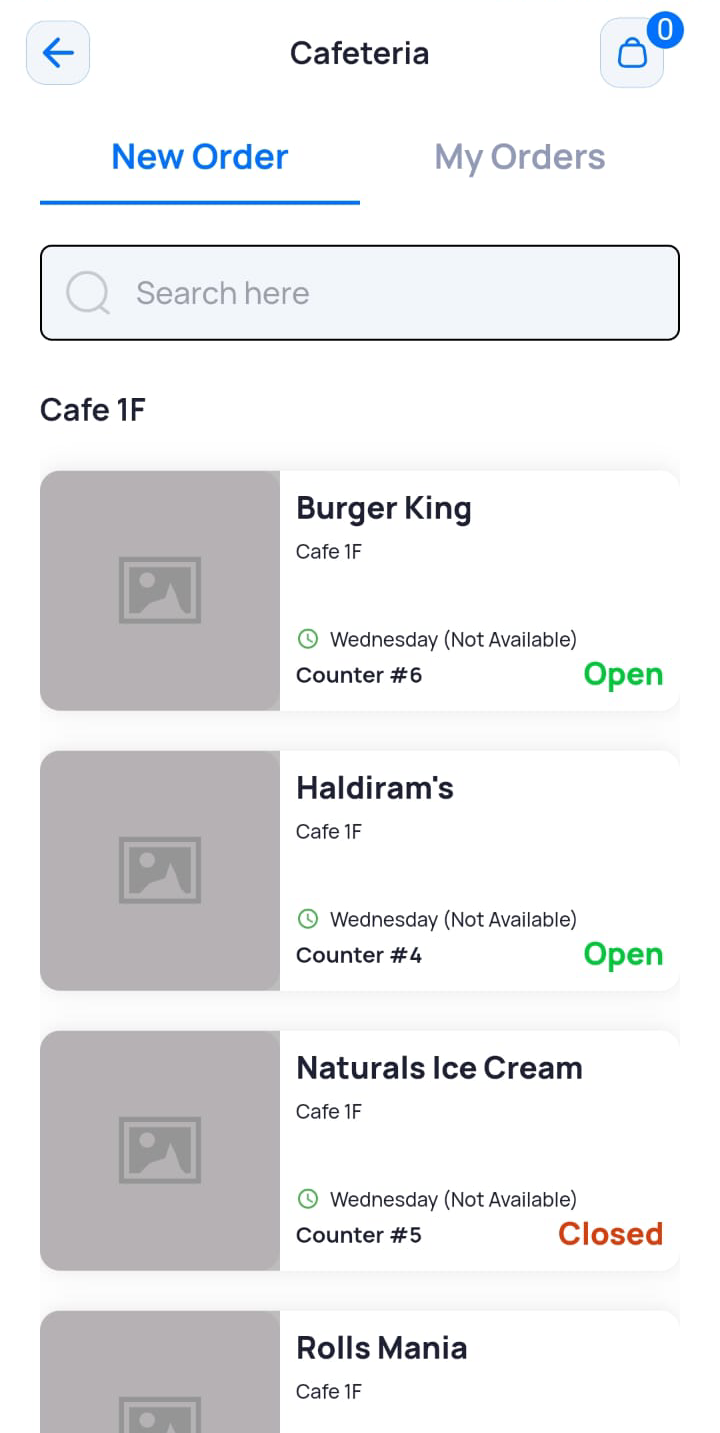
Note: The availability of the cafeteria is configured by the vendor.
- Tap the required vendor.
The vendor’s screen is displayed with a list of items that the cafeteria has on the menu.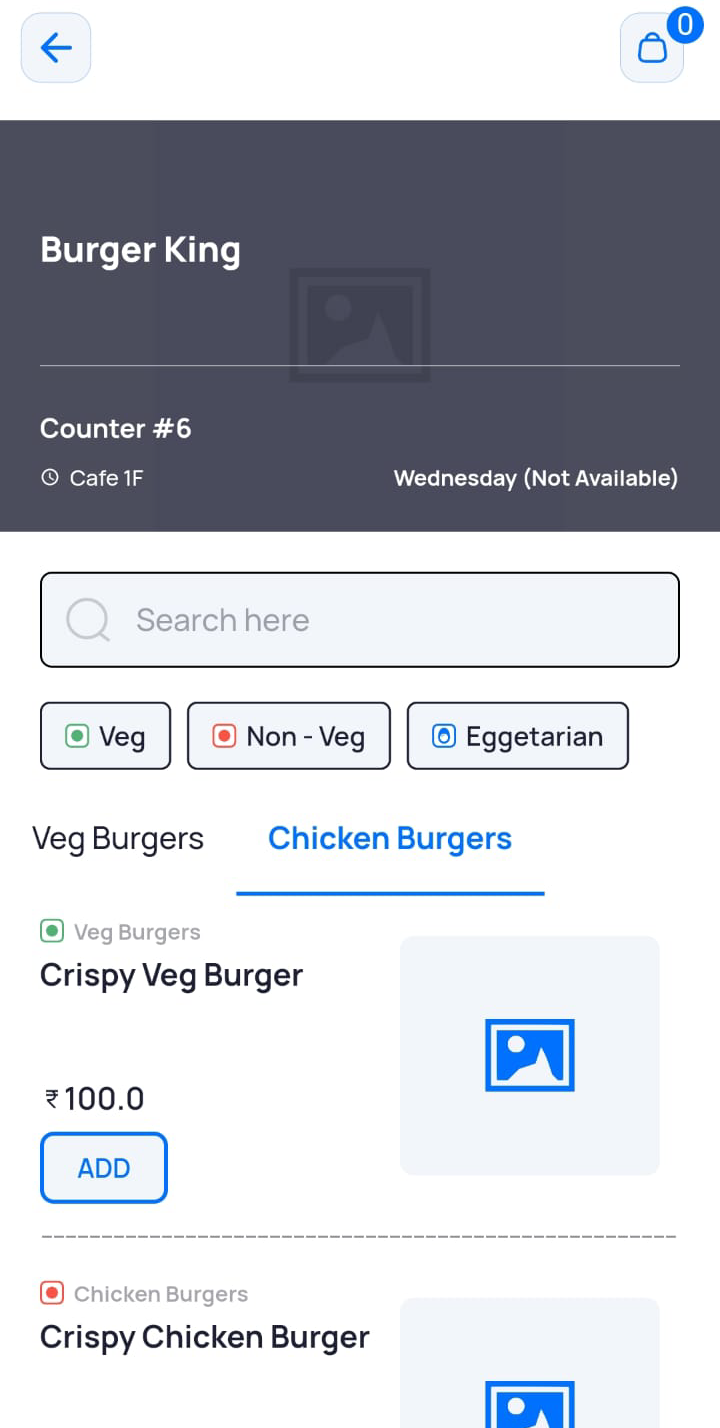
- To order items from the menu:
Tap ADD for the required item.
OR
Tap Veg, Non–Veg and Eggetarian to filter items accordingly and then tap ADD for the required item.
OR
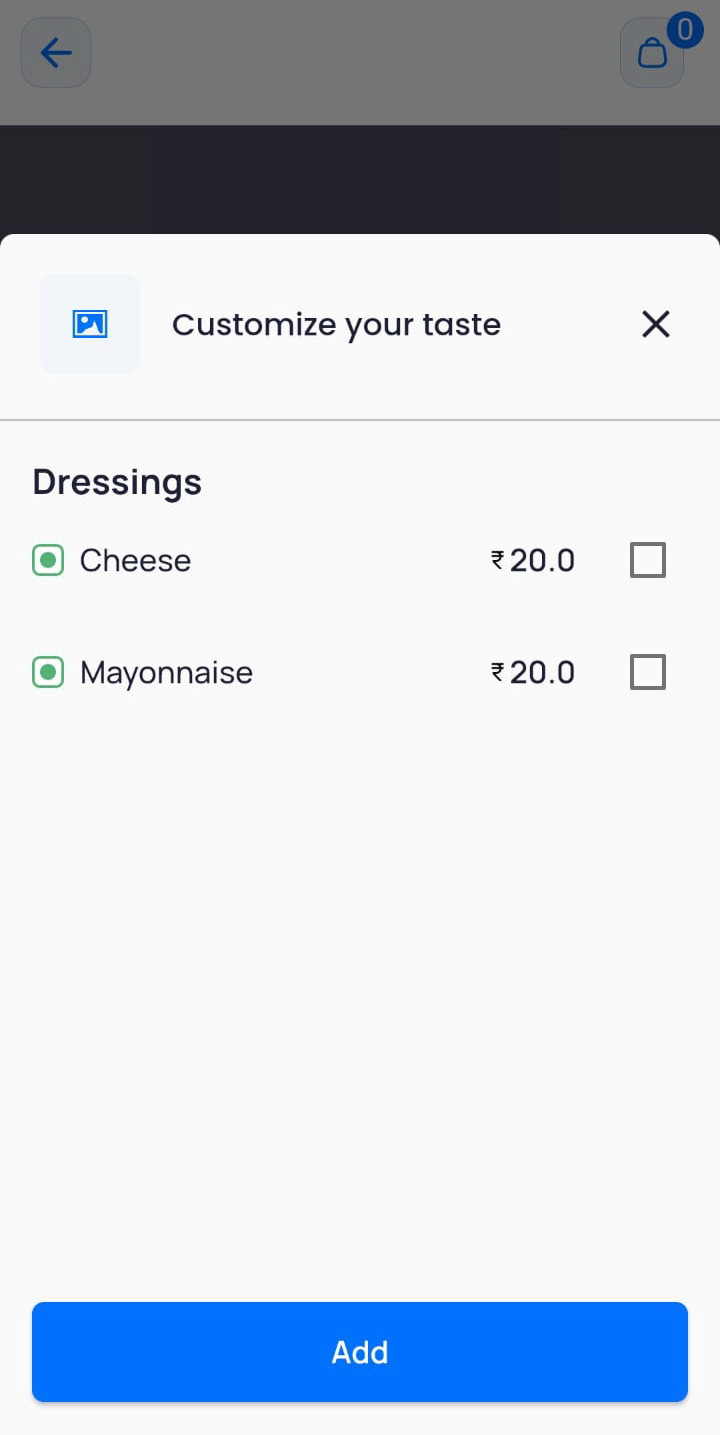
Search for the required item and tap ADD. - Select additional options (if available) to customize your order, and then tap ADD.
- Once you have added all items, tap the cart icon
 .
The Cart Details screen displays your ordered items and the total amount to be paid.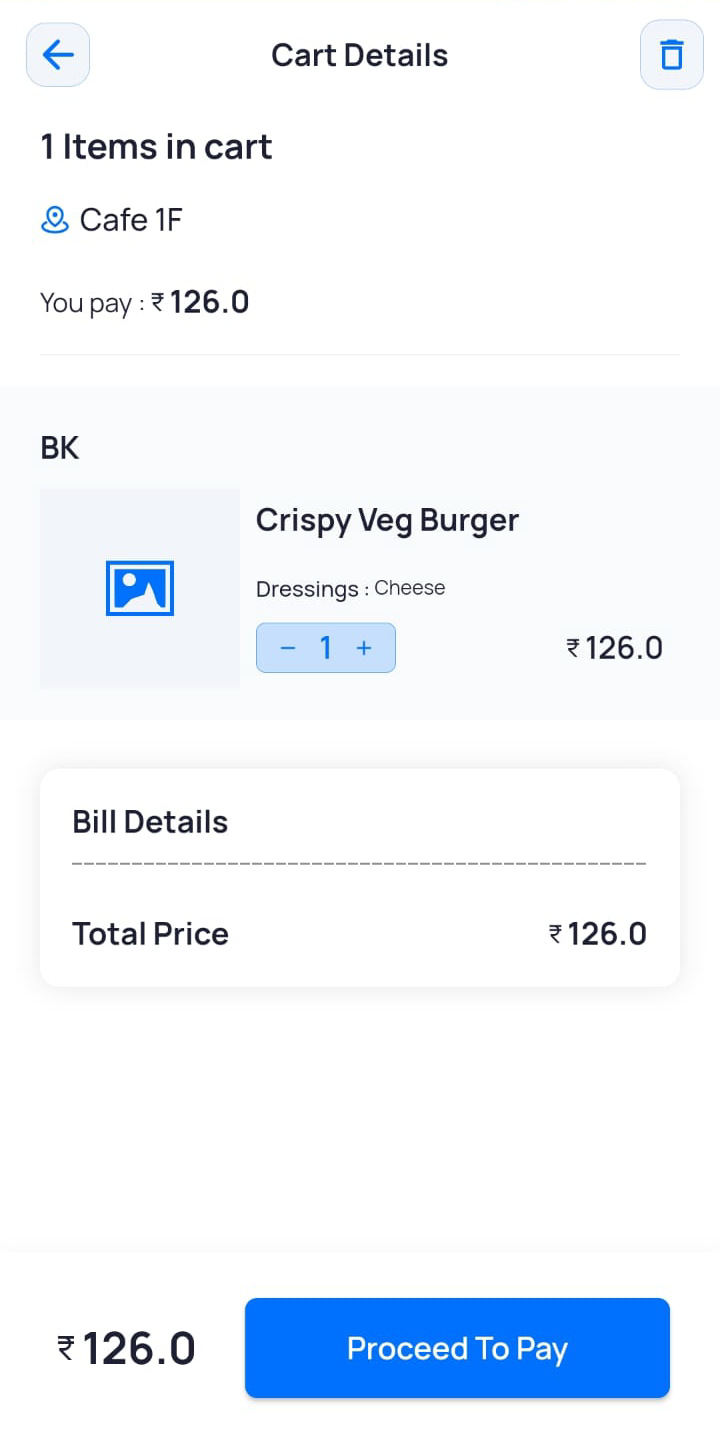
Note: You can delete the order at this stage by clicking the delete
 icon. Once an order is placed it cannot be cancelled.
- Once you have reviewed the items in your cart, tap Proceed to Pay.
The Payment Options screen is displayed with a list of options such as Cash, UPI, and more. - Select the required payment option and tap Proceed to Pay.
The Order Confirmation screen displays the order details including the counter number from where you can collect your order.Note: In case of a cash transaction, you are prompted to pay at the mentioned counter number. In case no payment is required, the order is placed directly.
- Click OK.
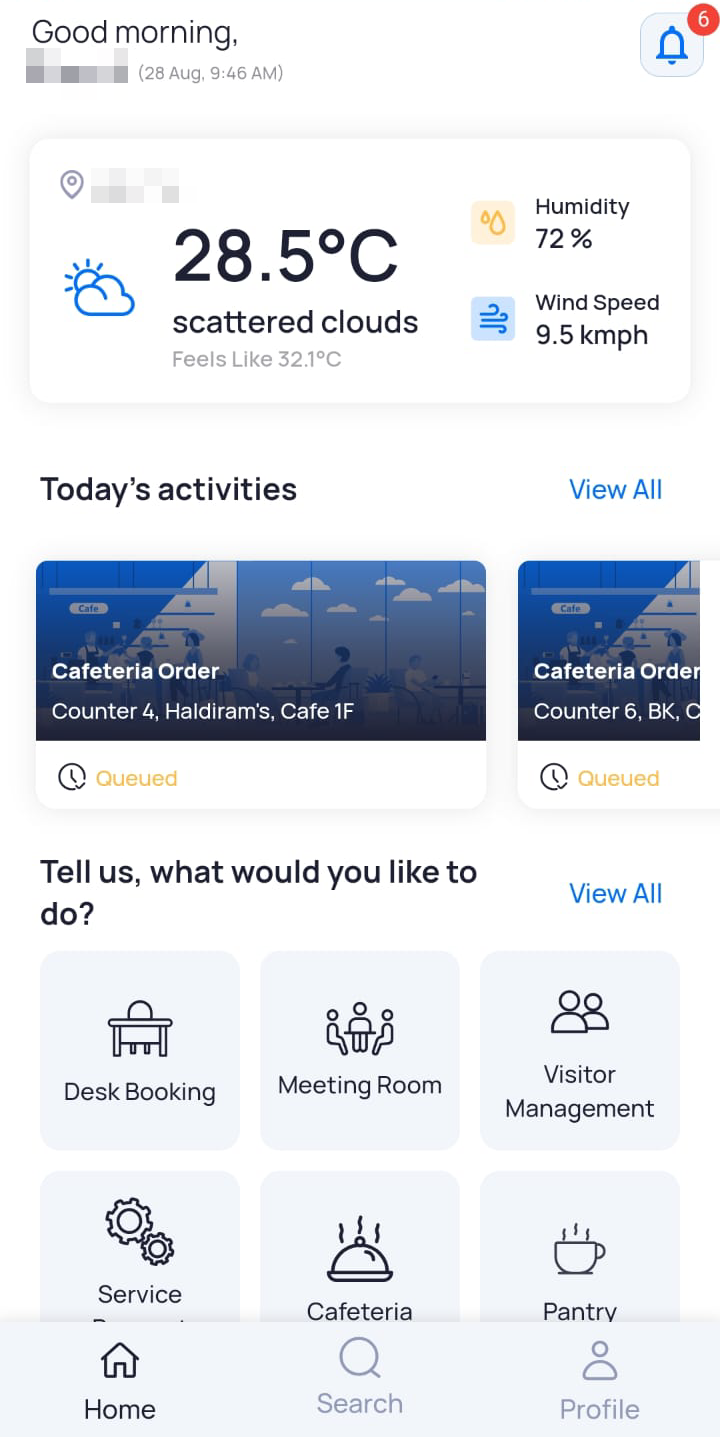
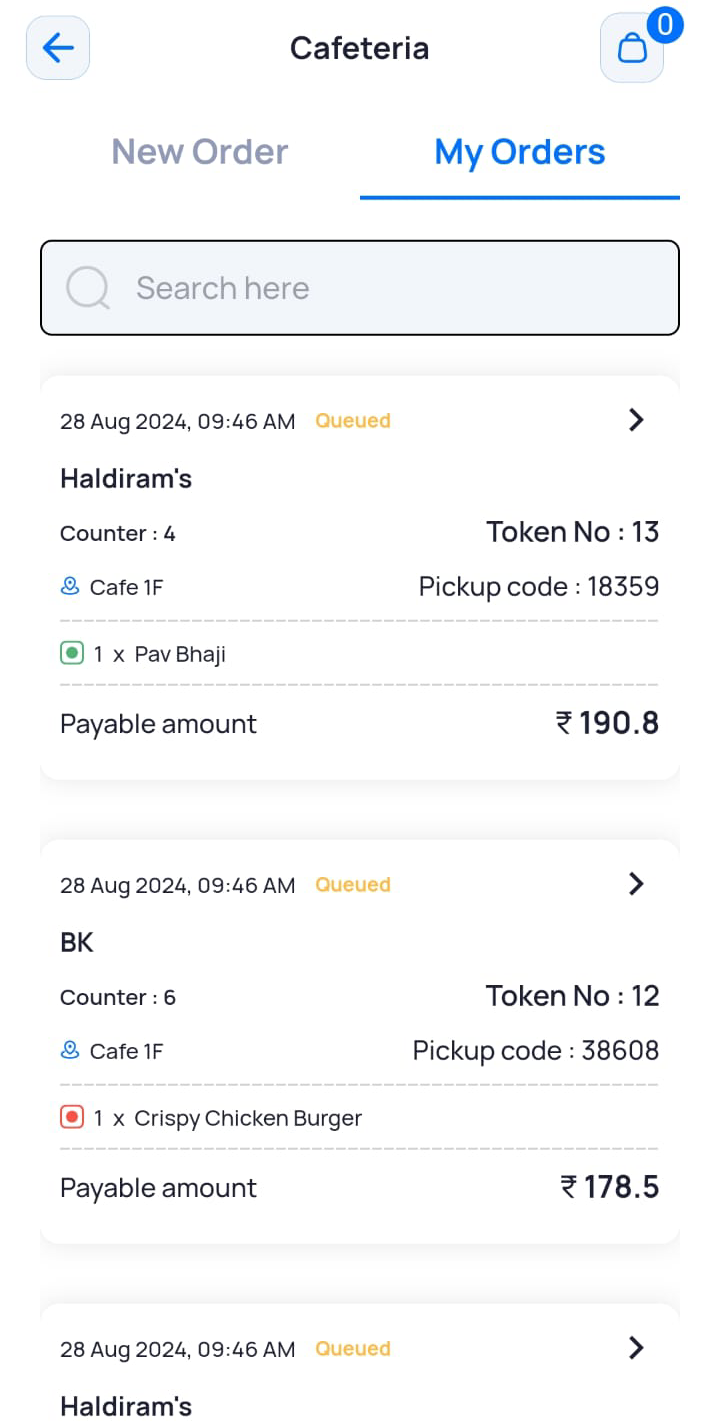
The order is also displayed on the Dashboard under Today’s Activities and under the My Orders in the Cafeteria module.
Tracking Cafeteria Orders
Once you place an order, you can track its progress through the Apptimus app. The app provides real-time updates, displaying the current status of your order at each stage of the process. This helps you stay informed about when your order is being prepared, ready for pickup, or has been completed.
To track your order status:
- On the Dashboard screen, under Today’s Activities, tap your order.
OR
On the Dashboard screen, tap Cafeteria, and under the My Orders tab, tap your order.
OR
Tap the notifications icon for updated order status.
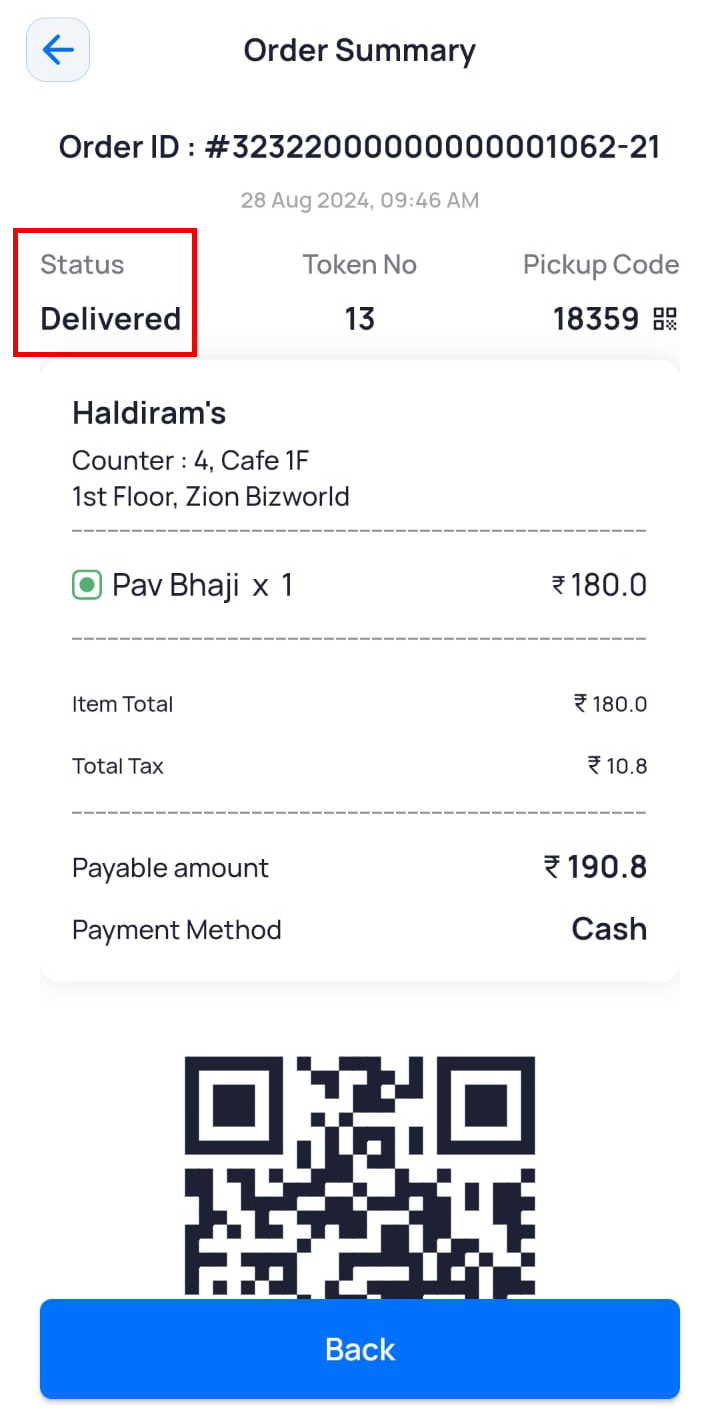
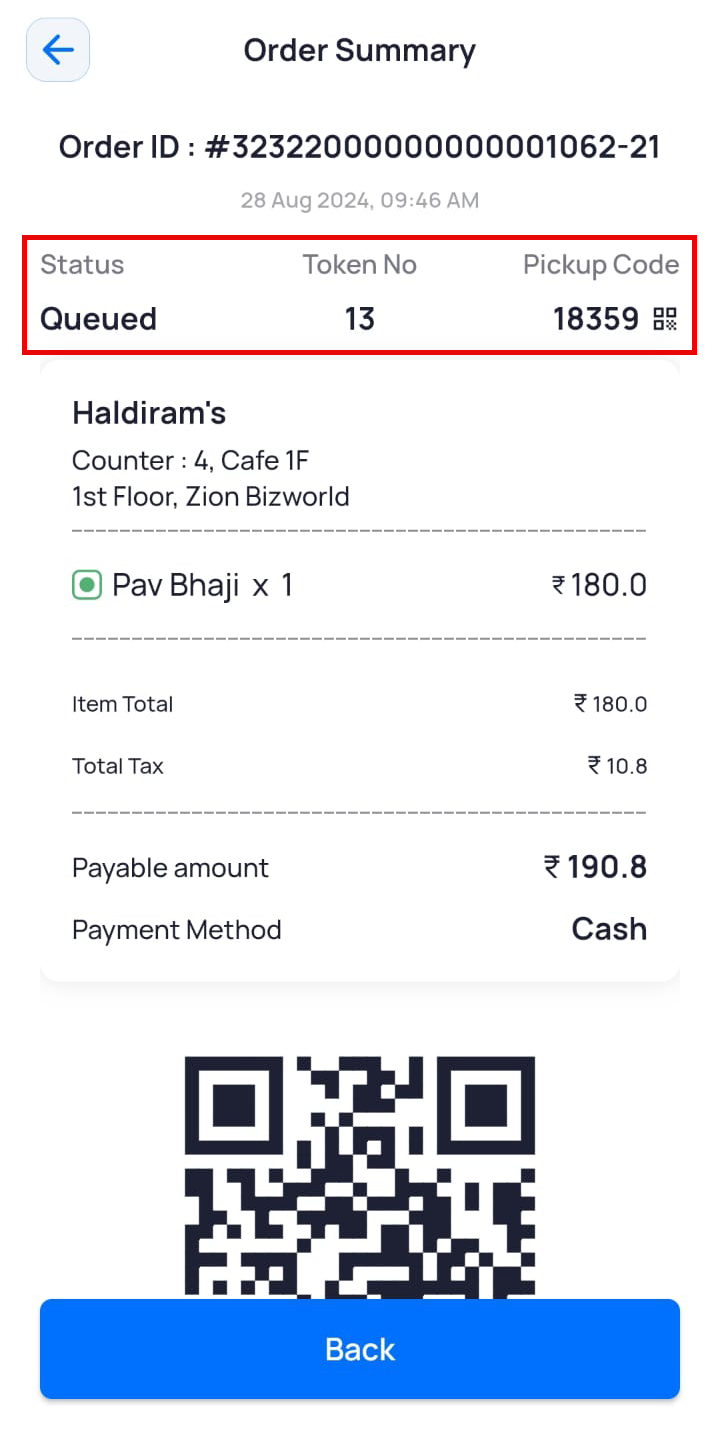
The Order Summary page displayed the status of your order.
Understanding Cafeteria Order Statuses
Here is a list of order statuses that reflect the progress of your placed order:
| Field | Description |
|---|---|
|
Queued |
Displayed when you place your order, and the cafeteria vendor is yet to process it. |
|
Accepted |
Displayed when your order is accepted by the vendor and the kitchen starts preparing your order. |
|
Ready |
Displayed when your order is ready to be picked up. |
|
Rejected |
Displayed when you order is rejected, because of unavailability of resources or any other issues. |
Picking up your Cafeteria Order
Once your order is processed and the status changes to Ready, you can pick it up from the counter number mentioned in the order details.
- On the Dashboard screen, under Today’s Activities, tap your order.
OR
On the Dashboard screen, tap Cafeteria, and under the My Orders tab, tap your order.
The Order Summary page is displayed. - To pick the order, give the numerical Pickup Code or show the QR code that the vendor can scan to confirm the correct order.
The order is marked as Delivered.