
The first step in the login process is to connect to your workplace with Apptimus application.
Note: If you are logging in for the first time or are unable to log in through the mobile app, try logging in from the web and then try from the mobile app again.
- Open the Apptimus app on your mobile device.
- On the Welcome screen, under Getting Started, enter your email ID.
- Tap Connect.
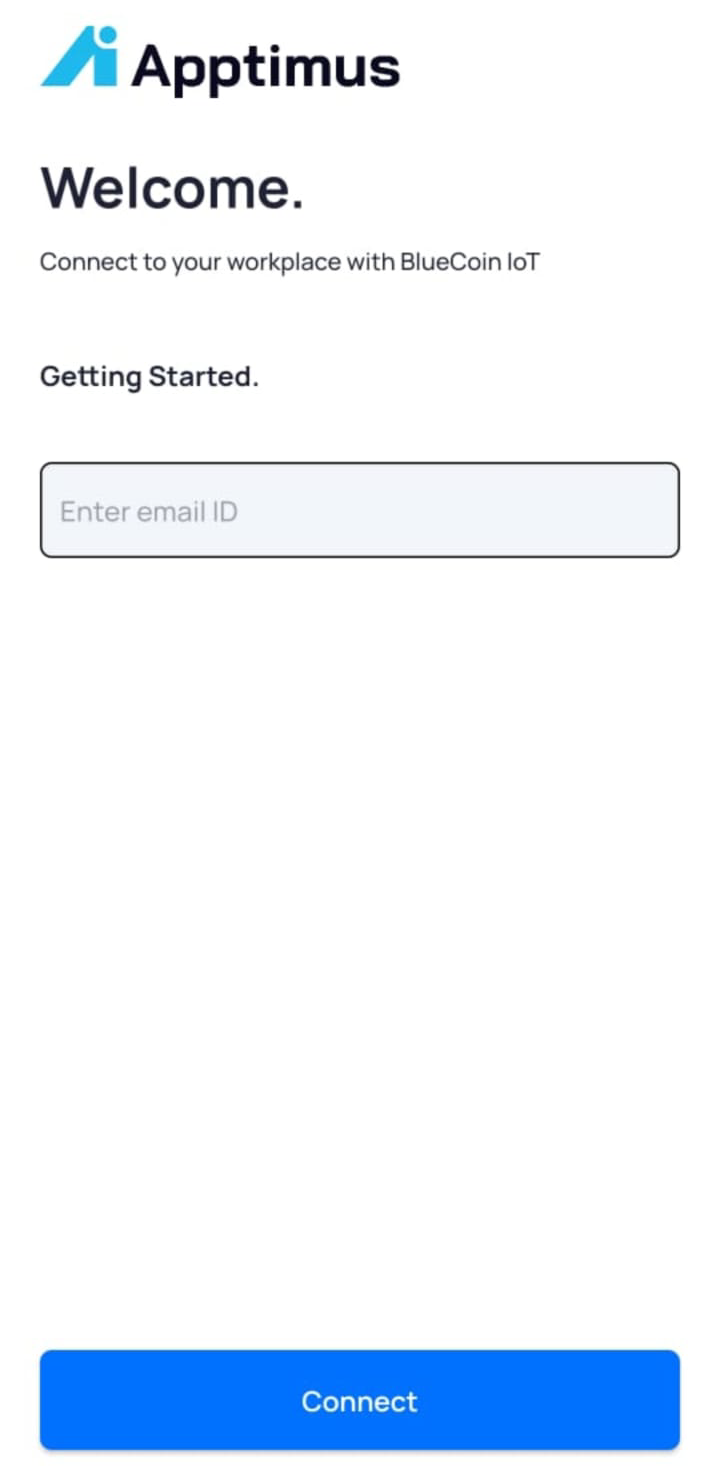
Once you are connected, you may be able to log into the app in the following ways:
Note: The Apptimus application supports multiple login methods, which are displayed on the Welcome page based on the configuration set by the administrator.
Using the Password / MPIN Login Option
This option is useful for employees of the organization using the Apptimus mobile application. With this option you can sign either using a password or an MPIN.
Note: The option to login using password or MPIN or both is displayed on the Welcome screen, as per the settings configured by the Admin
- To login with your password, on the Welcome page, under Sign In, tap the
 icon.
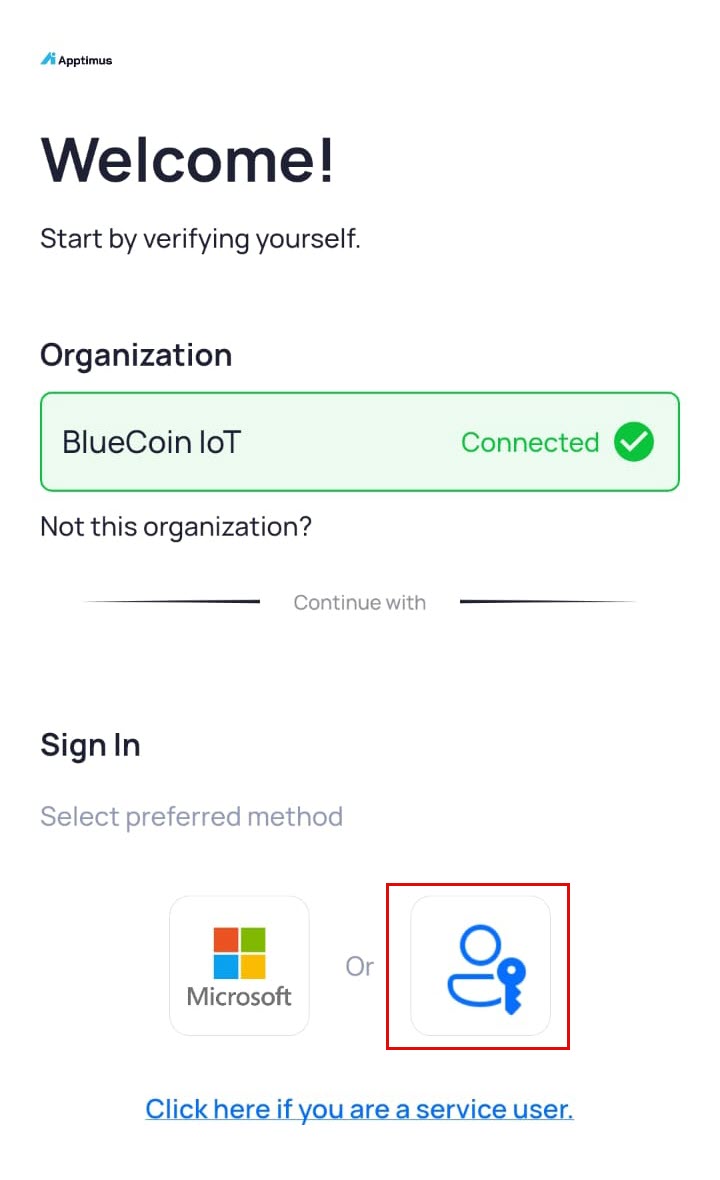
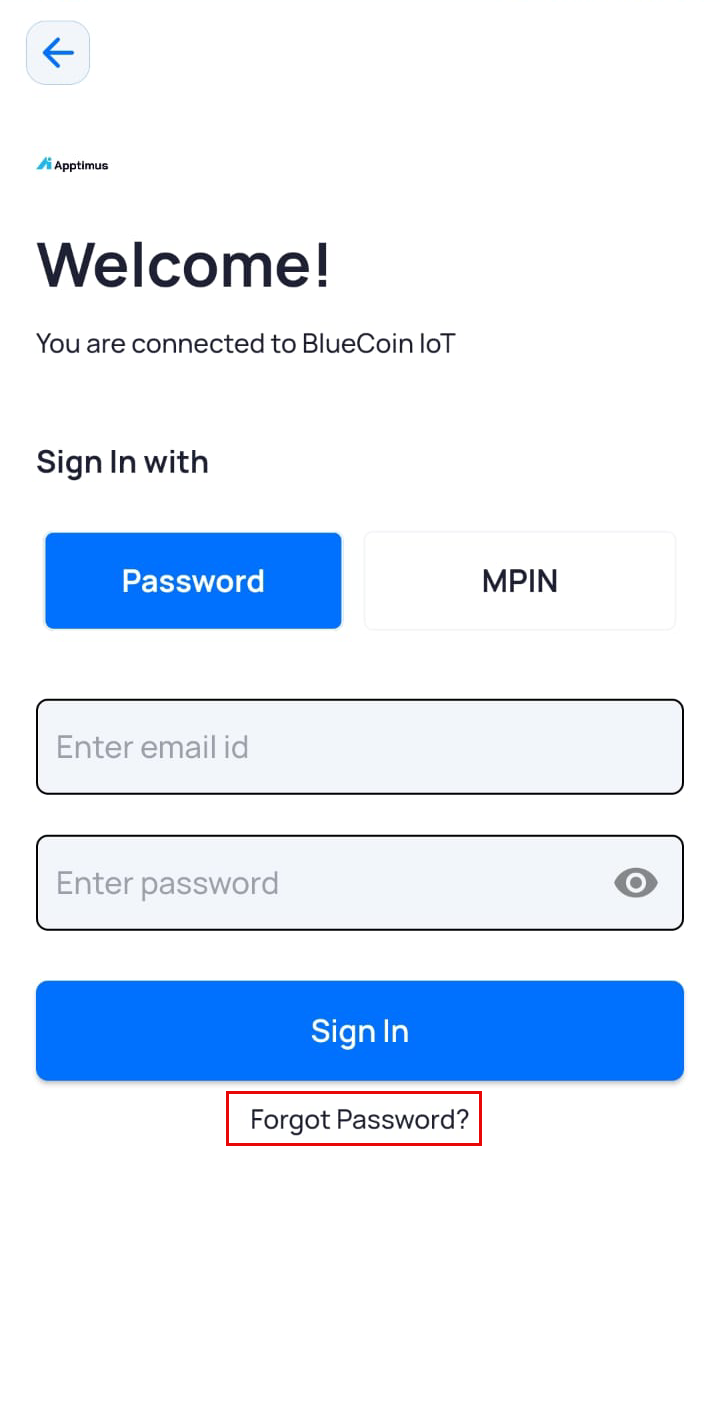
- Under the Password tab, which is open by default, enter your email ID and password. If you forgot your password, follow the instructions given here to reset it.
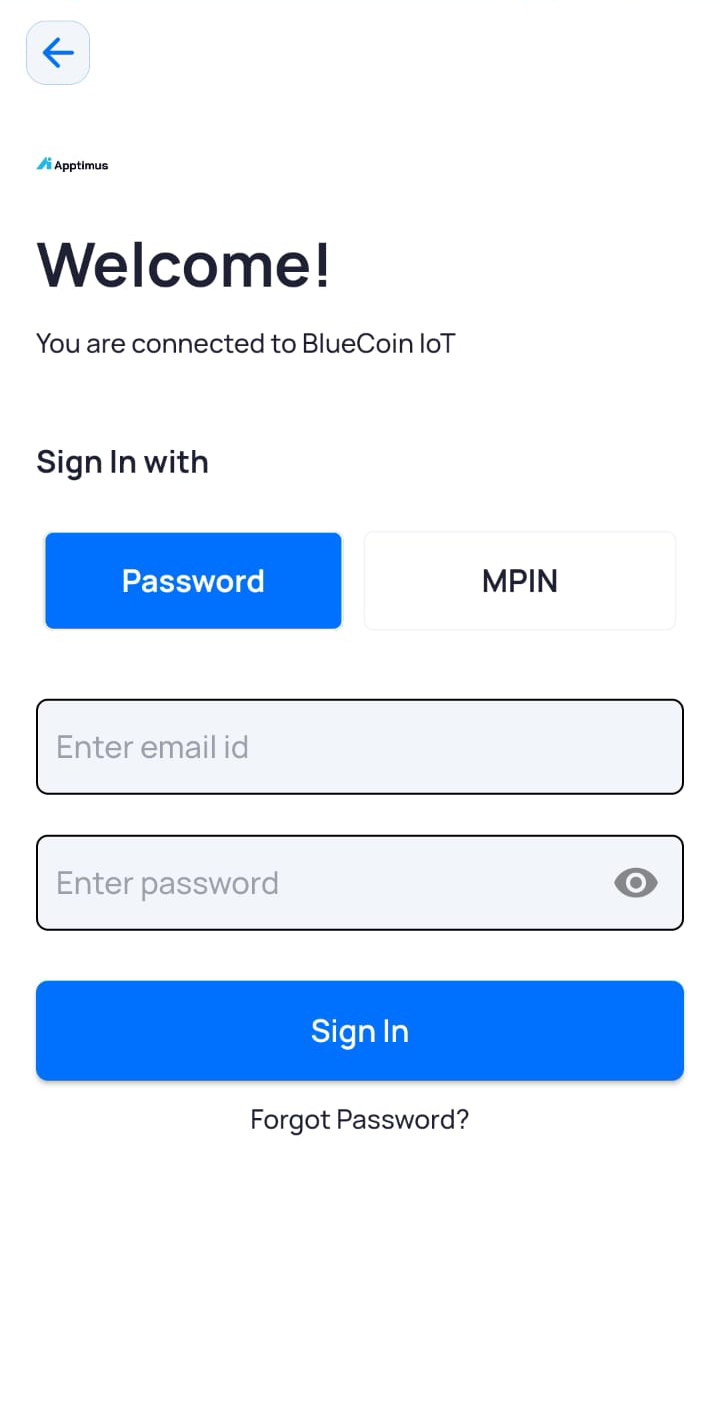
Note: Tap the
 icon to show the typed password. Tap
 to hide it.
- To login using your MPIN, tap MPIN and enter your email ID and the 6-digit MPIN.
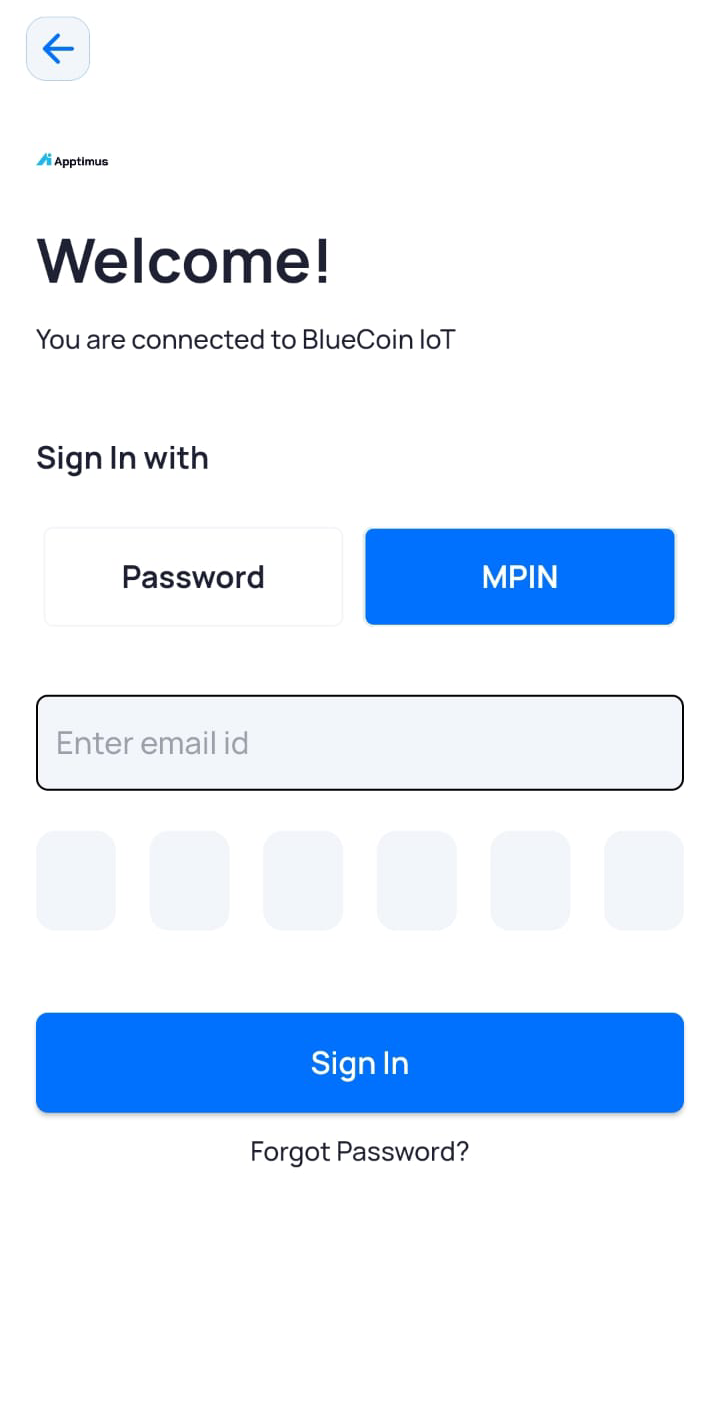
- Tap Sign In.
- On the Select Campus page, select the campus where you want to login in.
Note: This page is displayed only when you are logging in for the first time.
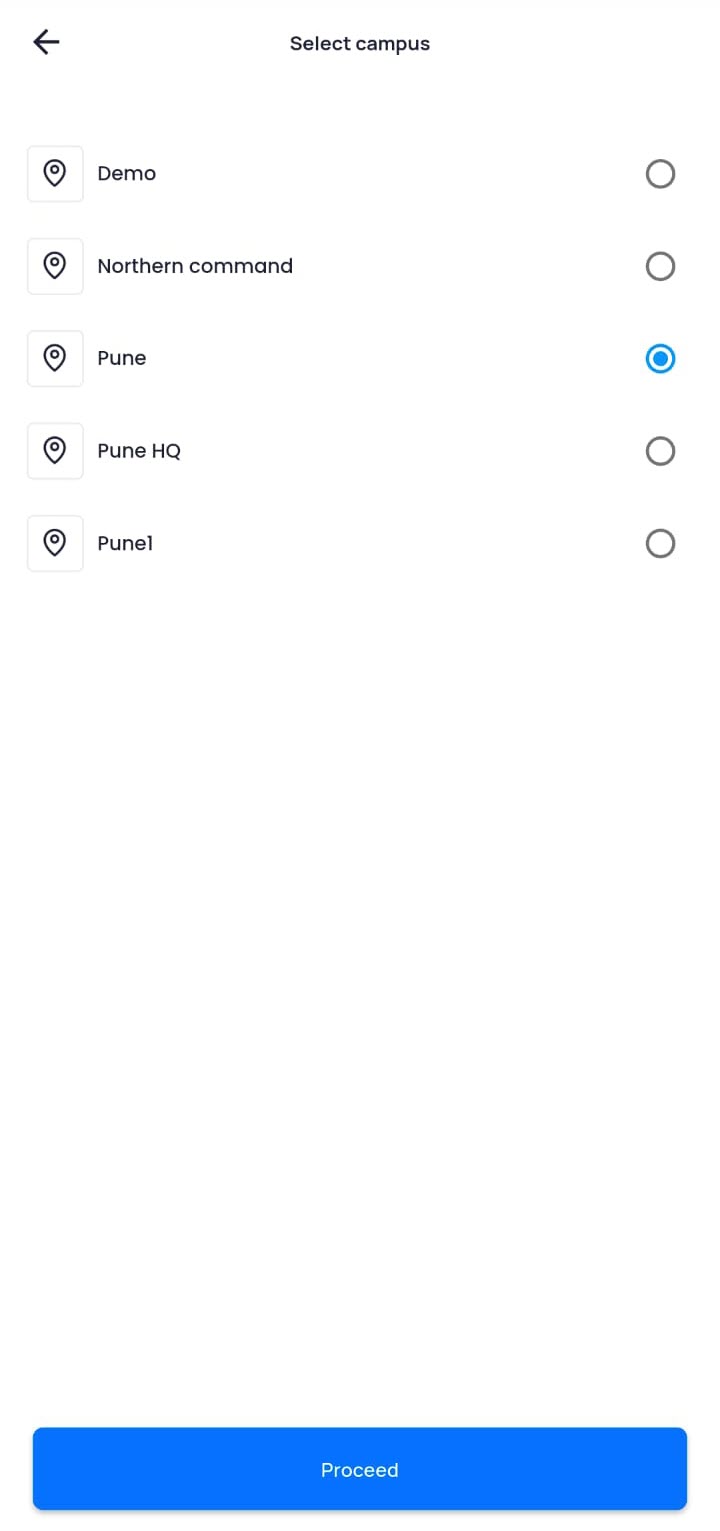
- Tap Proceed.
The Consent form is displayed.Note: The frequency at which the consent form is displayed to the user is according to the consent form validity set by the admin.
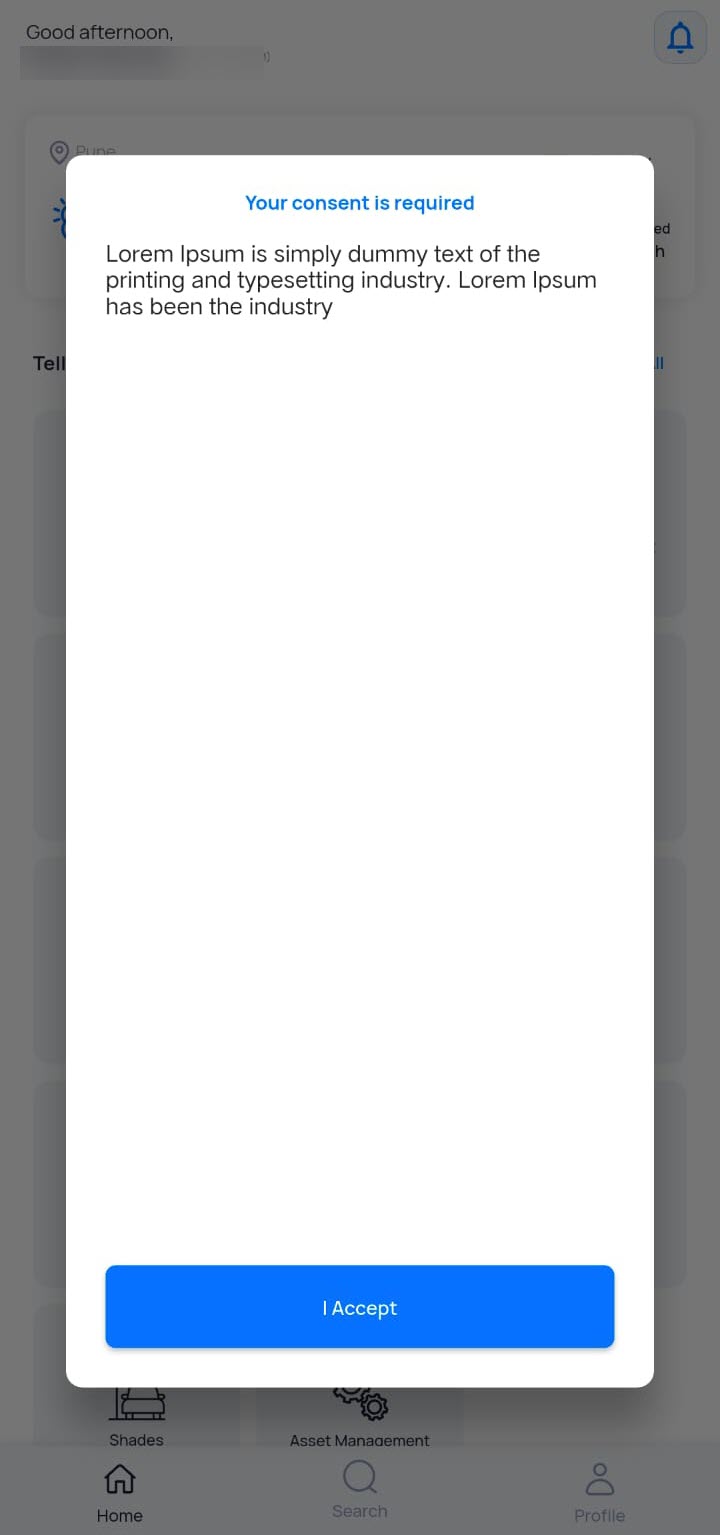
- Tap I Accept on the consent form.
The Dashboard screen is displayed.
Resetting Your Password
If you forgot your password, you reset it by following these steps:
Note: If you want to change your password after login, follow the steps described here.
- On the Welcome screen, tap Forgot Password.
- On the Reset Password pop-up, enter your registered email ID.
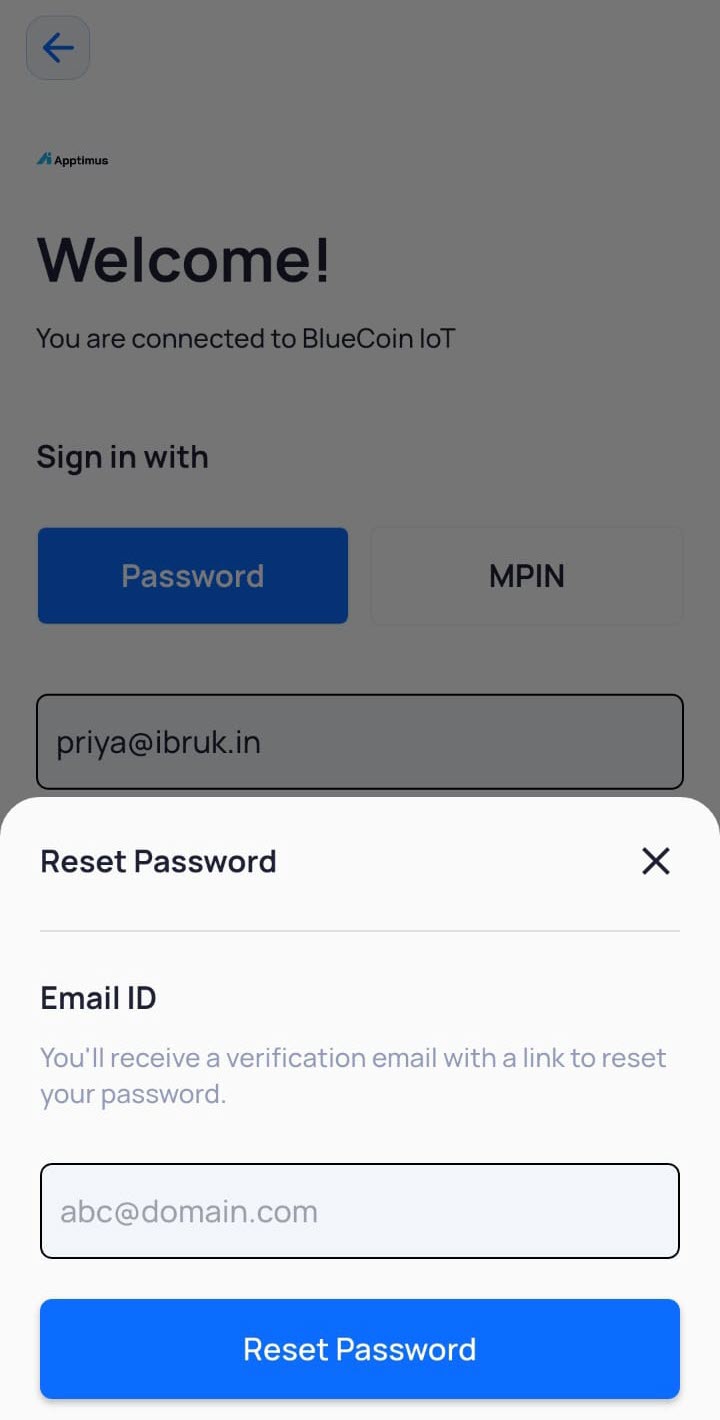
- Tap Reset Password.
A link is sent to your registered email ID for resetting your password. - Once the password is reset, you can login using the new password.
Using the Service User Login Option
This option is for those who are not employees of the organization, but vendors such as cafeteria, HVAC, Light vendors, and so on.
- On the Welcome screen, under Sign In, tap Click here if you are a service user.
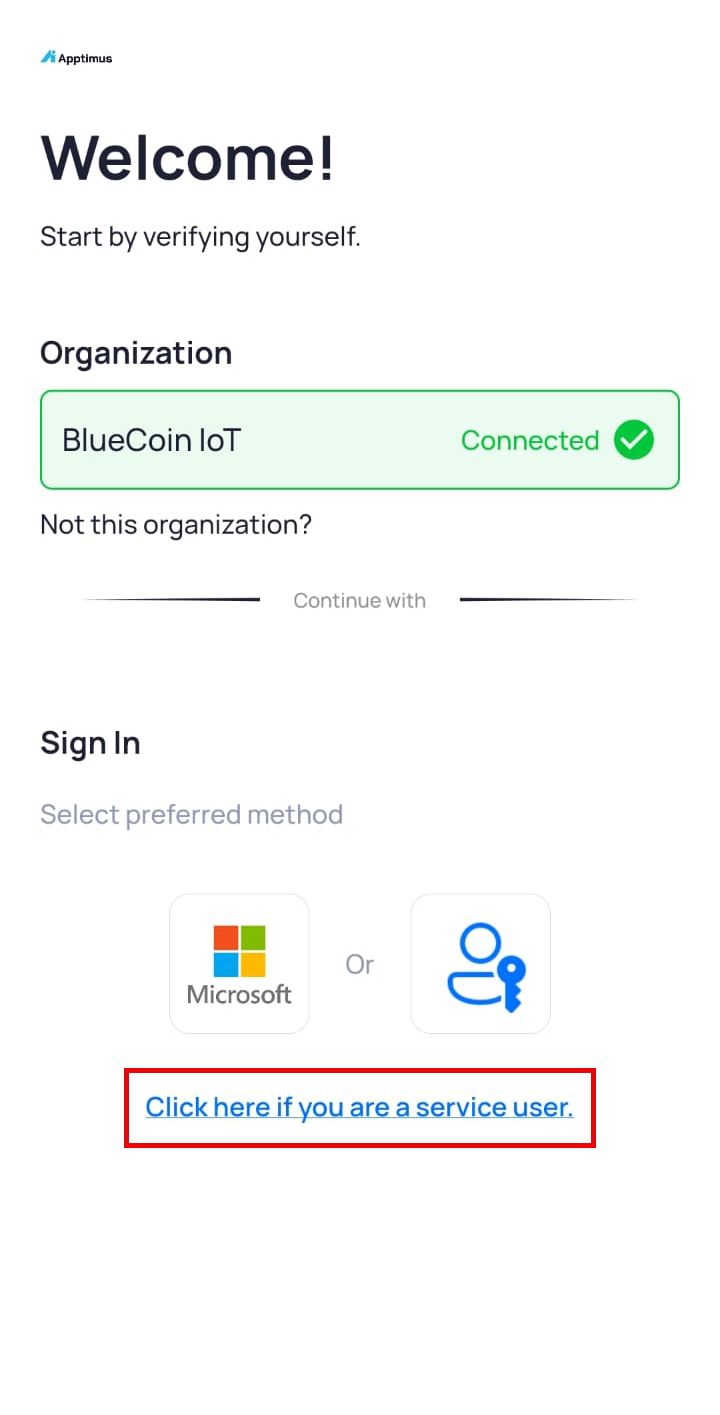
- Enter your Email / Username and password.
- Tap Login.
- On the Select Campus page, select the campus where you want to login in.
Note: This page is displayed only when you are logging in for the first time.
- Tap Proceed.
The Consent form is displayed.Note: The frequency at which the consent form is displayed to the user is according to the consent form validity set by the admin.
- Tap I Accept on the consent form.
The Dashboard screen is displayed.
Using the SSO Option
Employees of the organization also have an option to sign in using SSO. The SSO can be done either through the Office suite, G-suite, LDAP, SAML or any other SSO option that has been configured for your organization. For example, if you have integrated with Microsoft, the Welcome screen will display the Microsoft logo on the Welcome screen.
- On the Welcome screen, tap the SSO option.
Note: The icon displayed may vary based on the configured SSO provider.
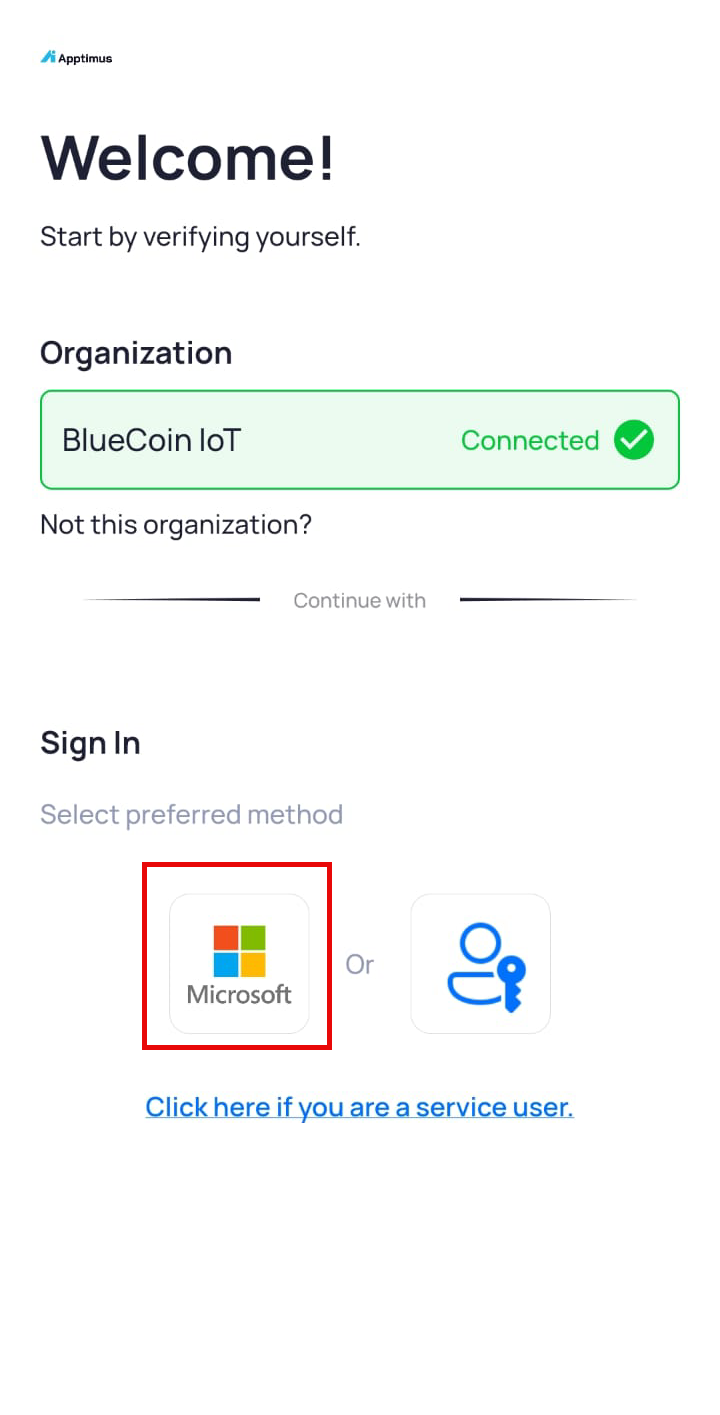
- Follow the steps for logging in.
- On the Select Campus page, select the campus where you want to login in.
Note: This page is displayed only when you are logging in for the first time.
- Tap Proceed.
The Consent form is displayed.Note: The frequency at which the consent form is displayed to the user is according to the consent form validity set by the admin.
- Tap I Accept on the consent form.
The Dashboard screen is displayed.
Using the 2-Factor Authentication Option
Two factor authentication may be enabled in some cases by the admin, which requires users to enter a One-Time Password (OTP) along with their primary credentials. The OTP is either sent to the email ID or phone number of the user or both (as configured by the admin).
- Use either the Password or MPIN option to login.
- Tap Sign In.
- On the OTP verification screen, enter the 4-digit OTP sent to your email/mobile (as configured by Admin).
- Tap Verify otp.
- On the Select Campus page, select the campus where you want to login in.
Note: This page is displayed only when you are logging in for the first time.
- Tap Continue.
The Consent form is displayed.Note: The frequency at which the consent form is displayed to the user is according to the consent form validity set by the admin.
- Tap I Accept on the consent form.
The Dashboard screen is displayed.