
An app must be registered on the Azure portal with the required permissions to allow access to the Bluecoin application for integration. The list of permissions to be configured along with the use-case are:
- User.Read - Required for Single Sign On to verify logged in user.
- offline_access - Required to verify user after Single Sign On.
- User.Read.All - Required to read all active users. This is required to automatically maintain the active users list on the application platform.
- Calendars.ReadWrite - Required to read and push the calendar events for meeting rooms configured in the application.
- People.Read.All - Required to give contact suggestions while adding the meeting invitees. Here are the steps to register an app on Azure.
Creating an App on Azure
- Login to Azure as the Office 365 Global Admin user.
- Search and navigate to the App registrations page.
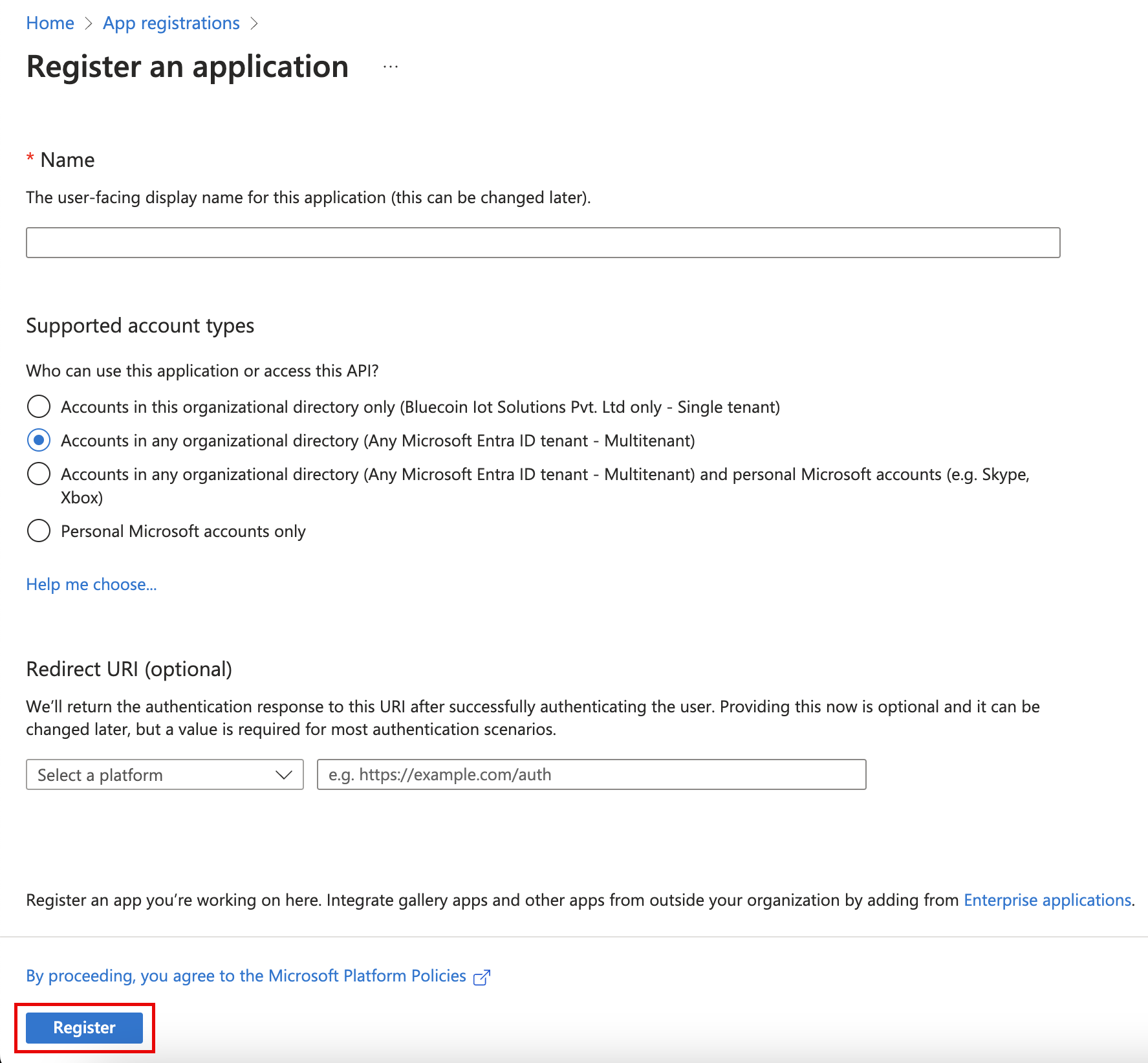
- To create a new registration for Bluecoin App access, click New Registration.

- On the Register an application page, enter Name for the app. For example: Bluecoin App.
- Under Supported Account Types, select Accounts in any organizational directory (Any Azure AD directory - Multitenant).
- Under Redirect URL (Optional), select Web and enter the Bluecoin Application portal URL. For example: https://orgna me.bluecoiniot.com
- Click Register.
Setting Up API Permissions
- To configure the API permissions, navigate to the registered app page (in this case "Bluecoin App").
Registered apps are available on the App Registrations page of Azure portal. - In the left pane, click API Permissions.
- On the API Permissions page, under Configured Permissions, click Microsoft Graph.
- Add a list of permissions from the options mentioned above as required.
For example, if SSO login and meeting room calendar integrations from the Bluecoin application are required, add permissions as given in the following image.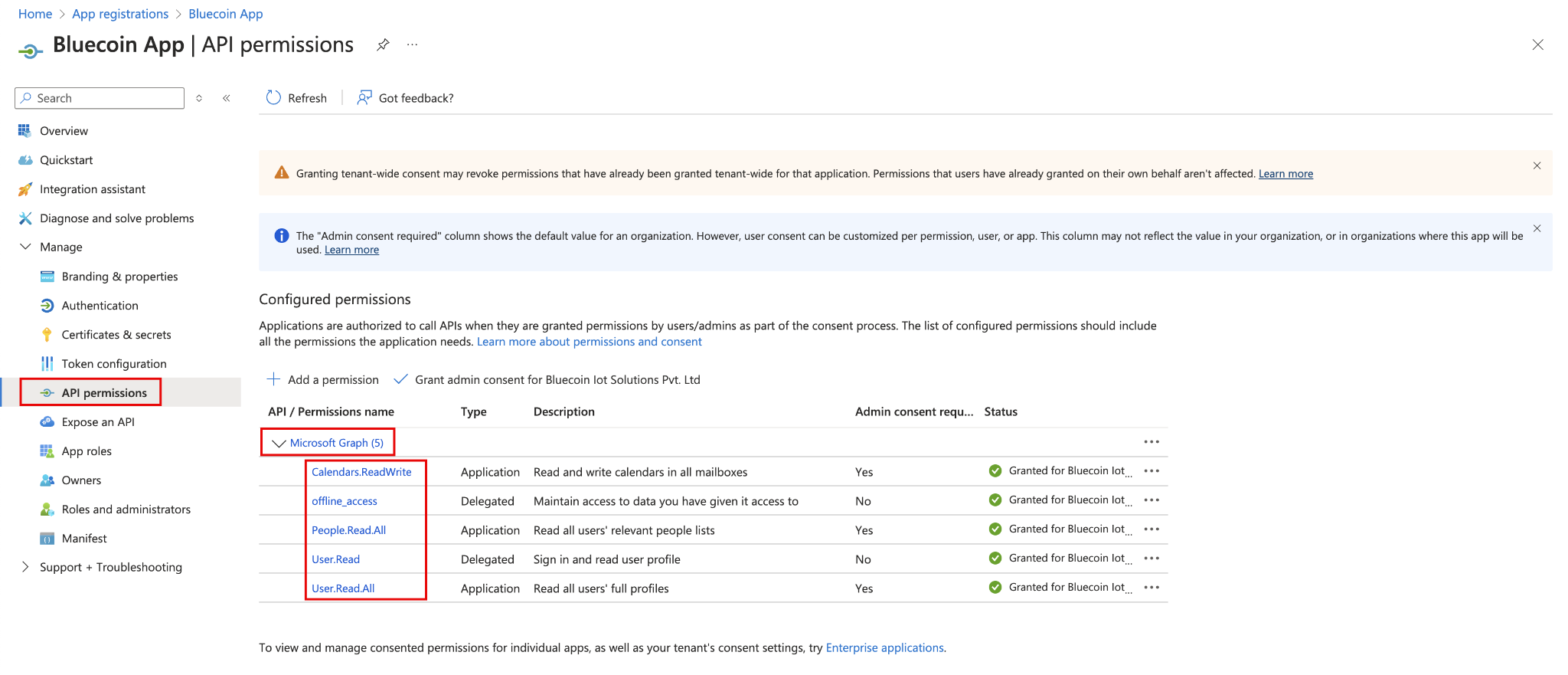
Setting Up the MPN ID
- In the left pane, click Branding & properties.
- On the Branding & properties page, under Publisher verification, set up the MPN ID.
This MPN ID is provided by the Bluecoin team. It suggests that Bluecoin has verified their identity using a Microsoft Partner Network account that has completed the verification process.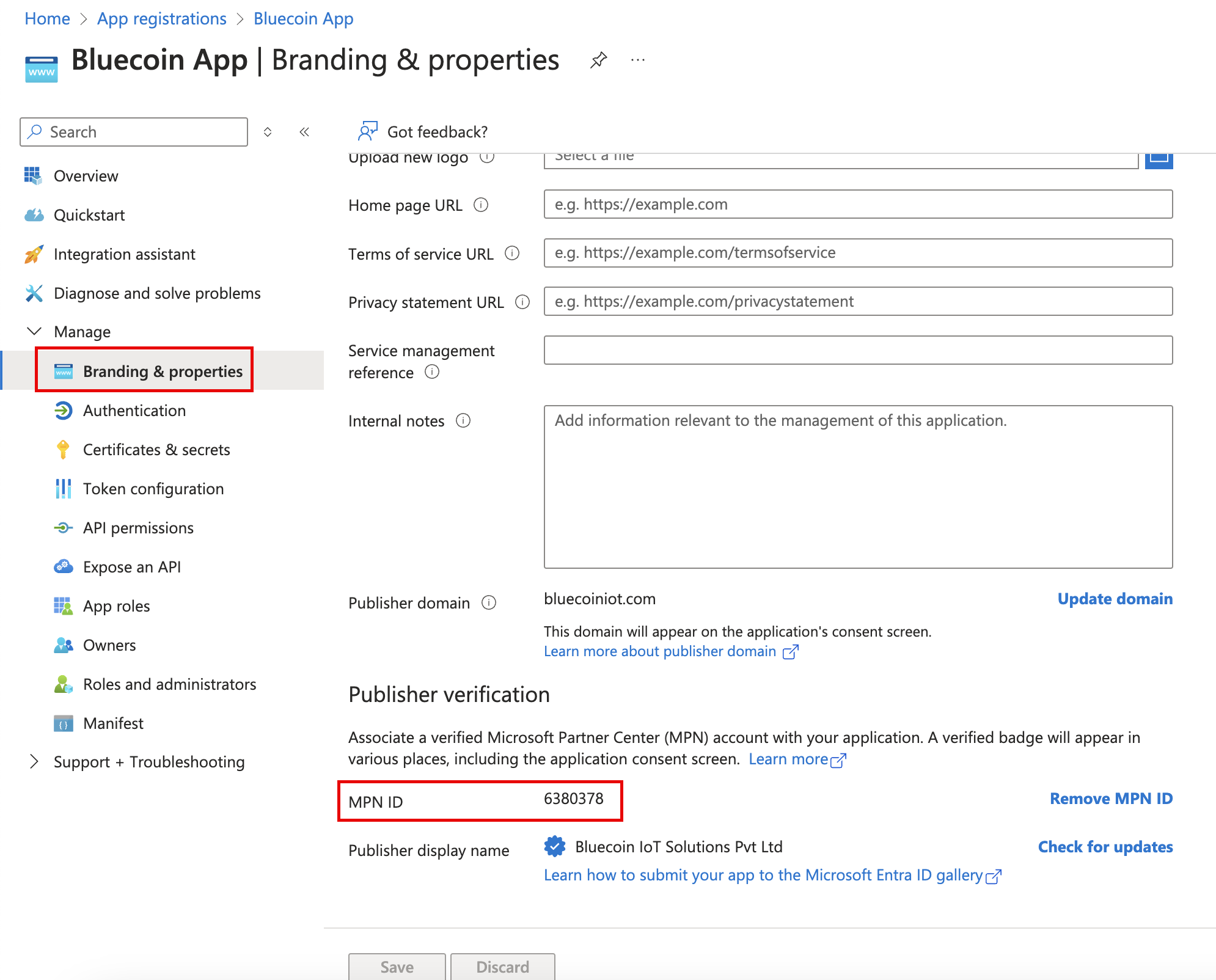
Generating a Secret Key
Secret key is required to access the Office 365 APIs from the Bluecoin application.
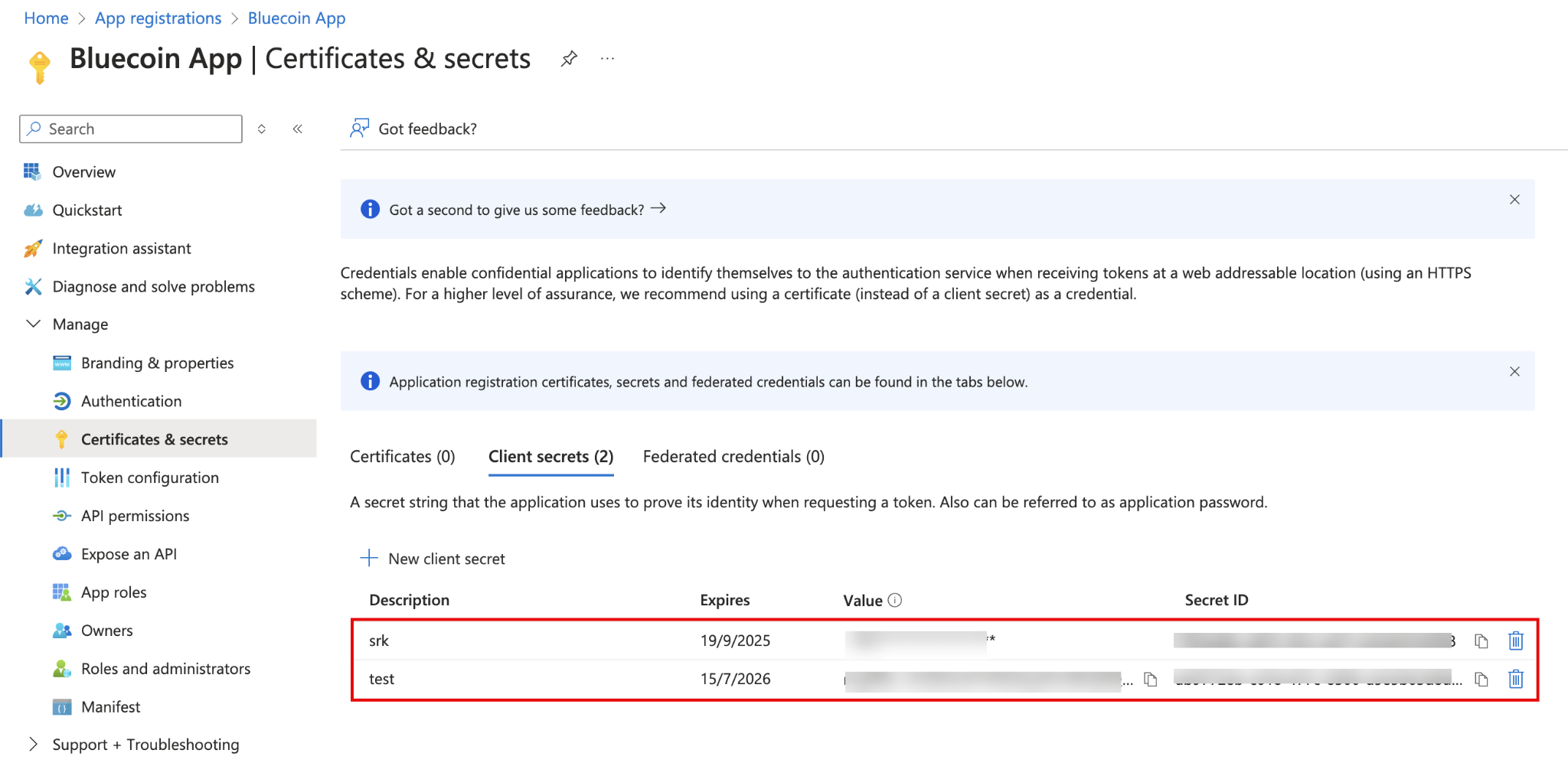
- In the left pane, select Certificates & secrets.
- To create a new secret key, on the Certificates & secrets page, under Client Secrets, click New client secret.
- To ensure that this key never expires automatically, in the pop-up window, select Never and then click Add.
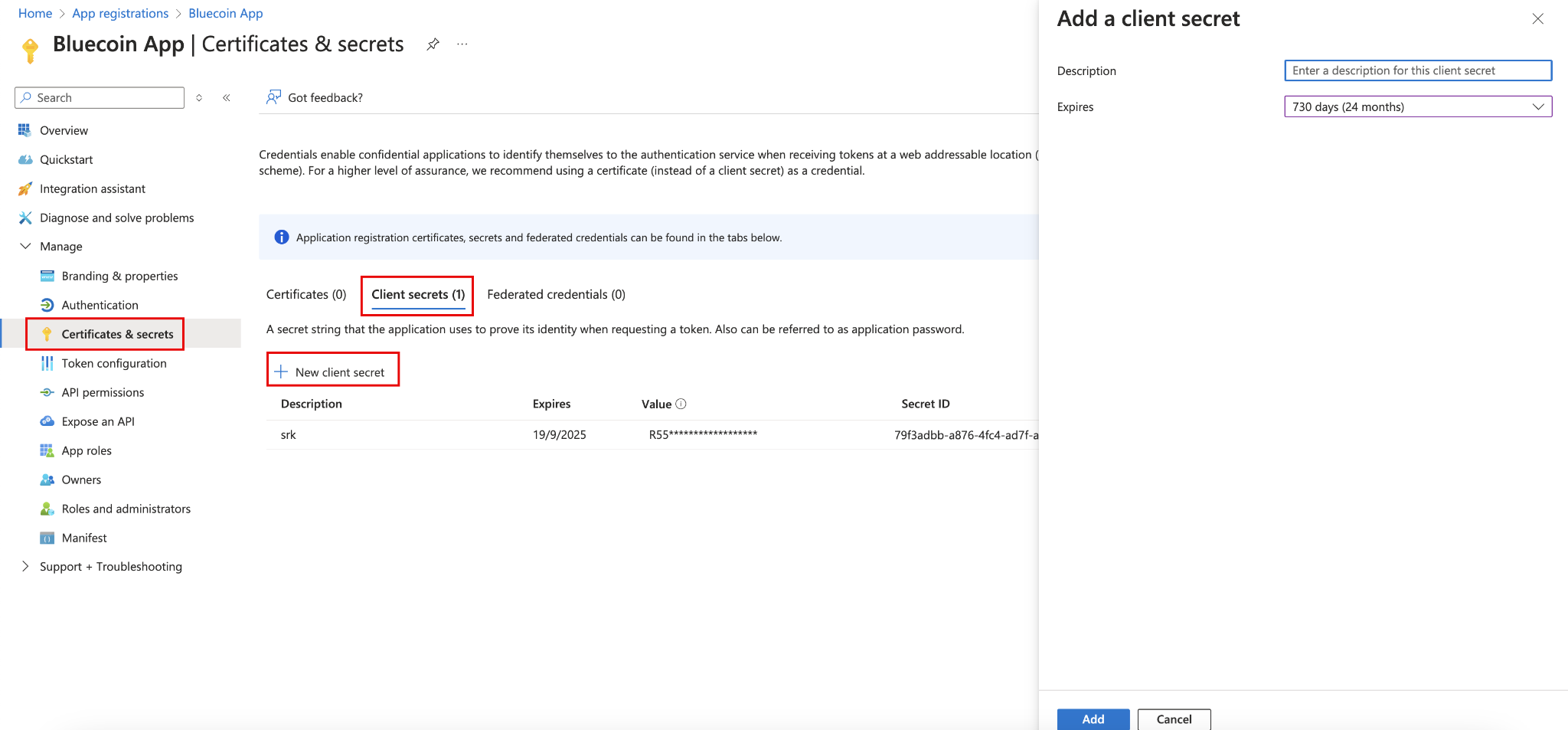
- Copy this key and keep it for later use on the Bluecoin application configuration page.
Getting the Application ID
- In the left pane, click Overview and copy the Application (client) ID to be later used on the Bluecoin application configuration page.
This covers the first part of setup, which is primarily registering the application with required access for Office 365 APIs.